REBEL DEZIGNS · TUTORIAL ARCHIVE
100% Cute
An original Photoshop tutorial by René Kunert (giZZY), rebuilt from the preserved archive.
Materials Needed:
- Template by Me
- Scrap kit by P&ADezigns called Victorian Elegance
- Tube by the artist of your choice. I am using Jose Cano. This tube was purchased from MyPSPTubes.com but is now available at PSPTubesEmporium!
Open your template in Photoshop.
If you want to resize, now is a good time. The template is in vector format so you will not loose any quality. If you decide to resize, some of the numbers in the tut will need to be adjusted.
Select the "back" layer and open paper6.jpg from the kit.
Use the move tool to move it directly onto your template.
Position it around center and then right click it. Choose Create Clipping Mask.
Select the "frame" layer and open paper16.jpg
Move it onto your template and center it. Create Clipping Mask again.
Select the "bars" layer and open paper2.jpg
Move it onto your tag and Create Clipping Mask again.
Now lets add some layer styles.
To access the layer styles, right click a layer and choose Blending Options.
Select the "frame" layer and add these styles:
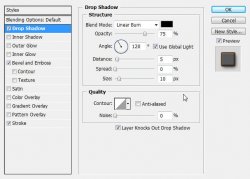
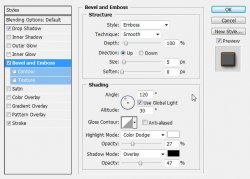
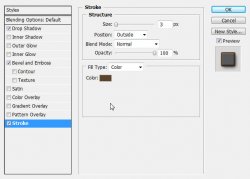
Select the "bars" layer and apply these styles:
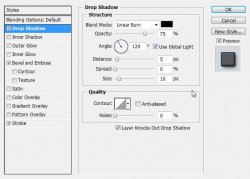
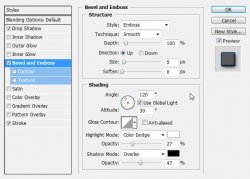
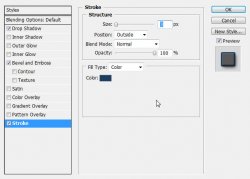
Select the "words" layer and apply these styles:
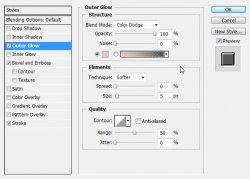
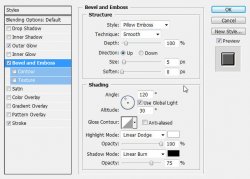
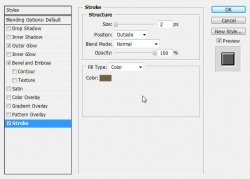
And now for the "100% Cute" layer:
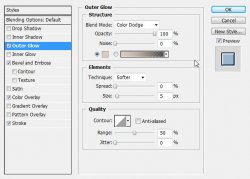
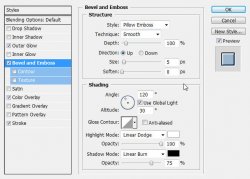
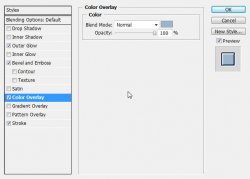
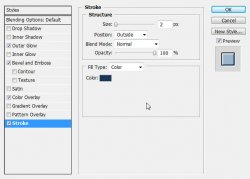
Now we need to adjust the canvas size so our elements fit on the tag.
Image > Canvas Size:
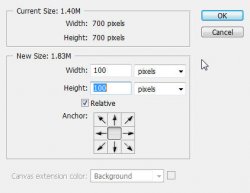
Now select the "words" layer and open flowerbutton2.png and place it on your tag.
Edit > Free Transform: (up at the top of the screen)

Duplicate this layer and hold Shift on your keyboard. Now hit the down key 12 times. (this # may need to be adjusted for your tag) This is called Nudging.
Duplicate this layer again and Nudge it down 12 times.
Duplicate it one more time and Nudge it down 12 more times.
Merge these four layers together. (Click the first flower layer, Shift + Click the last flower layer; right click and Merge Layers)
Double click the name on this layer and rename it to "buttons"
Give this "buttons" layer a drop shadow of choice.
Open bowA1.png
We are going to work with this separately from our tag for now. Do NOT move it onto your tag.
Go to Edit > Free Transform:

Now open satinbowcurl02.png and move it onto the other bow.
Edit > Free Transform:

Add a drop shadow of choice via the layer styles.
Now you will see an icon on the layer in the layers pallet that represents the layer style (should just be a small round button). Right click this icon and choose Create Layer.
Now select the "*'s Drop Shadow" layer and Right click it. Choose Create Clipping Mask. Now merge down. Select the curl layer and Merge down again.
Open the foldedribbon02.png and move it onto your bow. In the layers pallet, drag and drop it under your bow.
Edit > Free Transform:

Apply the same drop shadow as before to the bow layer. Create Layer (from the icon)
Select the shadow layer and Create Clipping Mask. Merge down.
Now merge your bow down.
Now you have a nice little cluster.
Move this cluster onto your tag.
Edit > Free Transform:

Now add a drop shadow of choice.
Ok now time to make another cluster.
(Now is a good time to close all the other papers and elements. Don't save any of them)
Open flower1b.png and Edit > Free Transform. Resize it by 50%.
Select > All
Layer > Align Layer to Selection > Left Edges
Do not deselect.
Duplicate this layer.
Edit > Transform > Flip Horizontal
Select > Deselect
Merge this layer down.
Open bowB1.png and move it onto the flowers.
Edit > Free Transform:

Give it a drop shadow.
Create layer (from the icon)
Select the shadow layer
Create Clipping Mask
Merge down
Now merge the bow layer down.
Open satinbow02.png and move it onto the bow/flowers image.
Edit > Free Transform:

Give it a drop shadow.
Create layer (from icon)
Select shadow layer
Create Clipping Mask
Merge down
Merge the bow layer down
Open the flowerbutton3.png and move it onto your cluster.
Give it a drop shadow.
Create layer (right click the icon)
Select the shadow layer
Create Clipping Mask
Merge down
Merge down the flower button layer
Now your second cluster is complete. Move it onto your tag.
Position it where desired and give it a drop shadow.
On to the final steps!
Open your tube.
Place it on your canvas and move it below your newly created cluster in the layers pallet.
Erase any portions of the tube that stick out from under it.
Give your tube a drop shadow (Alien Skin Eye Candy 5: Impact > Perspective Shadow is a good filter to use)
Add your copyright information now so you don't forget.
Now add a name to your tag and give it the same styles as the wordart.
Image > Trim
DONE!
Now save your tag as a .png or .jpg
And this is my result:
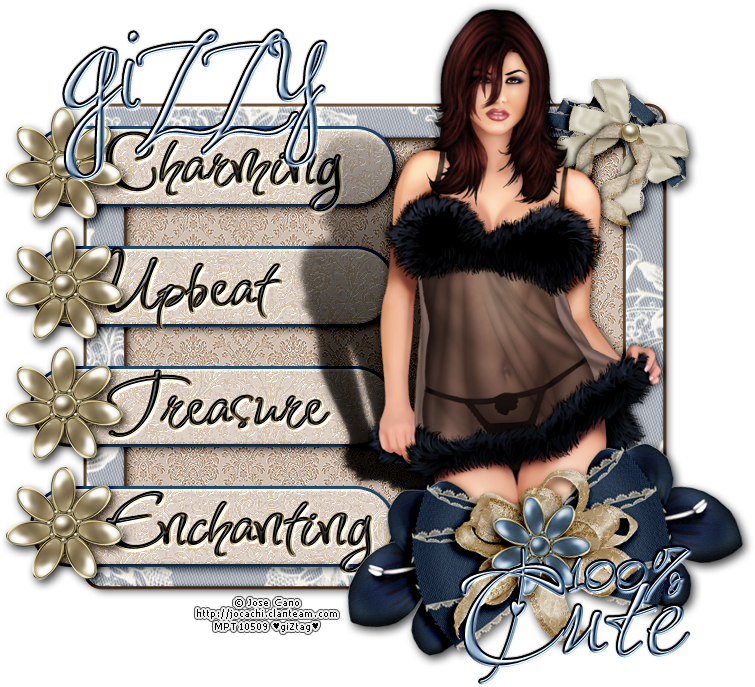
I hope you have enjoyed this tutorial! I would love to see your results.
Hosted by permission. Please link to this tutorial instead of redistributing it or its supplies.
Back to all tutorials