REBEL DEZIGNS · TUTORIAL ARCHIVE
Ain't no Angel
An original Photoshop tutorial by René Kunert (giZZY), rebuilt from the preserved archive.
Material Needed: My Styles (4 styles included)
Template
Tube of choice. I am using my own tube. Do not use this tube unless you have purchased it from PTE.
Open your template in Photoshop.
Note that all the layers are in vector format for easy resizing without quality loss.
Drag the styles into photoshop. This will automatically load the styles in your styles pallet. There are four styles included:
- Outer Shape
- Inner Shape
- Dots
- Words
Hide the layers "1", "2", and "3".
Apply the "Outer Shape" style to the "Outer Shape" layer.
Apply the "Inner Shape" style to the "Inner Shape" layer.
Apply the "Dots" style to the "Dots" layer.
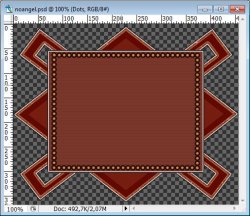
You should have something that looks like this:
Select your "Inner Shape" layer.
Add your tube and place it as desired. (drag the tube onto your canvas using the "Move" tool, simple as that)
CTRL+Click on the "Inner Shape" layer's thumbnail in your layers pallet. This will select the area of the shape. (this works just like the "float+defloat" option in Paint Shop Pro)
Now click on your tube layer and go to "Selections > Inverse". Then just hit delete on your keyboard.
Apply a drop shadow of choice using the blending options.
Now select your "Dots Mask" group.
Using your font of choice, write out the words "Ain't No Angel" (or any other words you would like)
Apply the "Words" style to that layer.
Add your name to the tag. Apply the same style to that layer.
Now to get rid of any unwanted parts outside of your canvas.
Select > All and Image > Crop. This will rid the parts of the tube that are outside the canvas that you cannot see. This makes a big difference when you save your image.
Ok, now that we have our tag layout, on to the fun stuff.
Open your animations window. Window > Animation
You will see that your first frame is already there.
Unhide your layer "1".
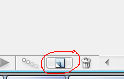
Now click on the icon that looks like a piece of paper in your animations pallet to duplicate the frame.
Hide the layer "1" and UNhide your layer "2".
Duplicate the frame again.
Hide the layer "2" and UNhide the layer "3".
Now you have your blinkie started.
Ok here comes a bit of a complicated part. We are going to animate the glitter without having to create new layers.
Select the second frame in the animation window.
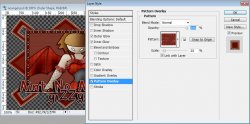
Double click (or right click) the layer styles on your "Outer Shape" layer to bring up the blending options. (in the layers pallet)
Go to the "Pattern overlay".
Now simply click on your image (without closing the blending options window) and drag the pattern to another spot. (note the placement of my cursor)
Now select your third frame and repeat the movement.
Now add any and all copyrights to the image.
You should now have 3 frames in your animation.
But you are not finished!
Now click the first animation frame. Hold shift and click the last animation frame.
At the bottom of each frame, there is a number. This is the frame delay. If it is set to 0, there will be no delay and your animation will be too fast.
To change this, simply click on the arrow beside the number and change it to 0.1 (make sure you still have all frames highlighted)
This will slow your animation down. (you may change it to any number you wish, including decimals)
To view your animation, simply click the play button.
Now to save your animation:
Go to File > Save for Web
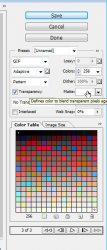
This will bring up a completely different save window than you are probably used to. Simply set everything like so:
Note that these settings are the ones that I use for the background of the posts of THIS forum.
And you are done! You have finally done an animation using Photoshop.
This technique seems a whole lot more complicated than using Animation Shop, but I do think your results will look tons more appealing.
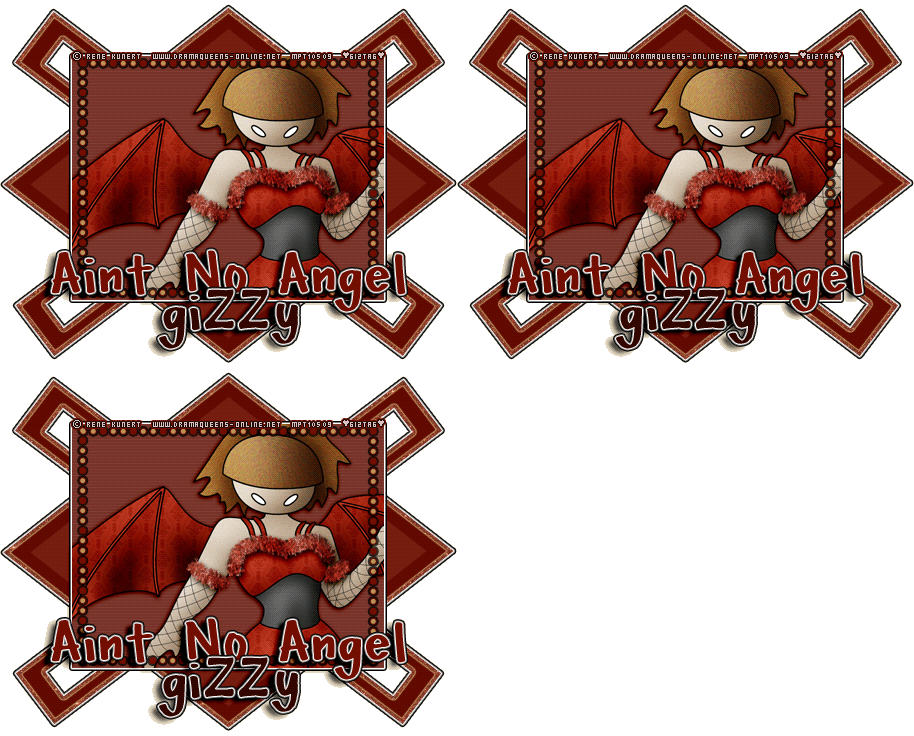
Here is my result:
I hope you have enjoyed this tutorial! I would love to see your results.
Hosted by permission. Please link to this tutorial instead of redistributing it or its supplies.
Back to all tutorials