REBEL DEZIGNS · TUTORIAL ARCHIVE
All Around Love
An original Photoshop tutorial by René Kunert (giZZY), rebuilt from the preserved archive.

Material Needed:
- Photoshop CS2
- Tube of choice. We are using the art of Elias Chatzoudis. This tube was purchased from MyPSPTubes.com but is now available at PSPTubesEmporium!
- Mask of Choice. I am using the mask from ButterflyFlutterby called BflyFlbyMask23. you may find it at her website: http://butterflyflutterbycreations.blog ... 20-30.html
- My Supplies
For this tutorial, we are going to be using the animation function of PS CS2. This may not work for other versions.
First things first. Drag the gradient into photoshop. It will automatically load in your gradients.
Now open the mask. Go to Adjustments > Invert. (If your version of photoshop creates a new invert layer, just merge it down at this point) Now double click your background layer to promote it.
Here comes the tricky part.
Select the entire canvas and copy it. (CTRL+C for windows users) then deselect.
Now we want to go into our quickmask mode.
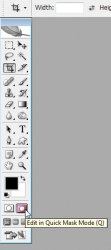
Now paste into the quickmask. (CTRL + V for windows users)
All the black areas of your image should now be red.
Now click the icon next to the one that you entered quickmask. Now just click delete.
This should leave you with only the black parts of the mask.
If you want to do this the quick way, there is a filter that will remove all white from your raster layers. http://morepunkinstuff.tripod.com/filters/Mac/mac.html
Ok now that you have your mask cleaned. Double click the layer to bring up the Blending Options. Or you can right click and choose it from the menu.
Apply the valentine gradient that I have supplied.
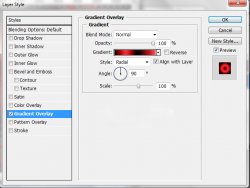
This should complete your background mask layer. On to the next round.
Open the Hearts.png. Copy and paste it onto your canvas. You can now close the hearts image.
If your hearts are not centered in your canvas, you can select all and then go to Layers > Align > Horizontal Center.
Repeat this, but this time choose Vertical Center.
You may add any drop shadows you wish to this layer in the Blending Options.
Ok here comes another tricky part.
Choose your Elliptical shape tool.
Make sure all of your settings are as shown:
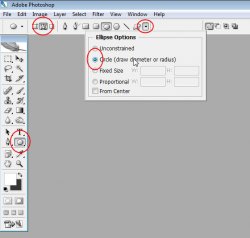
Now draw out a circle around the same size as your hearts. Don't worry if it is not perfectly center, that can be fixed in a few minutes.
Now choose your text tool. Using a script font of some kind, type out "Love" several times including a couple of spaces between each. Color does not matter at this point.
Make sure you are on the circle path and your cursor looks like this:
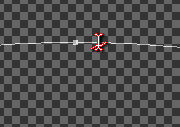 (red added for visibility) I used the font named Forte at 40px.
Now that you have your font. Center it in the canvas the same way you centered the hearts layer.
Now right click the layer to bring up the blending options.
Apply the Blending options as shown:
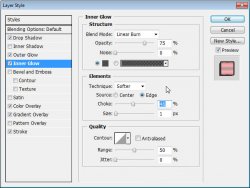
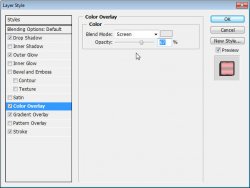
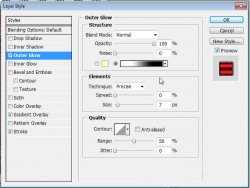
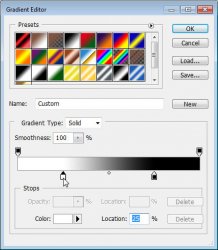
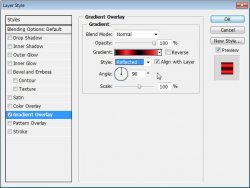
or you may download the style: http://www.rebel-dezigns.com/forum/tutorial_images/allaroundlove.asl
Now you may paste your tube in the center of your canvas and center it the same way as before. Add any drop shadow you wish.
Here is what you should have so far:
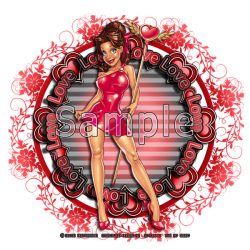
Ok now for some animation. This sounds complicated but it really isn't.
Make sure you have your Love Love Love... layer selected.
Let us do some math...
there are 360 degrees in a circle. Now we want to divide that by how many times the word love is in the layer. I have 10 times in mine so I will be rotating my layer by 36 degrees total.
Now how many frames do you want?
I want to keep mine small, so I will use 12 frames.
Now divide 36 by 12.
that would be 3.
So Now that the math is done... We will have 12 layers and rotate each layer by 3 degrees each.
Duplicate the layer and go to Edit > Free Transform.
Now up at the top you will see something like this:
Image coming soon
H = Horizontal
V = Vertical
And then there is a little angle. Put 3 in that box and click the check mark. This will rotate the layer by 3 degrees.
Ok now duplicate the newly rotated layer and repeat. Again by 3 degrees.
Once you have 12 layers, you can stop duplicating.
This will look a litte chaotic at first.
Now hide all the text layers except the first:
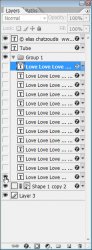
Ok make sure that you have your animation window open. You may do that by clicking the Window option in the menu and then choosing Animation.
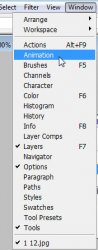
This will open your animation box at the bottom of the screen:
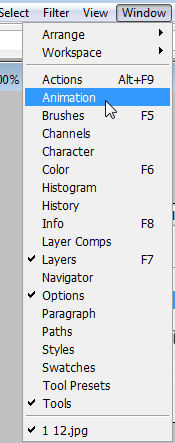
As you can see, you have your first animation frame already inserted.
To make a new frame, click the icon at the bottom of your animation window that looks like a piece of paper:

Now for the fun stuff.
After you have your new animation frame. Hide the first text layer and show the next highest.
Do this once for every text layer.
You should end up having 12 animation frames.
Ok you should have your animation! See how easy that was?
But you are not finished!
Now click the first animation frame. Hold shift and click the last animation frame.
At the bottom of each frame, there is a number. This is the frame delay. If it is set to 0, there will be no delay and your animation will be too fast.
To change this, simply click on the arrow beside the number and change it to 0.1 (make sure you still have all frames highlighted)
This will slow your animation down. (you may change it to any number you wish, including decimals)
To view your animation, simply click the play button.
Now to save your animation:
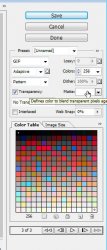
Go to File > Save for Web
This will bring up a completely different save window than you are probably used to. Simply set everything like so:
Note that these settings are the ones that I use for the background of the posts of THIS forum.
And you are done! You have finally done an animation using Photoshop.
This technique seems a whole lot more complicated than using Animation Shop, but I do think your results will look tons more appealing.
Here is my result:

I hope you have enjoyed this tutorial! I would love to see your results.
Hosted by permission. Please link to this tutorial instead of redistributing it or its supplies.
Back to all tutorials