REBEL DEZIGNS · TUTORIAL ARCHIVE
American Dream
An original Photoshop tutorial by René Kunert (giZZY), rebuilt from the preserved archive.
Materials Needed:
- Template by Me
- Scrap by LGDesigns called American Cowboy
- Tube by the artist of your choice. I am using one of my own tubes. Please do not use this image unless you have a license to do so.
This is not a really simple tag... so if you are not comfortable with using Photoshop for tag making, it is best to try one of the other tutorials here before attempting this one.
Open your template in Photoshop.
Select the "backing" layer and open paper15.jpg and use the move tool to move it onto your canvas.
Edit > Free Transform (look at the top of the screen and enter these values):

Now we want to move the vector mask from the "Backing" layer onto the paper layer.
Click on the vector mask of the "Backing" layer and drag it onto the paper layer:
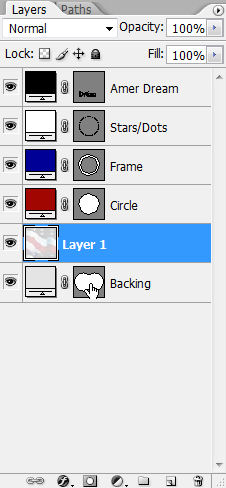
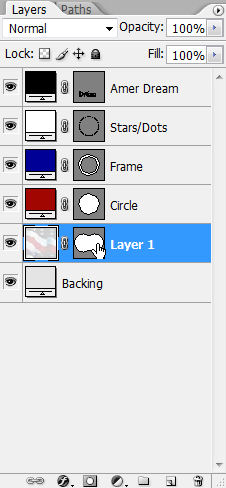
Delete the "Backing" layer. (right click > Delete Layer)
Double click on the NAME of your paper layer and rename it to "Backing".
Now select the "Circle" layer and open paper6.jpg
Move it onto your tag canvas.
Edit > Free Transform:
Now drag the vector mask of the Circle layer onto your paper.
Delete the "Circle" layer and rename your paper to "Circle".
Select your "Frame" layer and open paper9.jpg
Move it onto your tag canvas.
Edit > Free Transform:
Drag the vector mask of the "Frame" layer onto the paper layer.
Delete "Frame" and rename the paper layer to "Frame".
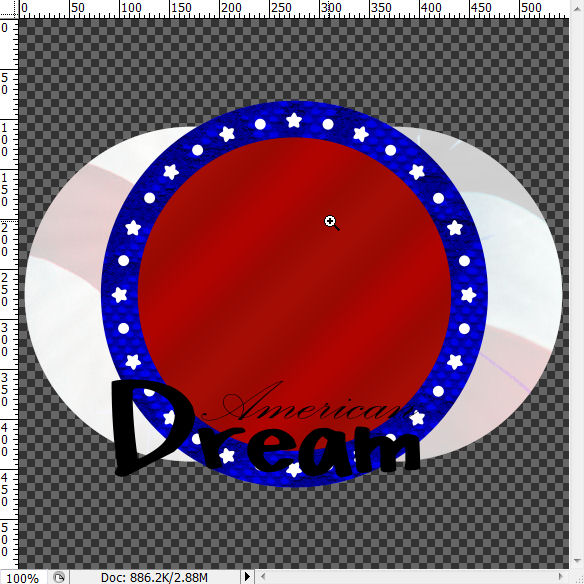
Here is what you should have so far:

Now let's add some elements.
Select the "Dots/Stars" layer and open RedFlower.png
Move it onto your canvas.
Edit > Free Transform:

Open BlueFlower.png and move it onto your canvas.
Edit > Free Transform:
Open the WhiteFlower.png and move it onto your canvas.
Edit > Free Transform:

Open Boot.png and move it onto your canvas.
Edit > Free Transform:

Open Hat.png and move it onto your canvas.
Edit > Free Transform:

Now we are going to create a Cluster out of these items so the drop shadows will be correct.
Right click the Hat layer and choose Blending Options.
Now add these layer styles:
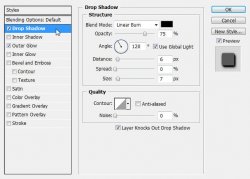
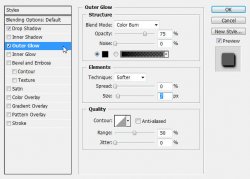
Now you will see on the layer there is now an icon attached to it:

Right click this icon and choose Create Layers.
Now your layers pallet will look something like this:
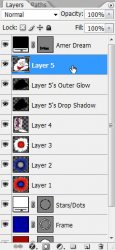
Now right click the "Layer 5's Drop Shadow" and Create Clipping Mask.
Do the same thing for the "Layer 5's Outer Glow" layer.
Now you will have something that looks like this:
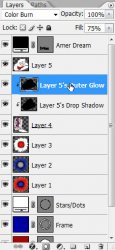
Right click the "Layer 5's Drop Shadow" and Merge Down.
Right click the "Layer 5's Outer Glow" and Merge Down again.
Now right click the Hat layer (Layer 5) and Merge down once more.
This order of merging down is VERY important.
We need to do this for each of the element layers.
Apply the same layer style to the newly merged layers. (This should be now "Layer 4")
Right click the icon and Create Layers.
Create Clipping Masks on the layer below:
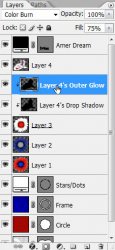
Merge them together just as before. Shadow, then Glow, Then the boot/hat.
Apply the same layer styles as before to the newly merged group.
Create Layers.
Create Clipping Masks.
Merge Down in the same order as before. (3 times)
When you get to "Layer 1" it should now be a complete cluster.
Rename this layer to "Cluster"
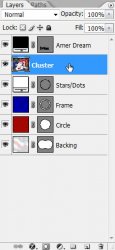
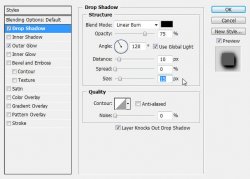
Now once more we are going to add a drop shadow to the cluster layer, but we want to make the shadow bigger:
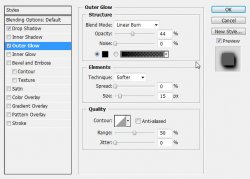
Ok, now we need to work on the wordart...
Select the "Amer Dream" layer and open ShadowCowboy.png and move it onto your canvas.
Edit > Transform > Flip Horizontal.
Edit > Free Transform:
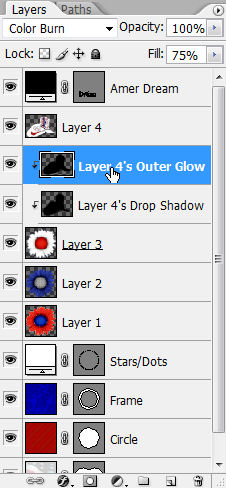
Apply this layer style to BOTH the cowboy and the wordart layers:
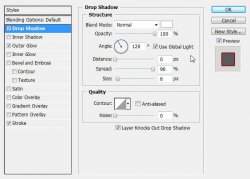
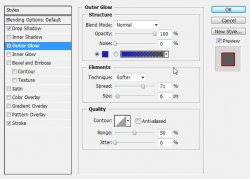
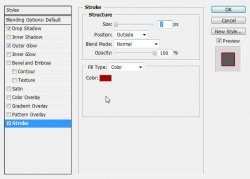
Now Click on the wordart layer and Shift + Click on the cowboy layer. (this will select both layers)
Now right click the wordart layer and Group into New Smart Object.
You can now either rasterize (right click) the layer or leave it as a group.
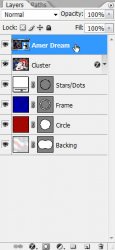
Now give it a drop shadow of choice.
Let's give the frame a layer style now:
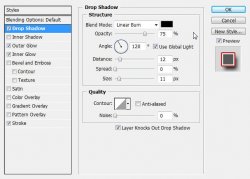
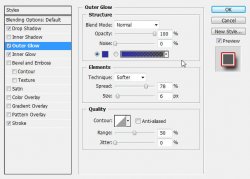
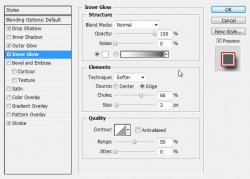
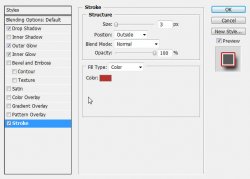
We can go ahead and add a name to the tag now.
Choose your type tool (the one that has a T on it)
Select the "Frame" vector mask. Just click on it in the layers pallet. You should now see the outline of the mask on the tag.
Now if you hover your type tool over it, the shape of the tool pointer will change.
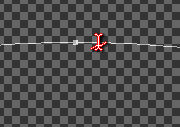
(Red added for visibility)
Click somewhere on this line and add the name.
To get the letters to not touch the frame, you can use the settings similar as shown here (found in the Characters window):
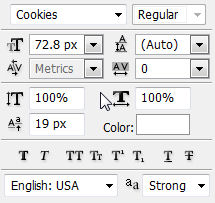
If you do not see this window on your screen, go to Window > Character.
Now add the same layer style as the frame.
Here is about what you should have so far:
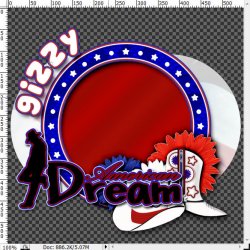
Select the "Dots/Stars" layer and open your tube.
Place it on your tag where you see fit and add a drop shadow of your choice.
Erase any part of the tube that is sticking out from under the cluster.
Copyright copyright copyright... Now is a good time to add it. I tend to forget if I don't do it RIGHT after adding the tube.
That is about it...
WAIT! Let's get rid of that extra space around it...
Go to Image > Trim.
OOOOO It's just like magic!
And that would be it!
Now just save your image as a .png or .jpg
And this is my result:

I hope you have enjoyed this tutorial! I would love to see your results.
Hosted by permission. Please link to this tutorial instead of redistributing it or its supplies.
Back to all tutorials