REBEL DEZIGNS · TUTORIAL ARCHIVE
Are You Irish
An original Photoshop tutorial by René Kunert (giZZY), rebuilt from the preserved archive.
It was suggested that I make a tutorial for this tag. Thank you for the lovely compliments Carita! 

Material Needed: Template
Tube of choice. I am using keith garvey. This tube was purchased from MyPSPTubes.com but is now available at PSPTubesEmporium!
These Patterns
Gills Sans Ultra Bold Condensed font (This is the font used in the template. You will need this font to open it properly.)
Open your patterns in Photoshop. On each, go to Edit > Define pattern... Name them to correspond to their names.
Now you can close your patterns.
Open your template in Photoshop.
You may choose to hide or delete the background layer now.
Now we are going to add some layer styles to our template to get our base for the tag.
Select your "masked layer" (at the bottom) and add these styles (right click the layer and bring up the blending options):
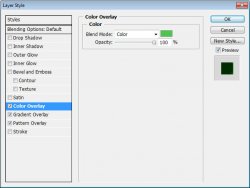
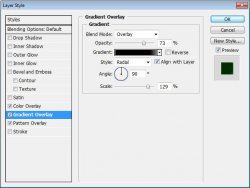
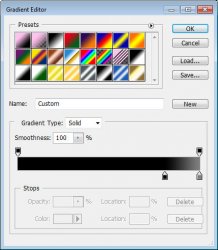
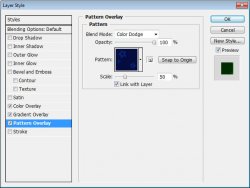
Now your "large circle" layer with these settings:
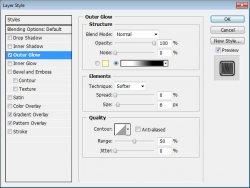
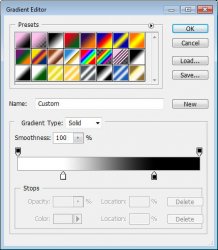
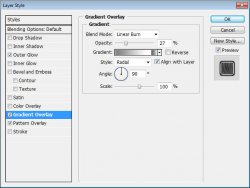
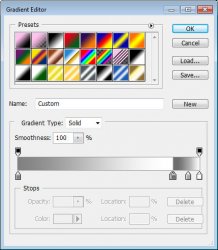
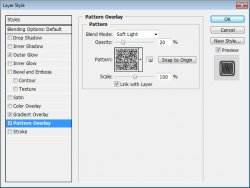
And on to the "clover band" layer:
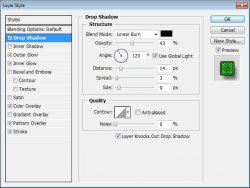
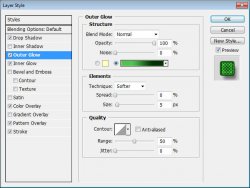
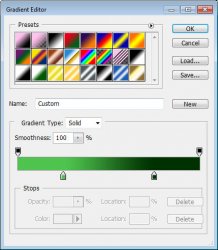
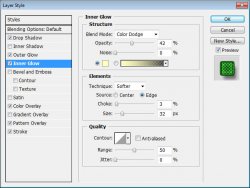
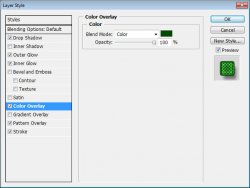
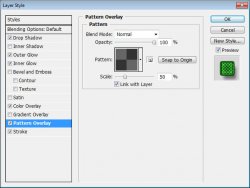
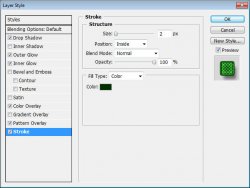
Apply this same style to your "large clover" layer.
Now for the "half circle outside" layer.
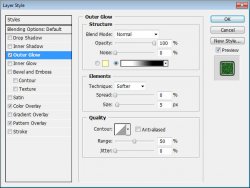
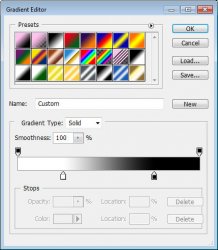
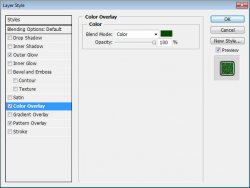
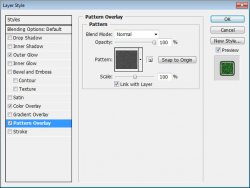
And the "half circle inside" layer's settings:
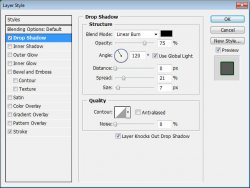
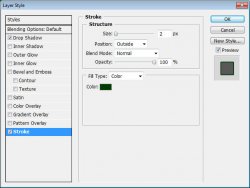
Now for the "Kiss Me" layer:
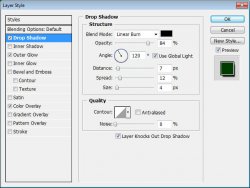
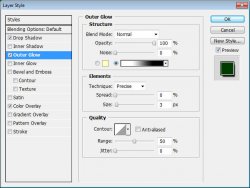
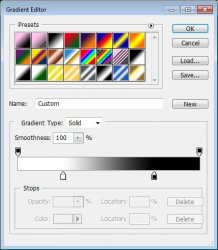
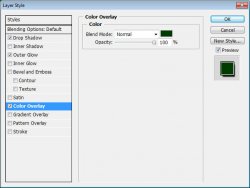
JUST ONE MORE TO GO!!!!
Last but not least, the "Are You Irish?" layer:
Just apply the same style as the "Kiss Me" layer.
 Tip
Tip
You can right click a layer to copy its layer styles. Then right click another layer to paste them on.
Ok here is what your base should look like so far:
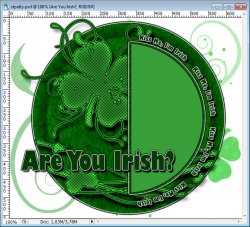
Select your "half circle inside" layer. (this is actually more important than it looks)
Now open your tubes. Preferably you have a closeup right? If not, you should use one that has it.

Using your Move tool, drag the closeup tube onto your canvas and position it over the half circle.
Now right click your tube layer and "Create clipping mask".
Drop the opacity of the layer to 50%
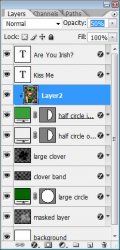
Then Using the move tool again, drag your main tube onto your canvas and position it opposite the half circle.
Add a drop shadow of choice using the blending options. You may also want to use the Alien Skin Eye Candy 5: Impact > Perspective shadow. But that is totally optional.
Add the copyrights to your image! This is important, don't forget!
Here is what I have so far:
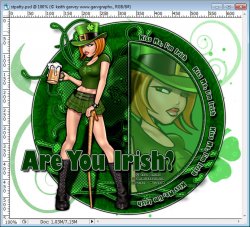
Now you may add a name or whatever else you would like to the tag.
Ok now on to the animation!
But for that, we must create a new layer.
Select your closeup tube layer (the one clipped to the "half circle inside" layer)
Create a new layer. Layer > New > Layer... Name it "stripes"
Now flood fill that with your stripes pattern. Look up in the top bar and you will see a drop down box that says "Foreground".
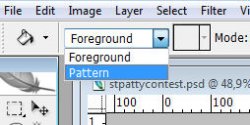
Now choose your stripes pattern from the pattern drop down.
Flood fill your layer.
Now right click it and "Create clipping mask".
This will cover up your tube image, but don't worry! We are about to fix that.
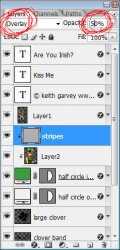
Ok now that we have everything we need, on to the animation.
Select your "stripes" layer.
Make sure your animation window is open. Window > Animation
You will see that your first frame is already there. Now click on the icon that looks like a piece of paper to duplicate the frame.
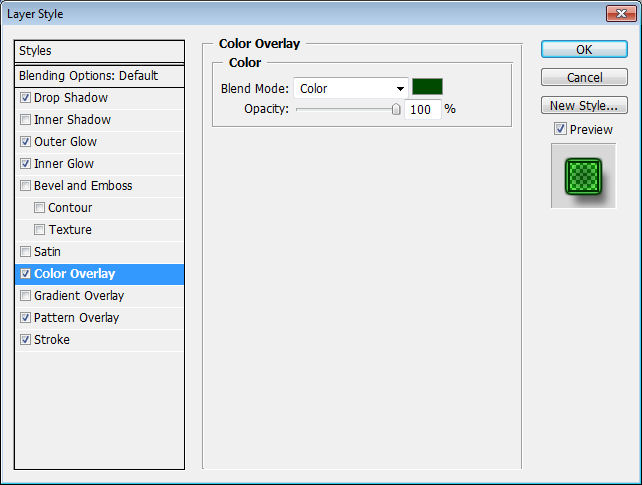
Grab your Move tool but do not move the layer by hand. Instead, use the arrow keys on your keyboard. Press the down key ONCE.
Now select your "half circle outside" layer.
Open the blending options and choose Pattern Overlay.
Do not change any settings. Instead, with the window still open, drag the pattern on your canvas. Just move it a little and click OK.
* Duplicate your frame again.
* Select your "stripes" layer and move it down again.
* Select your "half circle outside" layer and move the pattern overlay again.
Repeat those three steps until you have 4 frames.
We want to set the delay of the frames higher than 0.
Select all your frames. (click first frame, then shift+click your last frame)
Click the arrow beside the number at the bottom of one of the frames. Set this number to 0.07 (there is an "Other" option) You may also play with this setting to get the effect you want.
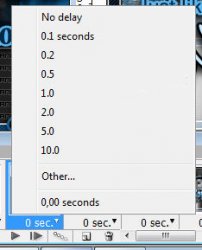
To view your animation, simply click the play button.
Now to save your animation:
Go to File > Save for Web
This will bring up a completely different save window than you are probably used to. Simply set everything like so:
Note that these settings are the ones that I use for the background of the posts of THIS forum.
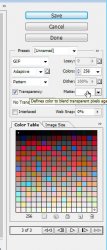
Here is what I have:
I hope you have enjoyed this tutorial! I would love to see your results.
Hosted by permission. Please link to this tutorial instead of redistributing it or its supplies.
Back to all tutorials