REBEL DEZIGNS · TUTORIAL ARCHIVE
Bad Girl Rock
An original Photoshop tutorial by René Kunert (giZZY), rebuilt from the preserved archive.
Materials Needed:
- Supplies Please do not redistribute.
- Scrap Kit: Blood Rose Freebie by P&A Dezigns. (freebie is under the preview)
- Swirl brush of choice. I have included one in the supplies.
- Two tubes by the same artist of your choice. I am using Nicolas Rivet. This tube was purchased from MyPSPTubes.com but is now available at PSPTubesEmporium!
Open your template in Photoshop. Delete or hide the © layer.
We are going to add a few layer styles to the template.
Drag your BadGirl.atn file into photoshop. Of course it will not actually open anything, but you will now find the styles in your styles window.
If you do not have the styles window open go to: Window > Styles
The styles are as follows: Bad Girl 1, Bad Girl 2, and Bad Girl 3. In that order.
Apply the Bad Girl 1 style to the following layers (just select the layer and then click the layer style in your styles window):
- Rectangle Frame
- Dots
- Small rect 1 Frame
- Small rect 2 Frame
- Bones
- Skull
- Skull Line
- Bones Line
Now select your "Small rect 2 Frame" layer and create a new layer. Layer > New > Layer. Name it "Brush".
Drag the badgirlbrush.abr into Photoshop. This will place the brush into your brushes pallet.
Now grab your paintbrush tool and apply the brush I supplied, or any other brush of your choice. Use a mid gray color.
Now apply the Bad Girl 3 layer style.
Select your "Rectangle" layer and open Paper17.jpg from the kit.
Use your move tool and just move it onto your tag canvas. Center it somewhat on your tag.
Now right click the paper layer and Create Clipping Mask.
Select your "Small rect 1" layer and open Paper14.jpg
Move it onto your canvas, center it, and Create Clipping Mask again.
Duplicate this layer and drag it to above your "Small rect 2" layer. Create Clipping Mask again.
Select your "Small rect 1 Frame" layer.
Open Paper11.jpg and go to Image > Adjustments > Hue and Contrast and apply these settings:
Hue: +25
Saturation: +20
Lightness: -50
Now move it onto your canvas and Create Clipping Mask.
Duplicate this layer and move it to above the "Small rect 2 Frame" layer. Create Clipping Mask again.
Select your "Skull" layer.
Open Paper18.jpg and move it onto your canvas. Now we don't want to use the purple part of the paper, so we want to move it to round about here:
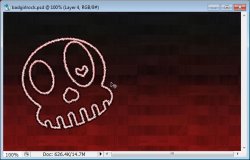
Now right click it and Create Clipping Mask.
Select your "Bones" layer and double click the color in the box in the layers pallet:
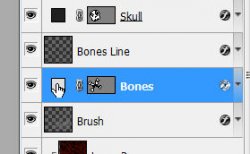
Change this color to a really really dark red.
Now to give the tag some elements.
Select the "Dots" layer and open gothbow08.png.
Move it onto your canvas and resize it to 80%. Edit > Free Transform. Put 80 in both the height (H
 and width (W boxes.
Use my tag as an example to place the bow.
Now right click it and choose Blending Options. Add a drop shadow of your choice.
Open Cross3.png and place it on your canvas. Resize it to 30% and position over your bow.
Go to Image > Adjustments > Hue and Saturation with these settings:
Hue: +80
Saturation: +30
Lightness: -10
Give it the same drop shadow as the bow layer.
Select your "Skull Line" layer and open Element9.png
Image > Adjustments > Hue and Saturation with these settings:
Hue: -30
Saturation: +20
Lightness: -15
Add the same drop shadow as before.
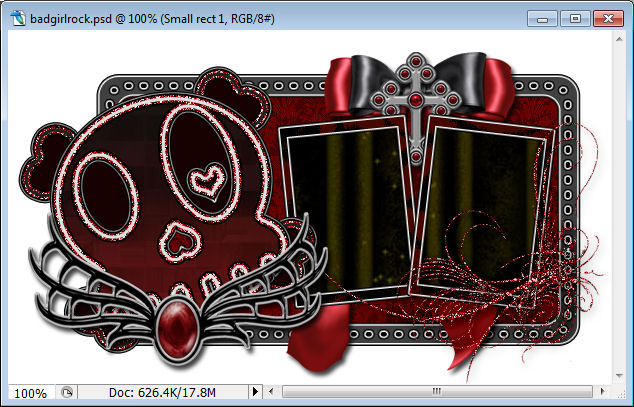
Here is what you should have so far:
Now open your main tube. Place it to the left over your skull. Add a drop shadow of choice. I have used Alien Skin Eye Candy5 > Impact: Perspective Shadow on mine.
Select the paper layer OVER your "Small rect 1"
Open your other tube. Position it over your rectangle and Create Clipping Mask.
Give it a drop shadow and duplicate it.
Go to Edit > Transform > Flip Horizontal. Edit > Free Transform and resize it to about 80% or so.
Now move this layer to above the paper layer clipped to the "Small rect 2" layer. Position it over the "Small rect 2" and Create Clipping Mask.
It is best to add your copyrights now so you don't forget.
Select the topmost layer of the tag.
Add a name and apply the Bad Girl 1 layer style.
Here is my tag so far:

If you only want a static tag without animation, you may stop here. If you would like to add the animation, please proceed.
Make sure your animation window is open. Window > Animation
You will see that your first frame is already there.
Now Create a new frame by clicking on the little icon at the bottom of your animations window.
Image coming soon
Steps Select the "Skull Line" layer and go to Stroke in the Blending Options. We will not be changing any settings.
Simply drag your mouse across the canvas to move the pattern.
Click OK.
Do the same thing with the "Bones Line" layer.
Now we want to do the same thing for the "Brush" layer. This time go to Pattern Overlay instead of stroke and drag the pattern across your canvas.
Duplicate the frame in your Animation window.
Repeat the steps outlined above.
You may make as many frames as you wish, though anything over 4 is sort of pointless.
Now we want to set the delay of the frames higher than 0.
Select all your frames. (click first frame, then shift+click your last frame)
Click the arrow beside the number at the bottom of one of the frames. Set this number to 0.08 (there is an "Other" option) You may also play with this setting to get the effect you want.
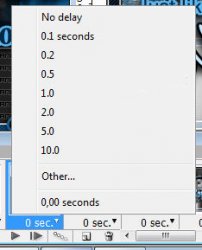
To view your animation, simply click the play button.
Now to save your animation:
Go to File > Save for Web
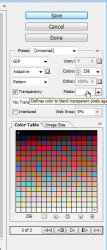
This will bring up a completely different save window than you are probably used to. Simply set everything like so:
Note that I have set the optimization of the tag to a blue background to match this site. You can change the color that transparent pixels are blended to in this window.
And this is my result:

I hope you have enjoyed this tutorial! I would love to see your results.
Hosted by permission. Please link to this tutorial instead of redistributing it or its supplies.
Back to all tutorials