REBEL DEZIGNS · TUTORIAL ARCHIVE
Be Mine
An original Photoshop tutorial by René Kunert (giZZY), rebuilt from the preserved archive.
Image coming soon
Material Needed:
- My Supplies: bemine.zip (do not supply or share these items anywhere else)
- Photoshop CS2 or higher
- Patience
Open a new 550 x 550 pixel canvas with a white background.
Open all the items from the zip file in Photoshop. Arrange the items as you wish. I have arranged mine like this:

Add any drop shadows you would like to any layers.
Add a name now if you wish.
Now you want to make sure you have your animation window open.
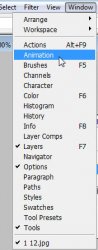
This will open your animation box at the bottom of the screen:

Now that you have your items ordered the way you want, it is time to start animating.
First off, set the OPACITY of your cupid layer to 0. This will make your cupid disappear, but don't worry, he will come back!
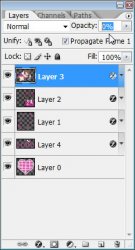
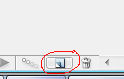
Now duplicate your animation frame by clicking the duplicate frame icon on your animation window:
Now set your opacity of the cupid layer to 25.
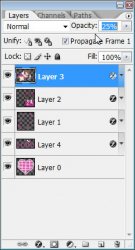
Once again, duplicate your frame and set the opacity of the cupid layer to 50.
One more time. Duplicate your frame and set the opacity of the cupid layer to 100.
Note that we have NOT duplicated any layers. Only frames.
Now we are going to make our cupid fly.
Duplicate your frame in the animation window.
Now using your move tool
 , Move your cupid to the other side of your canvas. Make sure that your drop shadow does not go out of the side.
Now select your frame 4. Just click on it.
Now look at your animation window and you will see an icon that looks like this:
This will tween your animation frames. (tween means to create a blending or moving effect with the next frame)
Click this and you will have a window pop up. Set it to look like this:
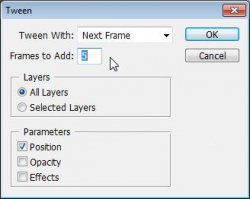
You should now have 10 frames.
Select your last frame and duplicate it.
Now again, set your cupid layer to 50% opacity.
Duplicate your last frame again and set it to 25% opacity.
Now select your first frame, hold shift and select your last frame.
We want to set the delay of the frames higher than 0, so click the arrow beside the number at the bottom of one of the frames:
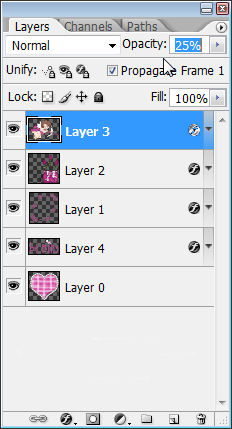
Set this number to 0.1 (you may also play with this setting to get the effect you want)
Here is what your animation should look like to here.
Image coming soon
Now you see that the animation is a little on the monotnous side. So to fix that, we are going to set the frame delay of the first frame to 2 seconds.
Do not select all frames. Only the first frame. Now click the arrow beside the number again and set it to 2.0
Your finished image should now look like this:
Image coming soon
To view your animation, simply click the play button.
Now to save your animation:
Go to File > Save for Web
This will bring up a completely different save window than you are probably used to. Simply set everything like so:
Note that these settings are the ones that I use for the background of the posts of THIS forum.
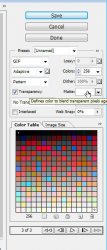
And you are done! You have finally done an animation using Photoshop.
This technique seems a whole lot more complicated than using Animation Shop, but I do think your results will look tons more appealing.
I hope you have enjoyed this tutorial! I would love to see your results.
Hosted by permission. Please link to this tutorial instead of redistributing it or its supplies.
Back to all tutorials