REBEL DEZIGNS · TUTORIAL ARCHIVE
Beauty is Art
An original Photoshop tutorial by René Kunert (giZZY), rebuilt from the preserved archive.
Materials Needed:
- Prepared mask(s) of choice. I am using one of my own which can be found here.
- Bundle kit from Rachel Anderson Package 20 available from Creative Design Outlet.
- It is best to use a tube from the bundle, but if you choose another tube, it MUST be from this artist. Remember, if you use these supplies, you MUST have a CDO license to do so.
I am going to assume you are using 2 masks as I am.
You have your masks prepared, right? Good.
Open a new 550x550 pixel image. (you can use any size, this is just my standard)
Background: White
Place your prepared masks on the canvas. (Just drag and drop them onto your new canvas)
Now lets make sure our masks are centered on the tag.
Select > All
Layer > Align Layers to Selection > Horizontal Center
Layer > Align Layers to Selection > Vertical Center
Select > None
Repeat for the other mask.
Now highlight the bottom mask in your layers pallet.
Open one of the papers from the kit and place it on your tag. (LHD_Anderson-20-Paper9)
Right click the paper in the layers pallet and choose Create Clipping Mask.
Right click it again and Merge Down.
Highlight the other mask in the layers pallet.
Open another paper from the kit and place it on your tag. (LHD_Anderson-20-Paper2)
Right click the paper in the layers pallet and choose Create Clipping Mask.
Right click it again and Merge Down.
For the elements, I am not going to go into vivid detail about what I put where.
You may use different elements or place them somewhat differently. Remember that each tag is different.
So instead, I am going to show you what I have done.
Remember that Edit > Free Transform is for moving, rotating, and resizing your elements.
Image coming soon
Note that the bow is somewhat different?
When I created my tag, I wanted the bow to flow a little better with the frame, so this is what I did:
Edit > Transform > Warp (red added to enhance visibility):
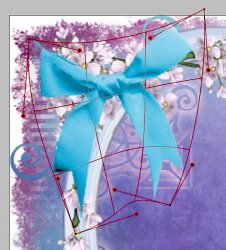
Now... I know this looks like a jumbled mess of stuff on a canvas, but I promise, it is getting better.
Highlight the round frame layer. (LHD_Anderson-20-Frame2)
Grab the Magic Wand tool and click on the inside of the round frame.
![[IMG]](assets/003-005-00ef61f7.jpg)
Selection > Modify > Expand: 5px
Layer > New > Layer...
Name this layer "Inside Round Frame"
Edit > Fill > White
Layer > Arrange > Send Backward.
Open a paper from the kit and place it on your tag. (LHD_Anderson-20-Paper1)
Right click the paper in the layers pallet and choose Create Clipping Mask.
Right click it again and Merge Down.
Now Highlight the Window layer.
Using the Magic Wand tool and click inside one section of the frame.
Hold the SHIFT key and click inside the other sections of the frame.
Selection > Modify > Expand: 5px
Layer > New > Layer...
Name this layer "Inside Window Frame"
Edit > Fill > White
Layer > Arrange > Send Backward.
Open a paper from the kit and place it on your tag. (LHD_Anderson-20-Paper7)
Right click the paper in the layers pallet and choose Create Clipping Mask.
Right click it again and Merge Down.
You should now have something like this:

Shadows... Shadows are EVERYTHING when tagging.
Let's NOT go with the standard 5x5 pixel shadow set at multiply... because let's face it folks, that shadow is boring...
So instead, we are going to play around with layer styles to get a really nice shadowing for our tag.
Right click the layer in the layers pallet and you will see "Blending Options..."
Ok, first off, remember that each element is different. The same shadow doesn't work for every single layer.
Large elements such as the bow need a large chunky shadow, where the delicate flowers at the bottom require a more crisp shadow.
So let's get to work on that, shall we?
Ok... for the larger layers such as the frames, the bow, green branch, and the paintbrushes, we are going to use this one:
(feel free to adjust it to your preferences)
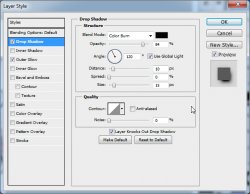
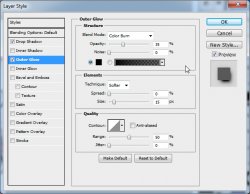
For the flower layers, we are going to use this one:
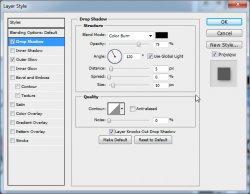
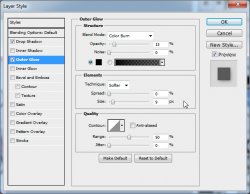
Don't put a shadow on the sparkle layer. Instead, we are going to make it glow:
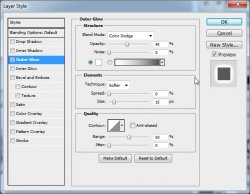
And now your tag should look something like this:

Ok, now it is time to add our tube.
Highlight the Branch layer and place the tube on your tag.
(make sure it is at 100% in the top of your screen)
Image coming soon
Use the same shadow as on your bow layer.
Highlight the "Inside Window Frame" layer.
Place the closeup on your tag and position it behind the frame.
Edit > Transform > Flip Horizontal
Right click the tube in the layers pallet and Create Clipping Mask.
At the top of the layers pallet, change the blend mode to "Luminosity".
Now add a name with whatever font you choose.
Then apply this style via Blending Options:
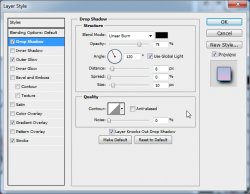
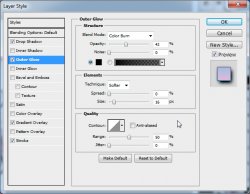
Now hide the background layer by clicking on the eye in the layers pallet. (or delete it completely)
Save your image as a .psd for future reference.
Then save your image as a .png for web viewing!
Now add your copyrights and you are done!
No animation this time... though, I may animate it in the future!
Enjoy

And this is my result:
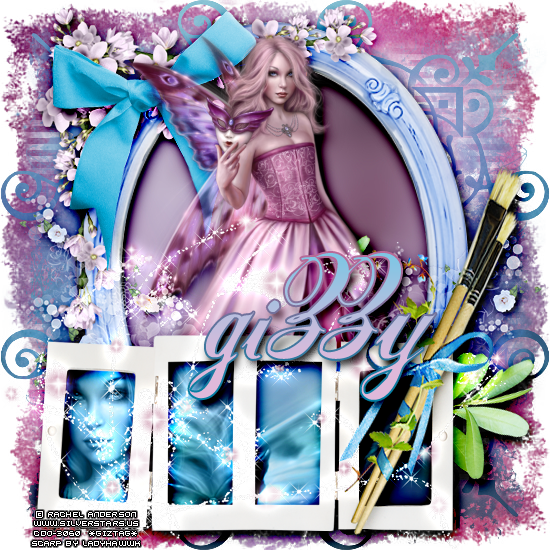
I hope you have enjoyed this tutorial! I would love to see your results.
♥♥♥
Hosted by permission. Please link to this tutorial instead of redistributing it or its supplies.
Back to all tutorials