REBEL DEZIGNS · TUTORIAL ARCHIVE
Bite Me
An original Photoshop tutorial by René Kunert (giZZY), rebuilt from the preserved archive.
Materials Needed:
- Template ~ Vector format for easy resizing if needed.
- PTU Scrap kit Blood Rose by P&A Dezigns.
- Glitter Pattern
- Filter: dsb Flux ~ Linear Transmission
- Font of choice.
- Optional Filter: Alien Skin Eye Candy 5: Impact: Perspective Shadow
Open your template in Photoshop.
This time we are going to add our elements before the layer styles.
Select the "large" layer.
Right click the layer and Rasterize Layer.
Go to Image > Adjustments > Brightness and Contrast: turn the brightness all the way down.
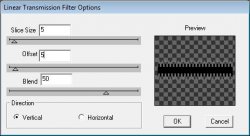
Now go to Filter > dsb Flux > Linear Transmission:
Select the "diagonal" layer.
Open Paper16.jpg and center it on your canvas. Right click the paper layer and Create Clipping Mask.
Select the "circle" layer and open paper17.jpg.
Place it centered on your canvas and Create Clipping Mask again.
Open dreadrose4.png and move it to the bottom right of your circle layer. (Use my example as a guide)
Create Clipping Mask on the rose layer.
Select the "skull" layer and open Element7.png and place it at the bottom of the circle.
Open SSLisa - Cookie - Goth Doll Red1.png
Resize it to 80% (Edit > Free Transform) and move it to the left side of your canvas (use my example as a guide)
Open dreadrose6.png and resize it to 70%. Place it at the doll's feet.
Now right click the thumbnail of the doll layer and choose Select Layer Transparency (or CTRL + click the thumbnail)
Go to Select > Modify > Contract: 1
Now use your eraser tool and erase just a portion of the rose that lies over the left foot. Right click the layer and Merge Down.
Select > Deselect
Best to add your copyright info now so you don't forget.
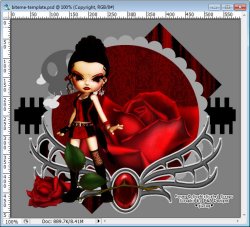
Here is about what you should have so far:
Now for the layer styles.
Open the biteme-pattern.jpg that you saved from the materials list.
Go to Edit > Define Pattern
Now close the pattern.
Select your "thin" layer and right click the layer to choose Blending Options. Now add these styles:
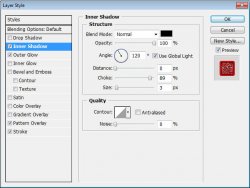
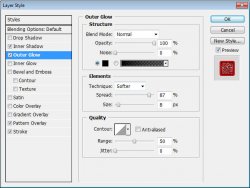
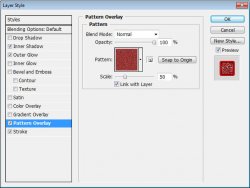
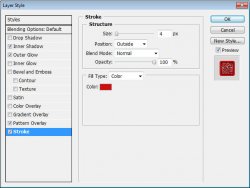
Add the same style to the "frame" layer as above.
Select the "diagonal" layer and add these styles:
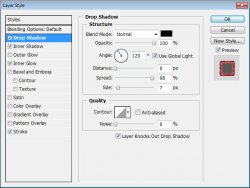
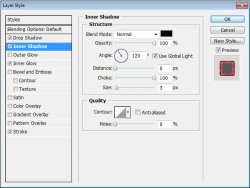
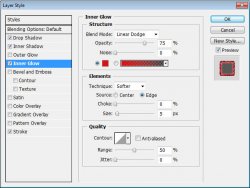
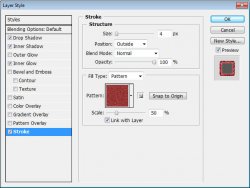
Now select the rose layer and add this drop shadow:
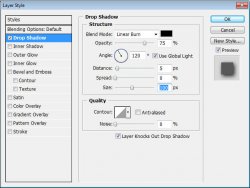
Ok this is a complicated part, so pay close attention.
Select your "skull" layer. Right click it and Rasterize Layer. Now add a 4px Black Stroke to the layer using the Blending Options. Also add a deep red Color Overlay.
Now right click the icon on the layer
 and choose Create Layers.
Select your "bones" layer and right click > Rasterize Layer.
Add the same stroke and color overlay. Right click the icon on this layer also and Create Layers.
Back to your "bones" layer and add the same Color Overlay as the "skull" layer.
Ok now to merge all the layers.
Right click the "skull's Color Fill" layer and Merge Down.
Right click the "skull" layer and Merge Down.
Right click the "skull's Outer Stroke" layer and Merge Down.
Right click the "bones's Color Fill" layer and Merge Down.
Right click the "bones" layer and Merge down.
Right click the "skull's Outer Stroke" layer and Merge Down.
Now you should have all of your skull on one layer. Double click the name of the layer and rename it to "skull".
Now add these styles:
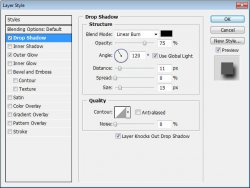
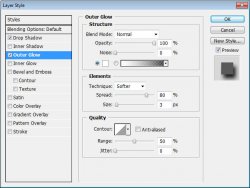
Now you may add a shadow to your doll layer with Alien Skin's Perspective shadow. Play around with the settings until you have it the way you like.
Now go to the Blending Options of your doll layer and add a drop shadow. Blending Mode: Linear Burn, Distance: 0 No other settings need changed.
Now open the B and the M from the Alpha in the scrap kit.
Resize both to 12% and place them as shown in the example tag.
Then add these styles:
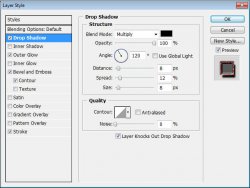
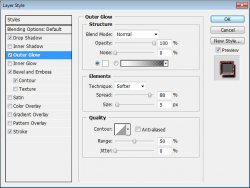
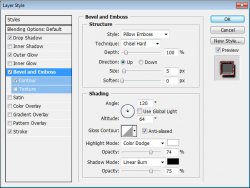
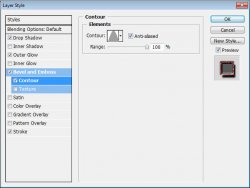
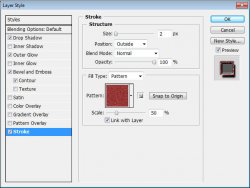
Now grab your Type tool and type out "ite" and move it up beside the B. Add the same styles to this layer.
Now type out an e and move it up beside the M. Also add the same styles.
Now add a name and add the same styles to the name.
Hide the background layer by clicking the eye icon beside the layer's thumbnail.
Now you can save your image as a .png or .jpg. Whichever suits your needs.
And this is my result:
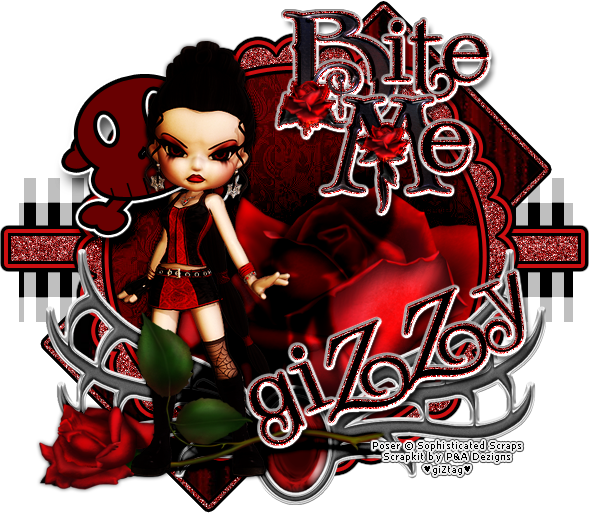
I hope you have enjoyed this tutorial! I would love to see your results.
Hosted by permission. Please link to this tutorial instead of redistributing it or its supplies.
Back to all tutorials