REBEL DEZIGNS · TUTORIAL ARCHIVE
Black and White
An original Photoshop tutorial by René Kunert (giZZY), rebuilt from the preserved archive.
Materials Needed:
- A lot of patience and coffee
- Scrap kit by JTDesigns called Black and White
- Filter : Mac's Remove White
- Tube by the artist of your choice. I am using Mike James. Please do not use this image unless you have a license to do so. Mike James has left MPT but his license is still valid.
This one is a bit involved, so if you are a beginner, you may want to try one of my other tutorials. That is, of course, you enjoy a bit of torture now and then.
First off, open Broach2.png and duplicate it. Image > Duplicate. Now close the original. This is to keep from accidentally saving over the original image.
We are going to work a little bit with guides. These are handy for numerous things in Photoshop.
You must have your rulers open to use your guides.
View > Rulers
View > Show > Guides
Now to place your guides, click on your ruler and drag the guide onto your canvas.
To clear the guides: View > Clear Guides
When you get that down, place four guides on the image like this:
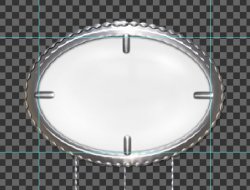
Now grab your Elliptical Marquee tool and create a selection like so:
Click on the first guide junction at the top left side of the image and drag to the guide junction at the bottom right side of the image:
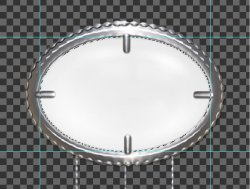
Now carefully subtract the bars from the selection using your Lasso tool.
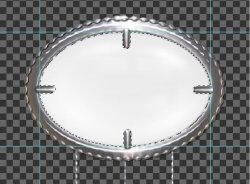
Now go to Select > Color Range and use the dropper tool provided there to select the center color of the "gem".
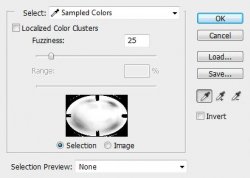
Then just hit delete on your keyboard.
This should leave you a semi transparent area to work with.
If you are not satisfied with the roughness of the transparent area, you can do the following:
Select > Modify > Expand: 1
Filter > Blur > Lens Blur with a radius of 10.
Play with those settings to get just the right blur you want.
Keep this image open.
Open a new transparent canvas 550x500px at 72DPI.
Move your modified Broach onto the canvas and close the other.
Position it around the center of your canvas.
Double click the name of the layer in the layers pallet and rename it to Broach.
Create a selection inside the transparent area of the broach. You may use the same method as before.
Create a new layer and drag it to underneath the Broach. (in the layers pallet)
Edit > Fill: black
Rename this layer Broach Inside.
Select your Broach layer again.
Now open frame7 and move it onto your canvas.
Edit > Free Transform:

Rename this layer to Frames.
Use your wand tool to select the inside of the frame. (Holding shift will add another part to the selection)
Select > Modify > Expand:1
Create a new layer and drag it below the Frames layer.
Edit > Fill: white
Rename this layer to Frame Inside.
Select > Deselect
Open a paper of your choice. I used paper6.
Move it onto your canvas and right click to Create Clipping Mask.
It should now be clipped to your Inside layer.
Right click it again and Merge Down.
Select your Frames layer and open GlitterBow1
Edit > Free Transform:

Rename this layer Bow.
Open flower3.
Edit > Free Transform:

Rename this layer to Flower.
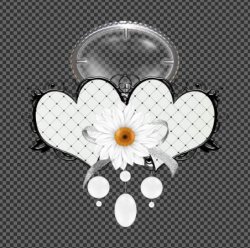
Here is what you should have so far:
Now is a good time to get some more coffee.
We need to add some shadows.
Right click on the Frames layer and choose Blending Options. Now just give it a drop shadow. The default one will work just fine.
Do the same with the Bow and Flower layers.
Now we want to make a mask for our tag... sort of.
Select > All
Edit > Copy Merged
Edit > Paste
Layer > Arrange > Send to Back
Filter > Blur > Gaussian Blur: 5
You should still have a Layer 1 present on your canvas... If not, then create a new layer.
Layer > Arrange > Send to Back
Edit > Fill: white
Select your blurred layer and Merge it Down.
Filter > Pixelate > Crystalize: 10
Then Filter > Mac's > Remove White
Rename this layer to Mask
Okie... now we need to add some tubes...
Open your tube of choice. This one is going inside the broach, so all we will need is the face.
Select the Broach Inside layer and place your tube as desired. You may refer to my tag for reference.
Create Clipping Mask. (right click)
Select your topmost layer and add your second tube.
Give it a drop shadow.
Now add those copyright infos! Very important if you want to show it to ANYONE!
Add a name or other wordings you wish.
Image > Trim to get rid of the excess space around your tag.
Then just save your image as a .png and you are done!
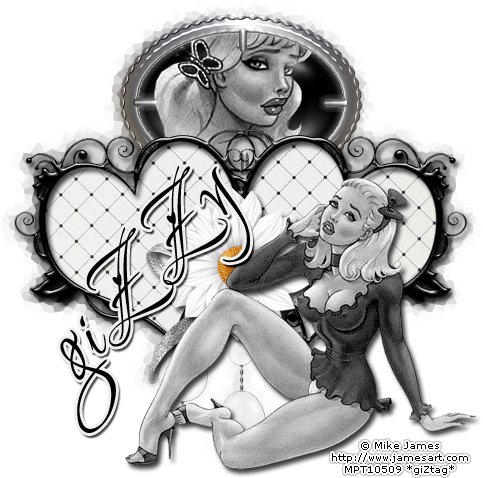
And this is my result:
I hope you have enjoyed this tutorial! I would love to see your results.
Hosted by permission. Please link to this tutorial instead of redistributing it or its supplies.
Back to all tutorials