REBEL DEZIGNS · TUTORIAL ARCHIVE
Blinkied
An original Photoshop tutorial by René Kunert (giZZY), rebuilt from the preserved archive.
Materials Needed: Filters needed: Tramages > Tow the line
The template. This template is in vector PSD format for easier resizing.
Tube of choice. I am using the lovely work of Artzy Basheff. Do not use his work unless you get a license to do so from MPT. This particular tube has EAC so if you prefer, you may want to change the tube.
To make this easier and save time, I will supply the animations I used for this tag.
Animation 1
Animation 2
Patterns:
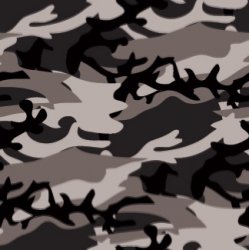
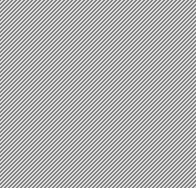
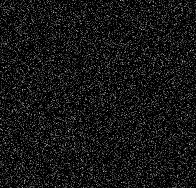 (Just right click and save, they are full size)
Ok to start things off, open the patterns and go to Edit > Define Pattern on each of them. Now you may close your patterns.
Open the template and let's add some layer styles to form our base for our tag.
Select layer "1" and apply this style.
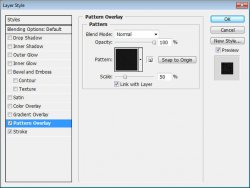
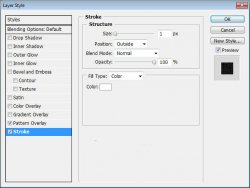
Now for the layer "2":
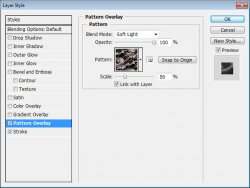
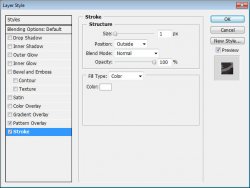
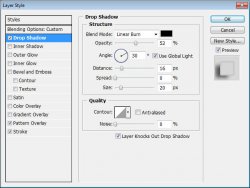
And then layer "3" (this will look a little funny, we will fix that in just a little bit):
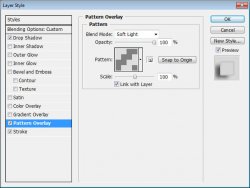
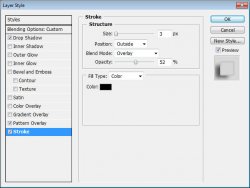
Layer "4" and "5" only need a white stroke of one pixel. Outside of course.
Right click your layer "3" and copy layer styles. Then right click your layer "6" and paste the layer styles.
Ok now to fix the little bad places.
Right click your layer "3" and create a clipping mask. Do the same thing to layer "6".
You should now have something that looks similar to this:
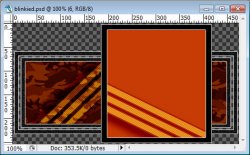
If you would like to change the color of your tag, all you need to do is double click on the thumbnail of the layer. This will bring up a color pallet for you to choose from.
Ok now select layer "2" and create a new layer. Layer > New > Layer
Go to Edit > Fill > And choose black from the dropdown box.
Then, Filter > Tramages > Tow the line (leave settings at default) and click ok.
Now change the layer's blend mode to Screen and the opacity to 45%
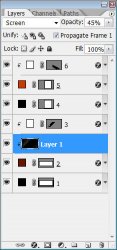
Now select layer "6"
Open your tube and place it where you think it will look best. Now click on that layer and drag it down under layer "6" in the layers pallet.
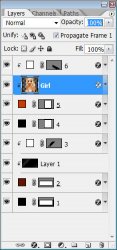
Now add your copyrights and name or any other text you would like to have on your tag.
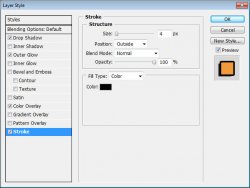
Here is the layer styles I have used on my name for this tag:
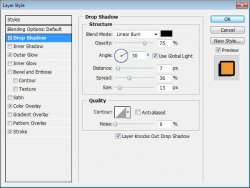
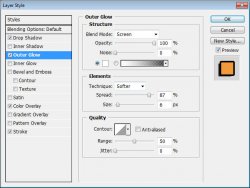
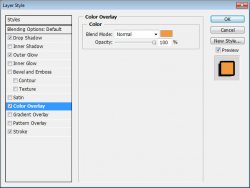
And so far:
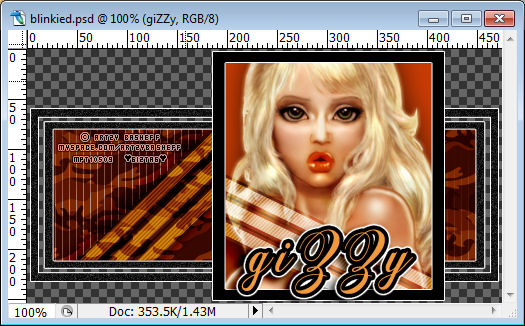
Select your layer "6"
Now for the animation part of the tag...
Make sure your animation window is open. Window > Animation
You will see that your first frame is already there.
Open your animations. Now we are going to do a little modifying to the animation before dragging it over to our tag.
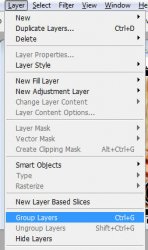
Click on the layer "Frame 1" and then hold the shift key on your keyboard and click on the layer "Frame 5". Now go to Layer > Group Layers
Now click on your group and drag it onto your tag canvas. Position it over the square holding your tube.
Do the exact same thing with the Animation 2.
Now the fun stuff.
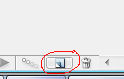
In your animaitons window, click on the icon that looks like a piece of paper to duplicate the frame.
Hide "Frame 1" in both groups and unhide "Frame 2" in both groups in your layers pallet.
Duplicate your frame again in the animations window.
Hide "Frame 2" in both groups and unhide "Frame 3" in both groups in your layers pallet.
Duplicate your frame again in the animations window.
Hide "Frame 3" in both groups and unhide "Frame 4" in both groups in your layers pallet.
Duplicate your frame again in the animations window.
Hide "Frame 4" in both groups and unhide "Frame 5" in both groups in your layers pallet.
You should now have 5 frames in your animations window.
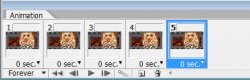
We want to set the delay of the frames higher than 0.
Select all your frames. (click first frame, then shift+click your last frame)
Click the arrow beside the number at the bottom of one of the frames. Set this number to 0.07 (there is an "Other" option) You may also play with this setting to get the effect you want.
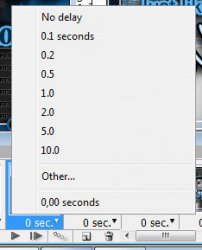
To view your animation, simply click the play button.
Now to save your animation:
Go to File > Save for Web
This will bring up a completely different save window than you are probably used to. Simply set everything like so:
Note that these settings are the ones that I use for the background of the posts of THIS forum.
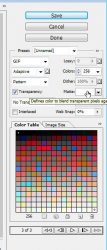
Here is what I have:
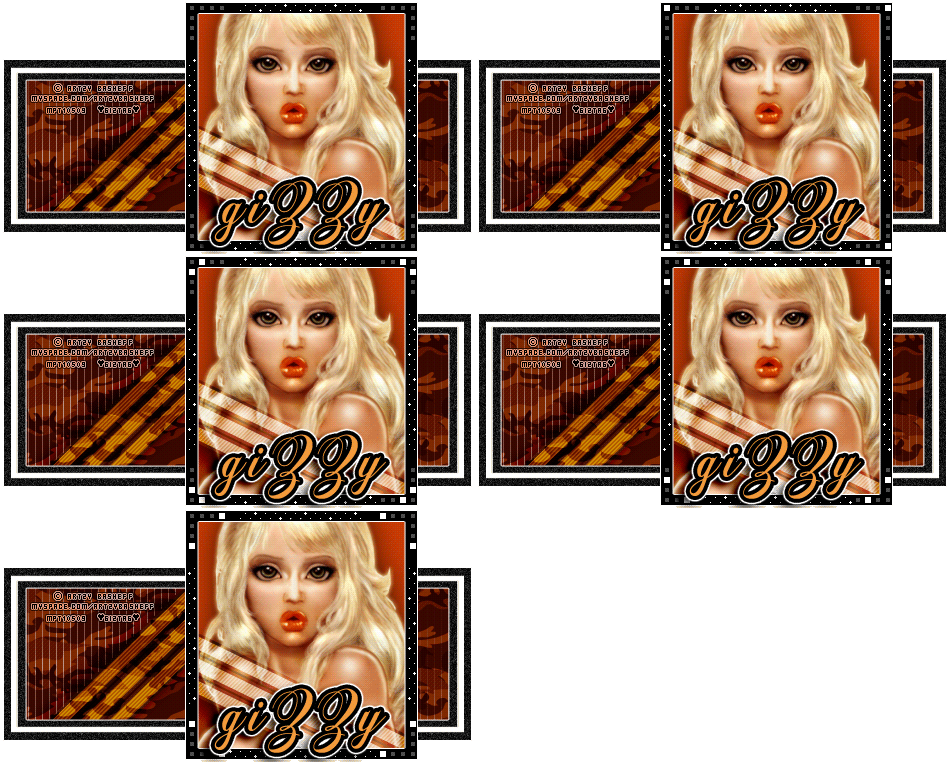
I hope you have enjoyed this tutorial! I would love to see your results.
Hosted by permission. Please link to this tutorial instead of redistributing it or its supplies.
Back to all tutorials