REBEL DEZIGNS · TUTORIAL ARCHIVE
Blooming Spring
An original Photoshop tutorial by René Kunert (giZZY), rebuilt from the preserved archive.
Materials Needed:
- My Template
- Scrap Kit of choice. I am using the lovely work of our Moderator Hellasweet which can be purchased here.
- Two tubes by the same artist of your choice. I am using my own tubes. Please do not use these image unless you have a license to do so.
Open your template in Photoshop.
Select your "Large Circle" layer and open paper5.png from the scrap kit.
Move the paper onto your tag canvas with the Move Tool.
Position the paper over the circle and right click it. Choose Create Clipping Mask.
Now select your "Doodle" layer.
Open paper4.png and position it over the doodle. Create Clipping Mask again.
Select your "Large Oval" layer and open paper1.png
Position it over the oval and Create Clipping Mask again.
Select the "Small Oval" layer and open paper6.png
Position and Create Clipping Mask.
Now we have our entire tag covered in papers.
Let's add some layer styles to it now. (Right click and choose Blending Options)
Select your "Large Circle" layer and add these styles:
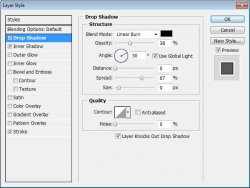
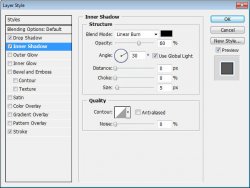
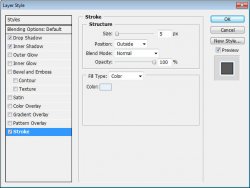
Select your "Doodle" layer and add these styles:
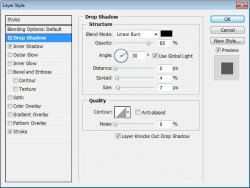
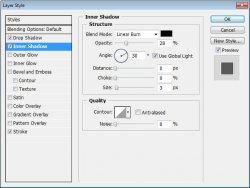
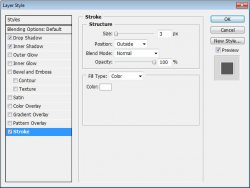
Now the "Large Oval" layer:
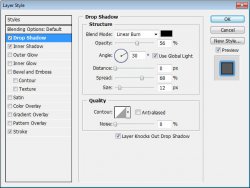
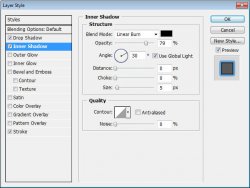
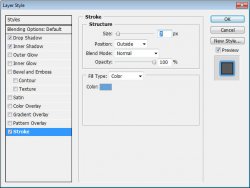
And finally, the "Small Oval" layer:
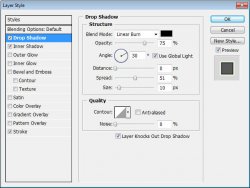
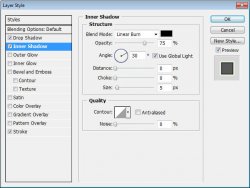
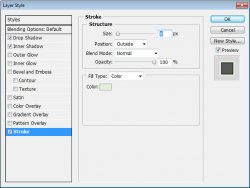
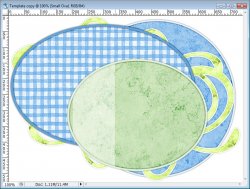
Here is about what you should have now:
Ok, now it is time to add some elements.
Select the paper layer above the "Large Circle" layer and open the flower1.png from the scrap kit.
Move it onto your tag and position it to where it is barely sticking out on the right side. You may use my result as a guide.
Add a drop shadow to this layer.
Open flower8.png and position it on the opposite side of the tag. Add the same drop shadow to this layer.
Select the paper layer above the "Large Oval" layer.
Open element4.png and position it to the left of the oval. Add the same drop shadow to this layer.
Open candle3.png and add it to your tag. Apply a larger drop shadow to this layer.
Select the paper layer above the "Small Oval" layer.
Open knot2.png and resize and position it like in the tag shown. Add the same drop shadow as the other element layers.
Select the paper layer above the "Small Oval" again and add your tube. (closeups work best for this step)
Position it above the circle and create a Clipping Mask.
Change the opacity of the layer to about 50%. (At the top of the layers pallet)
Select your "Bar" layer and add the smaller version of your tube.
Position it and add a drop shadow.
Now is the best time to add any copyrights to your image, so you don't forget.
Add any names you would like and then save a .png.
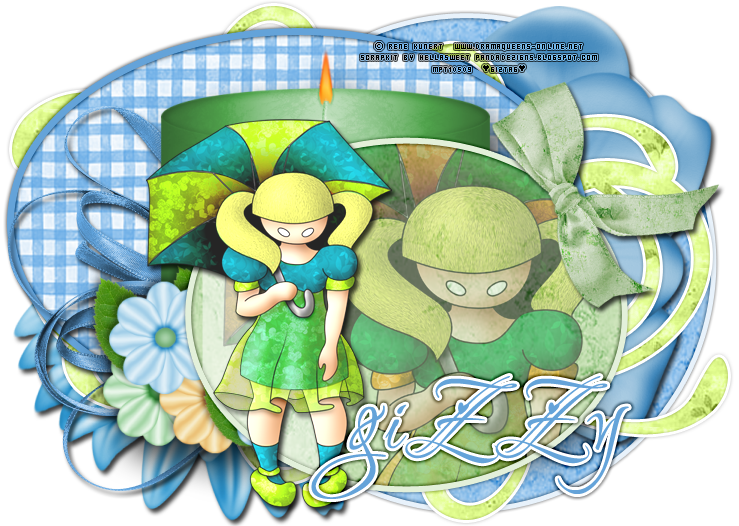
And this is my result:
I hope you have enjoyed this tutorial! I would love to see your results.
Hosted by permission. Please link to this tutorial instead of redistributing it or its supplies.
Back to all tutorials