REBEL DEZIGNS · TUTORIAL ARCHIVE
Butterfly Love
An original Photoshop tutorial by René Kunert (giZZY), rebuilt from the preserved archive.
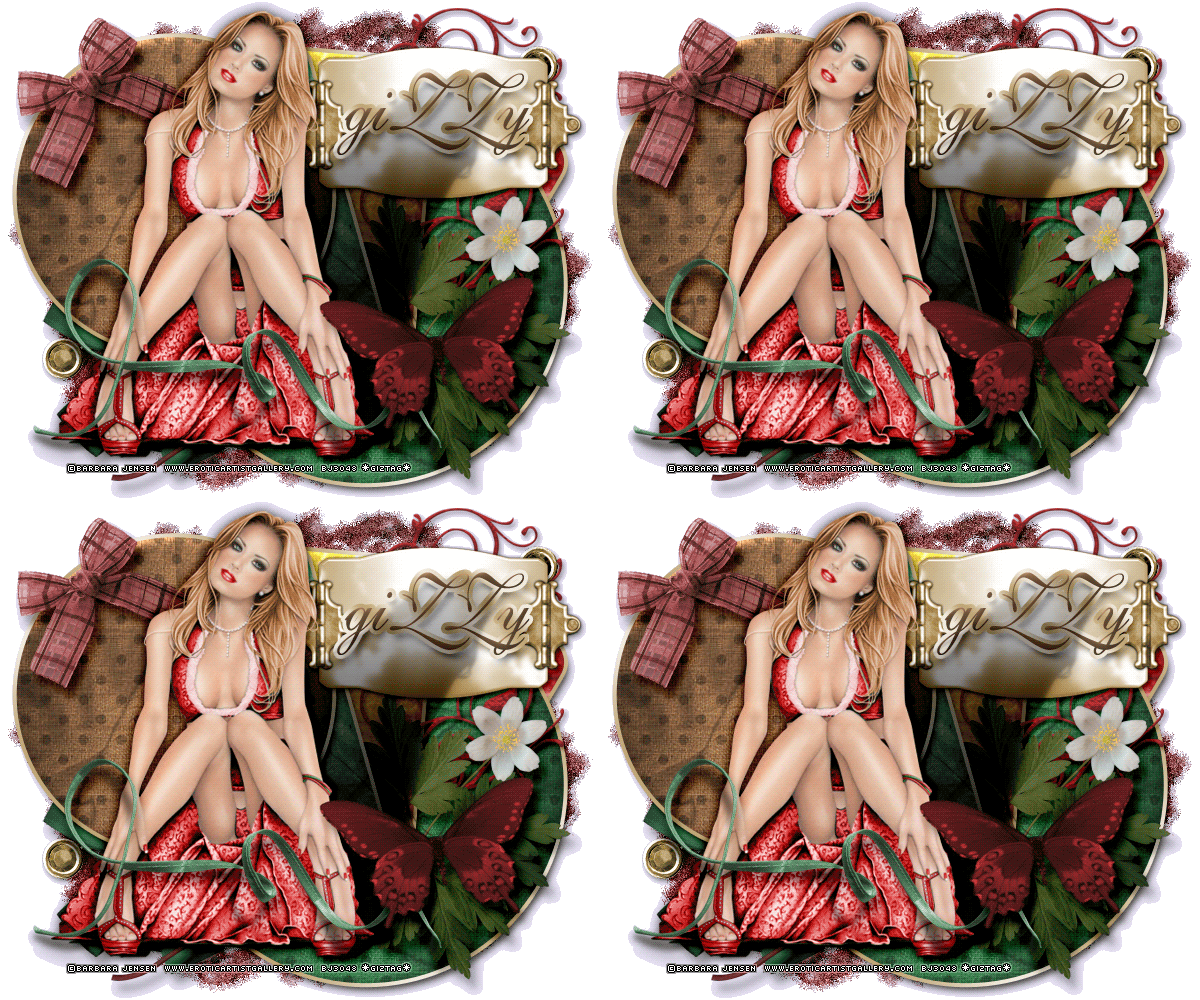

Materials Needed:
- Template by me. Please do not redistribute.
- Scrap kit by CrazyCarita called Turn Back Time. Was PTU now FREE!!! Thank you Carita!!
- Tube by the artist of your choice. I am using Barbara Jensen. Please do not use this image unless you have a license to do so. You may visit her site to find out how.
Open your template in Photoshop.
Select the Mask layer.
Open a paper of your choice from the kit and place it on your template.
Right click the paper layer in the layers pallet and Create Clipping Mask.
Right click it again and Merge Down.
Select the rectangle 1 layer and open another paper of your choice.
Place it on the canvas and Create Clipping Mask and Merge Down just as before.
Do the same for all the layers.
Use my tag as a guide to place all your elements on your tag. The arrangement and amount are not important.
 Every tag is different.
Move and position things around until you are happy.
Now just add drop shadows to all of your elements by right clicking them in the layers pallet and choosing Blending Options.
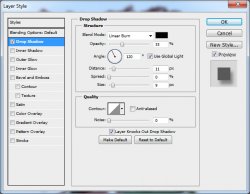
The default one will work, but if you want some depth to your tag, change the distance and size and blend modes.
Here is the setting I have for most of mine:
Ok now on to the template styling.
Select the Circle 1 layer and add these styles:
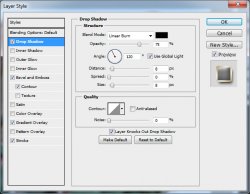
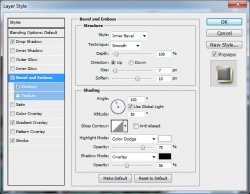
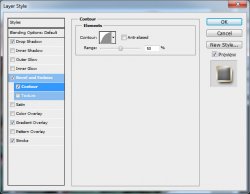
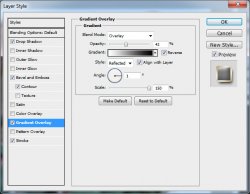
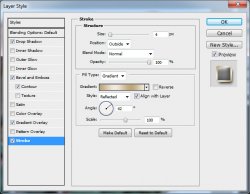
Add this styling to all of your Circle and Rectangle layers.
This is what I have so far:
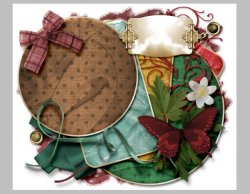
Now add your tube. Give it a drop shadow of choice. You can also use Alien Skin Eyecandy 5 Impact > Perspective Shadow as I have done.
Add those copyrights now, so you don't forget
Add a name or other text to your tag. Remember, blanks are not our friends.
I have added the same layer styles to the name as I have the template layers. You may choose otherwise if you prefer.
If you only want a static tag without animation, you may stop here. If you would like to add the animation, please proceed.
Prepare your work area for animation.
Animation Select your Mask layer and duplicate it 3 times (four mask layers)
Select your original and Filter > Noise > Add Noise: 15
Repeat this for all mask layers.
Select your original again and filter > Stylize > Diffuse: Normal
Repeat this for all mask layers.
Hide the mask layer copies by clicking the eye beside the thumbnail in the layers pallet.
Duplicate your frame by clicking the folded paper icon at the bottom of your animation window. (Explained in the link)
Hide your original Mask layer and unhide the first copy.
Duplicate your frame again and hide the first copy and unhide the second copy.
Duplicate your frame again and hide the second copy and unhide the third copy.
Now push play and see how it looks.
Set your frame delay to 0.1 sec.
Now to save your animation.
And this is my result:
I hope you have enjoyed this tutorial! I would love to see your results.
Hosted by permission. Please link to this tutorial instead of redistributing it or its supplies.
Back to all tutorials