REBEL DEZIGNS · TUTORIAL ARCHIVE
Caemio
An original Photoshop tutorial by René Kunert (giZZY), rebuilt from the preserved archive.
Just for clarification, yes I know the title is spelled wrong LOL
Materials Needed:
- Scrapkit of choice. I am using a lovely kit by P&A Dezigns called Be My Valentine.
- Template by me.
- Tube by the artist of your choice. I am using Barbara Jensen. Please do not use this image unless you have a license to do so.
- Mask of choice.
- Wordart of choice.
Open a Mask of your choice in Photoshop.
Prepare the mask as in this tutorial:
http://rebel-dezigns.com/community/index.php?threads/6898/
Open your template.
Select the Layer1 and place your mask on the canvas.
(Drag and drop from the layers pallet onto the tag)
Resize it to fit completely in the tag:
Edit > Free Transform
Move the corner anchors to match the tag corners.
Open a paper of your choice and place it on the canvas.
Right click the paper layer in the layers pallet and Create Clipping Mask.
Right click again and Merge Down.
Highlight the swirls layer in the layers pallet.
Open a paper of your choice and place on the canvas.
Right click the paper in the layers pallet and choose Create Clipping Mask.
Right click again and Merge Down.
Highlight the rectangle layer.
Open another paper and place on the canvas.
Create Clipping Mask and Merge Down again.
Highlight the rectangle frame.
Right click the layer and bring up the Blending Options.
Select the Color Overlay and give it a color of your choice.
Click ok.
Right click the layer and Create New Smart Object (or a variation of)
Right click again and Rasterize Layer.
Highlight the oval layer.
Open a paper of choice and place on the canvas.
Create Clipping Mask and Merge Down again.
Select the oval frame.
Right click the layer to bring up the Blending Options.
Give it a color overlay of choice.
Right click and Create New Smart Object.
Rasterize the layer.
Here is what I have so far:
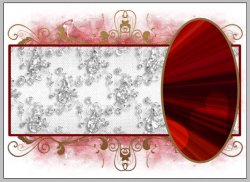
Highlight the swirl layer.
Right click the layer in the layers pallet and choose Blending Options.
Give it this drop shadow:
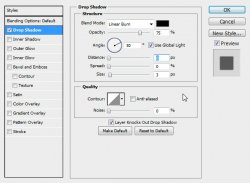
Highlight your rectangle frame in the layers pallet.
Right click and bring up the Blending Options.
Give this layer a layer style:
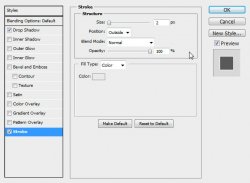
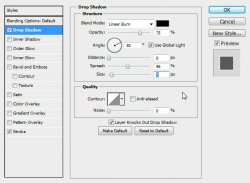
Highlight the oval frame layer and give it the same layer style.
Select the rectangle frame layer and open a wordart of your choice. Place it on the canvas and resize if needed. Edit > Free Transform.
Position it where it looks best (Move tool)
You may add a layer style if you like. I have not.
Highlight your oval layer and open the tube of choice.
Place the tube on the canvas and resize and position how you would like it to appear on top of the oval layer.
Give the tube a drop shadow of choice.
Right click the tube layer in the layers pallet and Create Clipping Mask.
I never merge the tube with the tag.
Highlight the oval frame layer.
Add those copyrights so you don't forget.
Add a name to your tag.
You may add a layer styles to the name layer.
Here is the style I have used:
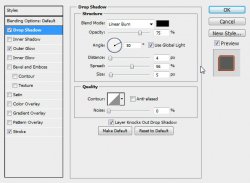
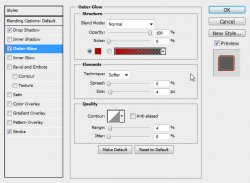
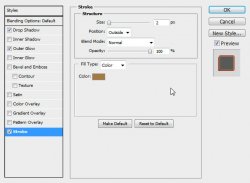
Here is my tag so far:

After you have done this, you may add any elements from the kit you would like and give them all a drop shadow of choice.
If you only want a static tag without animation, you may stop here. If you would like to add the animation, please proceed.
Prepare your work area for animation.
Animation Highlight your Mask layer.
Right click and Duplicate it 3 times (4 mask layers total)
Filter > Noise > Add Noise: 20
Gaussian and Monochrome
Please experiment with the settings to get just the noise content you want.
Repeat the noise filter for all mask layers.
Hide all the mask layers but the original.
Do you have your animation window prepared?
Duplicate your frame and hide the original mask layer.
Unhide the mask copy.
Duplicate the frame again and hide the mask copy.
Unhide the mask copy 2.
Duplicate the frame again and hide the mask copy 2.
Unhide the mask copy 3.
Set your frame delay to 0.1 sec.
Now to save your animation.
And this is my result:

I hope you have enjoyed this tutorial! I would love to see your results.
Hosted by permission. Please link to this tutorial instead of redistributing it or its supplies.
Back to all tutorials