REBEL DEZIGNS · TUTORIAL ARCHIVE
Caution
An original Photoshop tutorial by René Kunert (giZZY), rebuilt from the preserved archive.
Materials Needed:
- Stripped pattern by me: Pattern
- Fonts of choice
----------------------------------------------------------------------------------------------------------------
Open the pattern provided.
Go to Edit > Define Pattern...
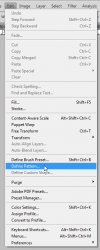
You can now close the pattern and begin the tag.
Open a new 600x300 canvas (or your favorite forum sig size).
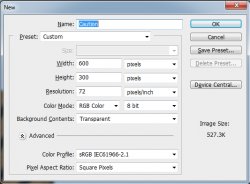
Flood fill the first layer with any color.
Name this layer "base"
Double click (or right click and choose blending options) on the layer in the layers pallet and add these layer styles.
*note that your pattern will be the last one in your list*
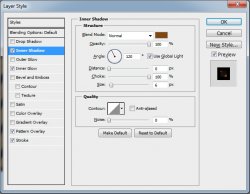
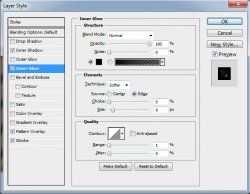
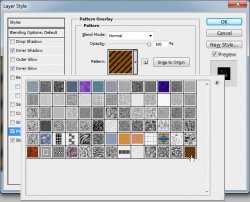
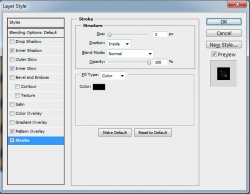
Now grab your type tool and type out the word "CAUTION" using your favorite chunky font.
I am using Asuka Caps SSK.
*tip: CTRL+enter will set the type.
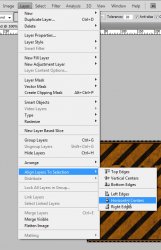
Select > All
Layer > Align layers to slection > Horizontal centers
Select > Deselect
Now we add a layer style to the text:
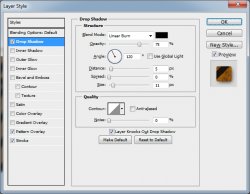
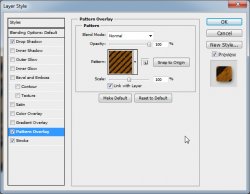
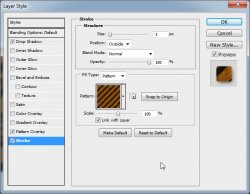
Swich your foreground color to black.

Grab the text tool again and type out "B*tch on Patrol" or something similar if you don't like the wording.
Select > All
Layer > Align layers to slection > Horizontal centers
Select > Deselect
Again, let's add our layer style.
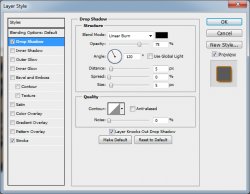
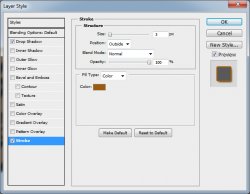
Set the foreground color to #8b4e0f
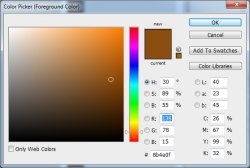
Type out your name and add another layer style:
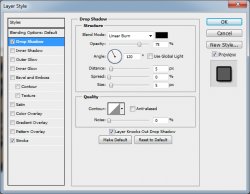
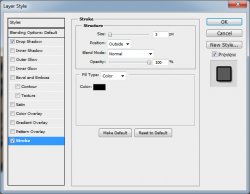
Select > All
Layer > Align layers to slection > Horizontal centers
Select > Deselect
You can now add your tagging watermark if you use one.
And here comes the hard part!!
...
----------------------------------------------------------------------------------------------------------------
If you only want a static tag without animation, you may stop here. If you would like to add the animation, please proceed.
----------------------------------------------------------------------------------------------------------------
Prepare your work area for animation.
Animation
Duplicate your frame by clicking on the little "paper" icon at the bottom of the animation window:
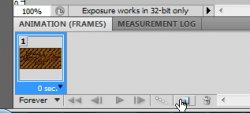
Back to the tag. This part may take some practice to get perfect.
Open the Blending Options on the "Caution" layer.
Choose the Pattern Overlay.
Zoom in really far on your tag if you need to.
Now if you hover over your tag, you will see that your cursor has turned into the "Move" tool. This is because you can now manually move the pattern around on the tag.
Carefully move the pattern over by one bar until it looks exactly like before:
*click to view animation
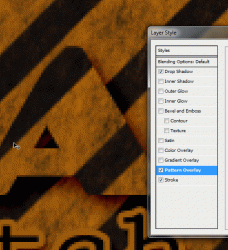
Now do the exact same thing for the stroke only in the opposite direction:
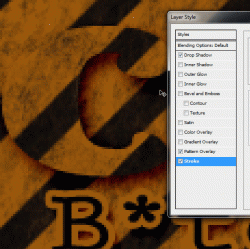
Now go back and select your first frame again in the animation window.
At the bottom of the window, there is a button that looks like 4 faded circles.
Click on that to tween your frames:
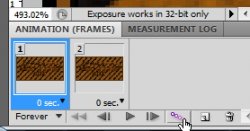
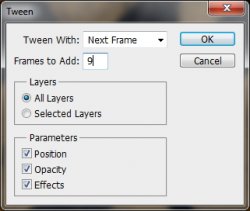
Choose 9 frames to add.
Now we want to delete the last frame so there isn't a jump in the animation.
That is pretty much all there is to it. Be sure to read the following links to set the frames and save your animation.
Set your frame delay to 0.1 sec.
Now to save your animation.
----------------------------------------------------------------------------------------------------------------
And this is my result:
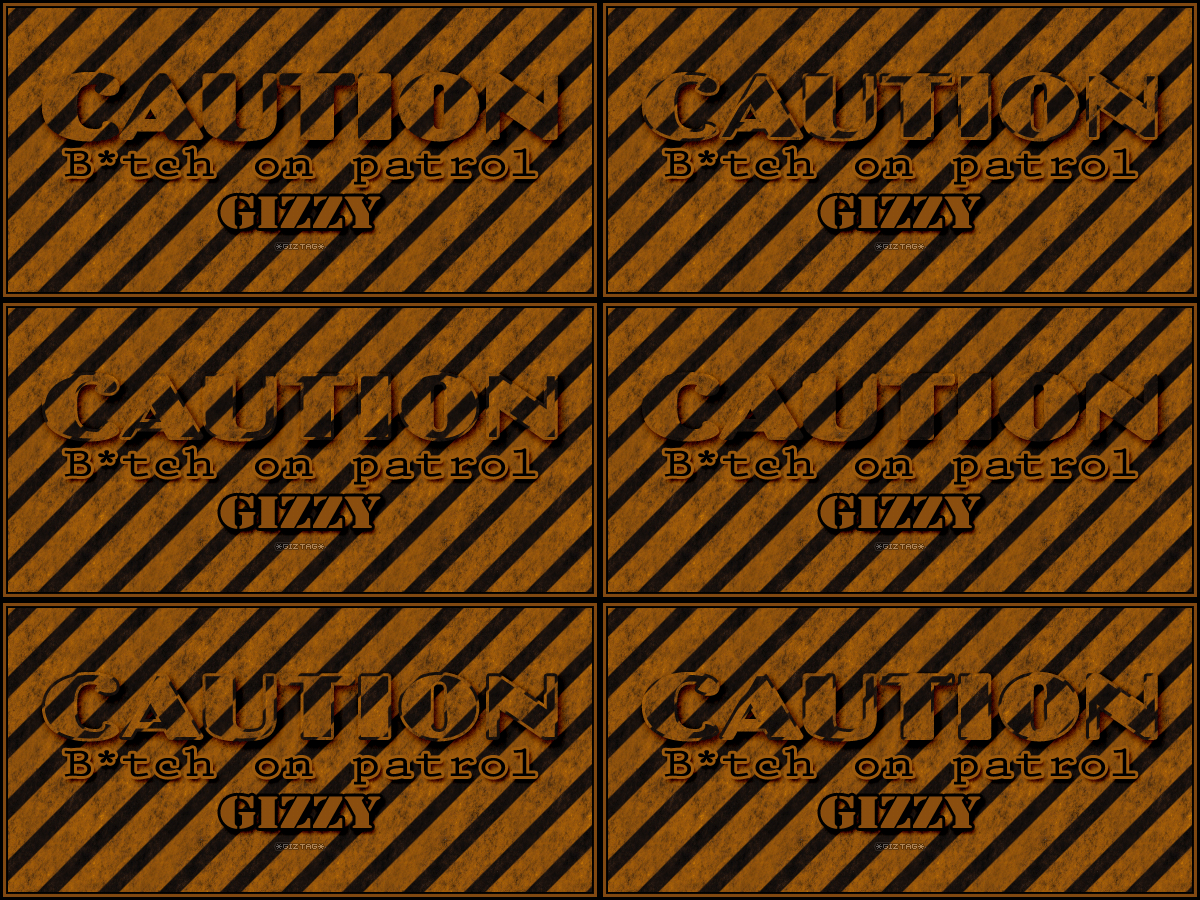
I hope you have enjoyed this tutorial! I would love to see your results.
♥♥♥
Hosted by permission. Please link to this tutorial instead of redistributing it or its supplies.
Back to all tutorials