REBEL DEZIGNS · TUTORIAL ARCHIVE
Celebration
An original Photoshop tutorial by René Kunert (giZZY), rebuilt from the preserved archive.
Materials Needed:
- Frame
- Tubes by the artist of your choice. I am using Nicolas Rivet. This tube was purchased from MyPSPTubes.com but is now available at PSPTubesEmporium!
Open your frame in Photoshop.
Use the lasso tool and select the inside of your frame. (the selection wand tool will not work because of the semi-transparency of the layer)
Create a new layer and flood fill it with color. I chose a light blue.
Right click this layer and choose Blending Options. Add a pattern overlay of your choice. Best to use a grayscale pattern with a blend mode of overlay and opacity of around 50&.
Drag this layer under your frame layer.
Now right click your frame layer and choose Blending Options. Add a drop shadow of your choice.
Now use your lasso tool to select the inside of the glasses. This will need to be done carefully. Do not go all the way to the edges. Here is a guide:
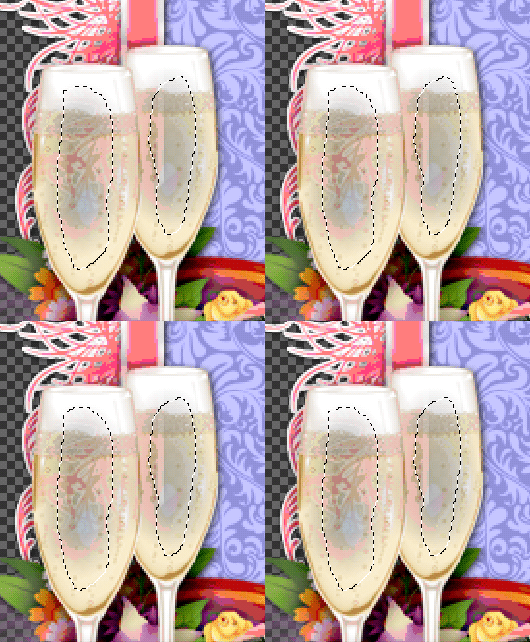
Select > Feather: 10px
Now you need to press CTRL + C on your keyboard to copy it.
Press CTRL + V to paste it as a new layer. Name it "bubbles 1"
Select > Reselect
CTRL + V again. Name it "bubbles 2"
Select > Reselect
CTRL + V again. Name it "bubbles 3"
You should now have three layers of the glass.
Select "bubbles 1" and go to Filter > Noise > Add Noise: 15
Select "bubbles 2" and apply the same noise.
Repeat for "bubbles 3".
Ok glasses done. On to the next disaster.
Place your tube on your canvas. Resize if needed.
Now is a good time to add your copyrights so you don't forget.
Add a layer mask to your tube layer. Layer > Layer mask > Reveal all
How CTRL + Click on the frame's thumbnail.
Make sure you are ON the layer mask and not the layer
(yes, I am aware that this image is from another tut here lol)
Image coming soon
Erase the portions of the tube that should be behind the frame. This will need to be done very carefully.
Add a drop shadow of choice to your tube. Of course, we will have to fix that...
Right click the icon on the layer that represents the layer styles:
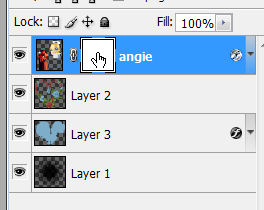
Now click Create Layer. This will add the dropshadow to a new layer below the tube. Now just erase the parts that should be off of the frame.
Now add a name and any layer styles you would like to it.
--------
Now for some animations...
THIS IS A VERY DRAWN OUT PROCESS!
Double click on the tube layer's name in the layers pallet. Name it "original".
Now right click and Duplicate Layer.
Now we need to warp her up.
Go to Filter > Liquify.
Here is the tough part... We are first going to be working on the shoulder.
Just move it up slightly.
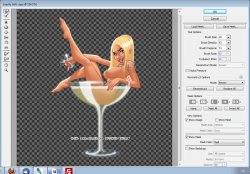
Duplicate this layer and repeat the liquify process.
Now for the toes.
Select the "original" layer and duplicate it again. Move this layer above the "original copy 2" layer.
Liquify again. This time, move the toes over slightly.
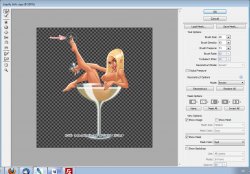
Duplicate this layer and repeat.
Now for the wink. This is a little more involved.
Use your lasso tool and select just around the eye.
CTRL + C
CTRL + V
Double click the layer and name it "eye 1"
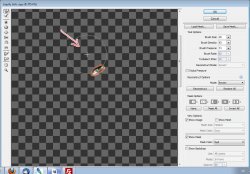
Now use your eyedropper tool and select the color of skin on the eyelid. Use a small round brush to paint over the eye below. (make sure you are not painting on the original layer, but "eye 1" layer)
Create a new layer and name it "eye 2".
Paint over the eye with the same color. Put the eyelashes back on using a small round brush and a black color.
Now for the animation.
Make sure your animation window is open. Window > Animation
You will see that your first frame is already there.
FOLLOW VERY CAREFULLY!!!!
Hide the following layers: (click the eye beside the layer in the layers pallet)
- original copy
- original copy 2
- original copy 3
- original copy 4
- eye 1
- eye 2
- bubbles 2
- bubbles 3
--------
Frame 1:
already there.
--------
Frame 2:
Now Create a new frame by clicking on the little icon at the bottom of your animations window.
Image coming soon
Hide the "original" layer and unhide the "original copy".
Hide "bubbles 1" and unhide "bubbles 2"
--------
Frame 3:
New frame.
Hide the "original copy" layer and unhide the "original copy 2".
Unhide the "eye 1" layer.
Hide "bubbles 2" and unhide "bubbles 3"
--------
Frame 4:
New frame.
Hide the "original copy 2" layer and unhide the "original copy".
Hide the "eye 1" layer Unhide the "eye 2" layer.
Hide "bubbles 3" and unhide "bubbles 1"
--------
Frame 5:
New frame.
Hide the "original copy" layer and unhide the "original copy 3".
Hide the "eye 2" layer. Unhide the "eye 1" layer
Hide "bubbles 1" and unhide "bubbles 2"
--------
Frame 6:
New frame.
Hide the "original copy 3" layer and unhide the "original copy 4" layer.
Hide the "eye 1" layer.
Hide "bubbles 2" and unhide "bubbles 3"
---------
Frame 7:
Hide the "original copy 4" layer and unhide the "original copy 3" layer.
Hide "bubbles 3" and unhide "bubbles 2"
--------
Now we want to set the delay of the frames higher than 0.
Select all your frames. (click first frame, then shift+click your last frame)
Click the arrow beside the number at the bottom of one of the frames. Set this number to 0.08 (there is an "Other" option) You may also play with this setting to get the effect you want.
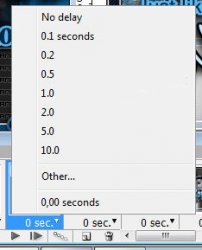
To view your animation, simply click the play button.
Now to save your animation:
Go to File > Save for Web
This will bring up a completely different save window than you are probably used to. Simply set everything like so:
Note that these settings are the ones that I use for the background of the posts of THIS forum.
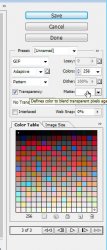
And this is my result:

I hope you have enjoyed this tutorial! I would love to see your results.
Hosted by permission. Please link to this tutorial instead of redistributing it or its supplies.
Back to all tutorials