REBEL DEZIGNS · TUTORIAL ARCHIVE
Chocolate Love
An original Photoshop tutorial by René Kunert (giZZY), rebuilt from the preserved archive.
Materials Needed:
- Template
- Animation
- Tube of choice. (preferably two from the same artist) I am using the work of Elias Chatzoudis. This tube was purchased from MyPSPTubes.com but is now available at PSPTubesEmporium!
- Scrap kit of choice. I am using Chocolate Box from Sprinkle Scraps.
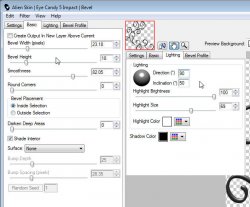
Alien Skin Eye Candy5 Impact > Bevel
Open a new canvas about 50X50 pixels. Flood fill with a color of your choice (preferably one from your tube or scrap kit).
Filter > Noise > Add Noise: about 25
Edit > Define Pattern
Now you can close this image.
Open your template and select your "back circle" layer.
Add these layer effects (right click > blending options):
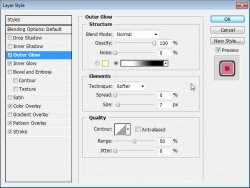
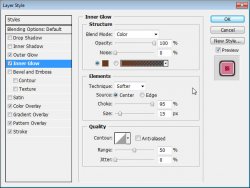
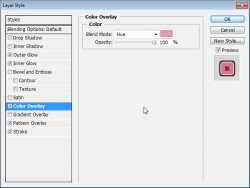
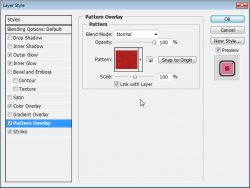
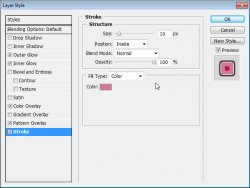
Select your "front circle" layer and add these styles:
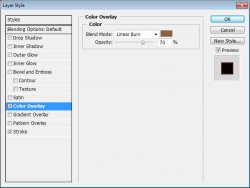
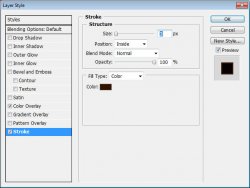
Now select your "foliage" layer and add these styles:
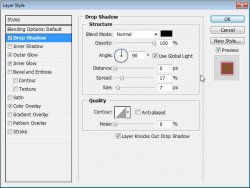
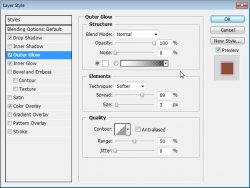
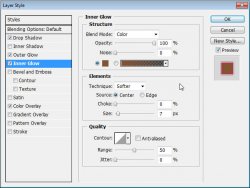
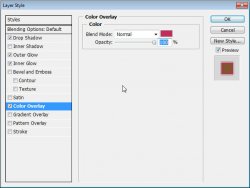
Select your "swirl" layer and add these styles:
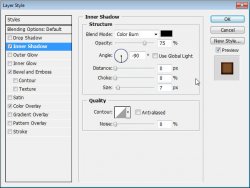
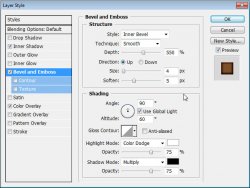
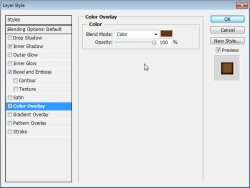
Now apply the Bevel filter with these settings: (Profile: Button)
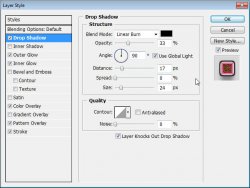
Now select your "double circles back" layer and add these styles:
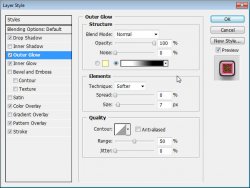
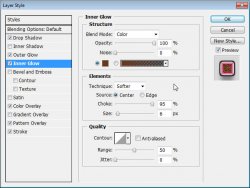
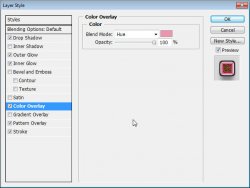
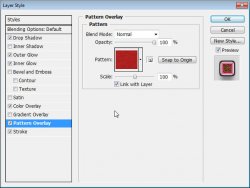
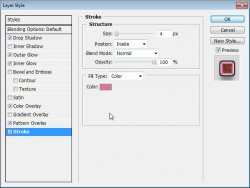
Select your "double circles front" layer and add a stroke of 2 px, inside, color: dark brown.
Here is what you should have so far:
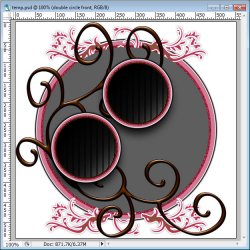
Now let's add some elements to the tag.
Select your "swirl" layer.
I am using the Chocolate Box scrap kit. If you are using the same one, open the Chocolate_ButterflyString2.png and position it somewhere around just off-center of the big circle. (Using the Move tool, just drag it onto your tag canvas)
Open Chocolate_RibbonFray2.png and resize it to about 45% and position it at the top of the big circle.
Now we are going to shape it.
CTRL + Click on the "back circle" layer. This will select the layers transparency. (you can also right click on the layers thumbnail)
Now make sure you have your bow layer highlighted.
Selections > Modify > Expand: by about 8 px.
Now Select > Inverse.
Select > Feather: 1
Use your eraser tool to erase just the outer parts of the untied ribbon.
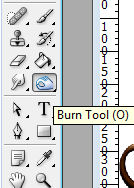
Use the Burn tool to lightly burn the edges to make it look like it is wrapped around the circle.
Select your "double circles front" layer.
Then open Chocolate_Pop2.png (or any one you want) and resize it to about 65% and rotate it about 28° (Edit > Free transform, the options are at the top of the screen)
Position it around the bottom right of the large circle.
Add a drop shadow of choice to all the element layers. (In the blending options)
Now open your tubes.
Select the topmost layer of your tag.
Now drag your tube onto your tag canvas. Resize and position as necessary.
Add a drop shadow of your choice. You may also choose to use the Alien Skin Perspective Shadow. (which I have done)
Now select your "double circles front" layer and paste your other tube. Position it over one of the circles.
Duplicate the tube and Edit > Transform > Flip Horiontal
Position this tube over the other circle and merge down (right click)
Now right click the merged layer and Create Clipping Mask.
Be sure to add your copyrights at this point so you don't forget.
Here is about what you should have now:
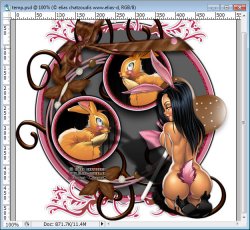
Now you may add any name or words you would like and add any effects you choose.
And now for the hard part...
Select your "front circle" layer and drag it to the bottom of the pallet to where you see a folder icon:
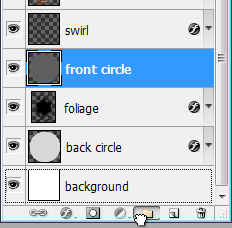
Now select your "front circle" layer again.
Open the ani.psd that I have provided.
Select the Frame 1 layer and Shift+Click on the Frame 10 layer then drag them onto your Tag canvas.
Now we have to create a clipping mask for each one of these layers.
Starting with Frame 1, right click and Create Clipping Mask.
Do this for each of the "frame" layers.
Make sure your animation window is open. Window > Animation
You will see that your first frame is already there.
Making Frames *** In your animations window, click on the icon that looks like a piece of paper to duplicate the frame.
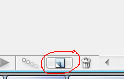
*** Hide the "Frame 1" layer and UNhide the "Frame 2" layer
Repeat that for all the frame layers.
When you are finished, you should have 10 frames in your animation window.

If you do not see the "0.08" at the bottom of the frames, select the first frame and then Shift + Click the last frame and then click the little arrow beside the number to change it. This will adjust the frame rate. You may play around with this setting until you find a speed you like.
If you would like the glitter to sparkle around the small frames, keep going, otherwise you can stop here if you like.
Select your frame 2 in the animation window.
Select your "double circles back" layer in the Layers pallet.
Double click on the effects icon ON the layer.
Go to the pattern overlay. Do not change the settings. Simply click on your canvas and move the pattern. (with the window still open)
Repeat this for all the frames.
Now you are ready to save your animation.
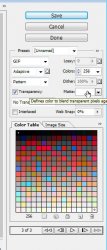
Go to File > Save for Web
This will bring up a completely different save window than you are probably used to. Simply set everything like so:
Note that these settings are the ones that I use for the background of the posts of THIS forum.
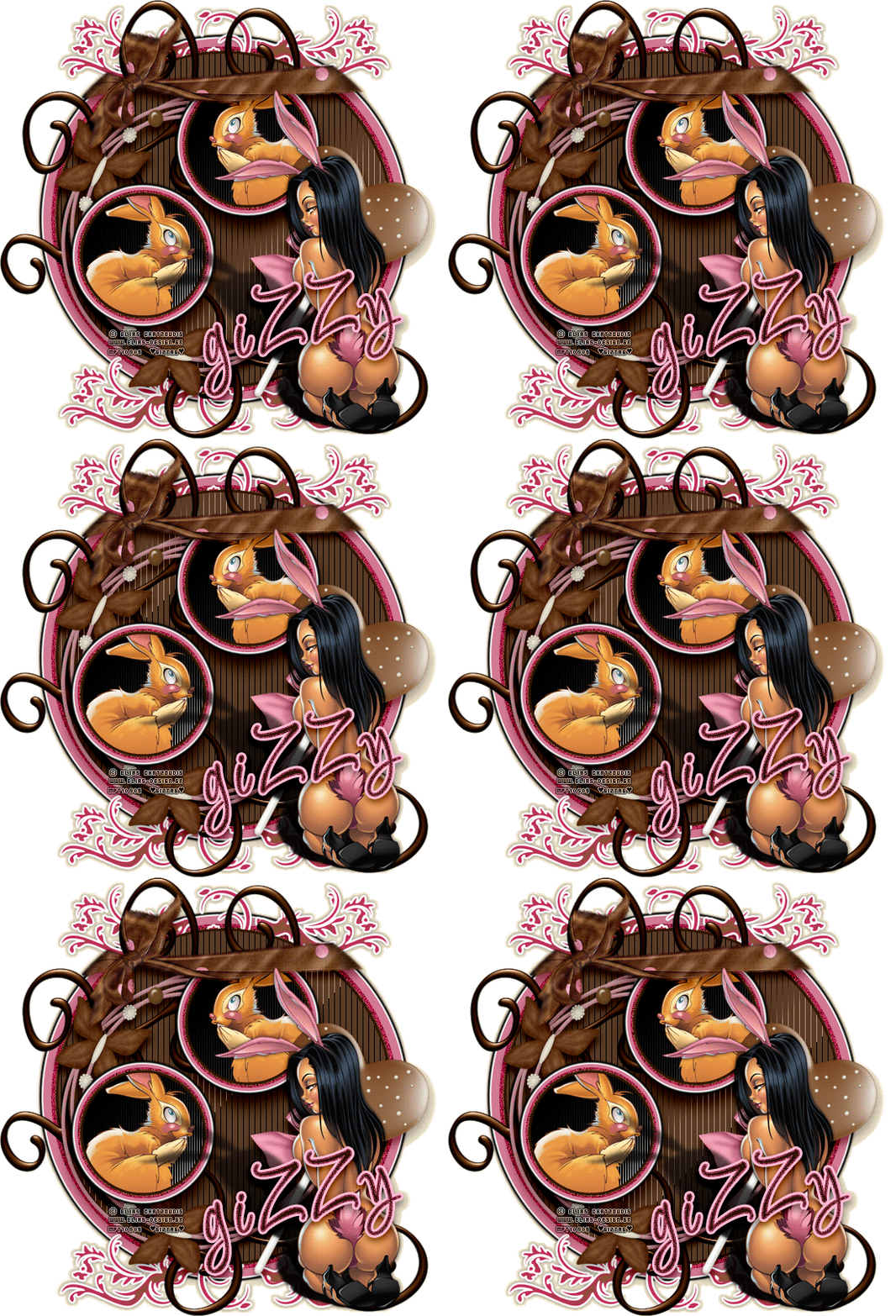
And this is my result:
I hope you have enjoyed this tutorial! I would love to see your results.
Hosted by permission. Please link to this tutorial instead of redistributing it or its supplies.
Back to all tutorials