REBEL DEZIGNS · TUTORIAL ARCHIVE
Clustered
An original Photoshop tutorial by René Kunert (giZZY), rebuilt from the preserved archive.
Materials Needed:
- Scrap Kit of choice. I am using a gorgeous kit by Bel Vidotti called Chic. All of her kits are still available on her blog.
- Tube by the artist of your choice. I am using Edward Reed. This tube was purchased from MyPSPTubes.com but is now available at PSPTubesEmporium!
This technique will work for creating any sort of cluster. You may want to follow this tut using the same kit until you get the hang of doing it on your own.
Open chice04 belvidotti.png from the kit.
Duplicate this image. Image > Duplicate.
Edit > Free Transform: (at the top of the screen, enter these values)

Then just click the check mark to apply it.
Open chice09 belvidotti.png and erase the top two stitchings. Use the move tool to move it onto your frame.
Position it similar to this:
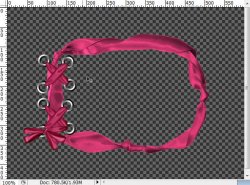
Open chice16 belvidotti.png and move it onto your canvas.
Edit > Free Transform:

Open chice57 belvidotti.png and move it onto your canvas.
Edit > Free Transform:

Open chice54 belvidotti.png and move it onto your canvas.
Edit > Free Transform:

Open chice38 belvidotti.png and move it onto your canvas.
Edit > Free Transform:

Open chice47 belvidotti.png and move it onto your canvas.
Edit > Free Transform:

Here is what you should have so far:
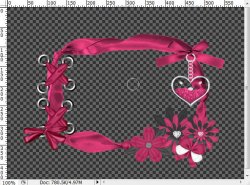
But we are not finished with our cluster. Now we need to add some shadows. But to have a very nice cluster, we do not want the shadows to go outside of the frame.
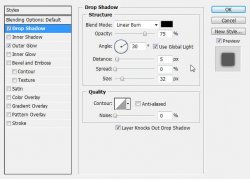
Select the topmost layer. Add a drop shadow of choice to your cluster. Right click the layer and choose Blending Options.
Here is the one I have used:
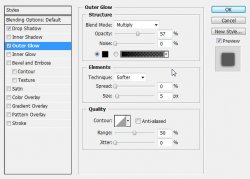
Now we have get rid of the parts outside of the frame.
There is a little icon on the layer that represents the layer styles:
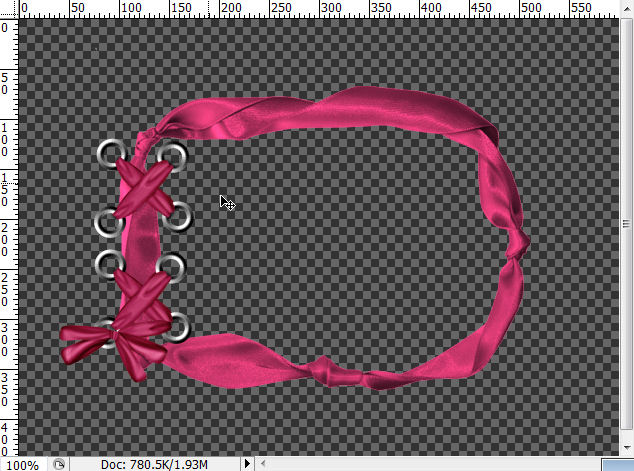
Right click this icon and choose Create Layers. This will add two layers underneath your original layer:
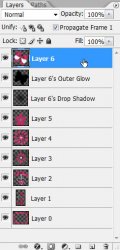
Right click the Drop Shadow layer and Create Clipping Mask.
Right click again and choose Merge Down.
Right click the Outer Glow layer and Create Clipping Mask.
Right click again and Merge Down.
Now right click the original (topmost) layer and Merge Down again.
Right click again and choose Merge Down.
Right click the Outer Glow layer and Create Clipping Mask.
Right click again and Merge Down.
Now right click the original (topmost) layer and Merge Down again.
Now add the same drop shadow to your newly merged layers. (still the topmost layer)
Repeat the steps outlined above.
Do this until you only have one layer left.
Now your cluster is complete!
Let's put it to use.
Use your selection wand and click inside the frame.
Go to Select > Modify > Expand: 5
Create a new layer. Layer > New > Layer...
Flood fill this selection with color or pattern of your choice. Edit > Fill
Click and drag this layer to move it under your cluster in the layers pallet.
Grab your paintbrush tool and paint behind the glass heart with white.
Select your cluster again. give it a very slight drop shadow.
Open your tube and move it onto your cluster.
Resize and place where desired.
CTRL + Click on your cluster thumbnail in the layers pallet. This will select the transparency of the layer (or you can right click on the thumbnail and choose Select Layer Transparency)
Now use your eraser tool to erase the parts of the tube that are to be behind the frame.
Select > Deselect
Now erase the parts that are outside the frame (that shouldn't be there).
Burn tool. (right click on burn/dodge/sponge tool in the tools pallet)
Now burn a little bit of the tube that should be shadowed behind the frame.
Add a drop shadow of choice to the tube layer.
Right click the icon and Create Layers.
Now erase the part of the shadow that is at the bottom, over the frame where it shouldn't be.
Add your copyright information now so you don't forget.
If you need to make your cluster match your tube, simply select your cluster layer and go to Image > Adjustments > Hue / Saturation.
Image > Trim to get rid of the excess space around the tag.
Now add a name or words of your choice. Give them layer styles of your choice. Save as a .png and you are FINISHED! Congrats on creating your cluster frame.
And this is my result:

I hope you have enjoyed this tutorial! I would love to see your results.
Hosted by permission. Please link to this tutorial instead of redistributing it or its supplies.
Back to all tutorials