REBEL DEZIGNS · TUTORIAL ARCHIVE
Dainty
An original Photoshop tutorial by René Kunert (giZZY), rebuilt from the preserved archive.
Materials Needed:
- Prepared mask of choice. I am using my own for this tutorial.
- Scrap kit by KarinaKat Kreations called Midnight Purple
- Tube by the artist of your choice. I am using the wonderful work of Michi Art. Please do not use this image unless you have a license to do so.
Open a new 550X550 pixel image.
You can use any size you want, this is just my normal size.
Place your prepared mask on your canvas.
Open a paper of choice from the kit and also move it onto your canvas.
Make sure it is centered in the canvas so that the entire mask is covered.
Right click the paper layer in the layers pallet and choose Create Clipping Mask.
Right click it again and choose Merge Down.
Now to add our elements.
When you place your elements on your tag, go to Edit > Free Transform.
This will allow you to move, resize, rotate and place your elements where you want them.
I won't tell you exactly what I put where, so I will just show you what I have done.

Be sure to add drop shadows to your elements.
You can do this by right clicking on an element and choosing Blending Options.
On the left side you will see several things you can add to your element.
For now, we are only going to use the Drop Shadow.
Adjust the shadow the way you would like it.
Be sure to vary your shadows to make your tag have more depth.
Now choose your topmost layer.
Place your tube on your canvas.
Give it a drop shadow also.
Add those copyrights!!!
Ok I need to adjust the color of the tag to match the tube... but I am too lazy to do it one at a time.
So instead, we are going to use an Adjustment Layer.
Select the layer just UNDER your tube. We do not want to include the tube in this adjustment.
At the bottom of your layers pallet, you will see a few icons.
Click on the circle that is half black and half white.
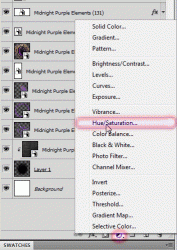
We want to adjust the hue and the saturation of the tag.
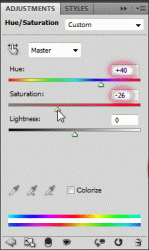
NOTE: this only works with duotone tags. Another approch will need to be taken with more colorful tags.
Now select the topmost layer again and add your name/snag phrase.
You can also add layer styles to your text.
I am using a stroke, gradient overlay and drop shadow.
File > Save for Web:
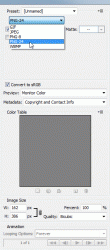
And this is my result:
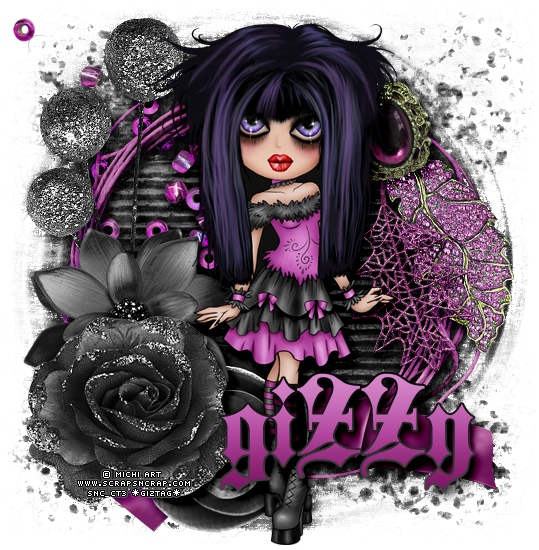
I hope you have enjoyed this tutorial! I would love to see your results.
♥♥♥
Hosted by permission. Please link to this tutorial instead of redistributing it or its supplies.
Back to all tutorials