REBEL DEZIGNS · TUTORIAL ARCHIVE
Date with the Devil
An original Photoshop tutorial by René Kunert (giZZY), rebuilt from the preserved archive.
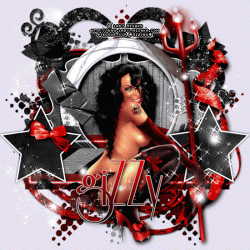
Materials Needed:
- Template (Temp_1) from EllaVonGrim.
- Scrap kit from ScrapItStudio called Kit #7.
This kit is no longer free. - Sparkles of choice.
- Tube by the artist of your choice. I am using Lady Mishka. This tube was purchased from MyPSPTubes.com and used to be available at PSPTubesEmporium. It may now be found at PicsForDesign.com
Open your template in Photoshop.
Resize the template to your desired size. I chose 550x550px.
Delete the credits layer.
Highlight the Dark Star Mask in the layers pallet.
Open a paper of choice from the kit and place it on the tag.
Right click the paper layer in the layers pallet and choose Create Clipping Mask.
Right click the paper layer again and Merge Down.
Repeat this for all the template layers.
Here is what I did:

Let's put some layer styles on the tag.
Highlight the Back Bracket layer and right click it. Choose Blending Options.
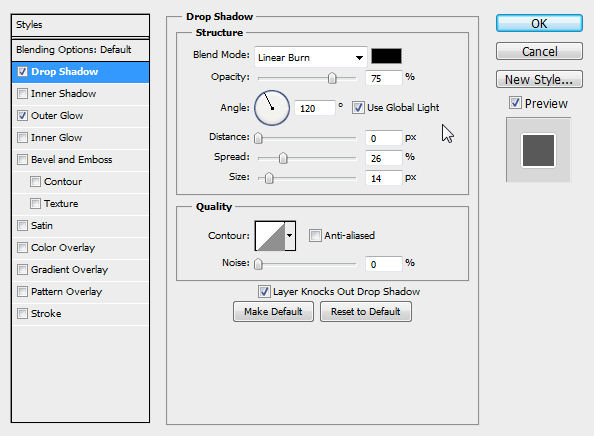
Add these layer styles:
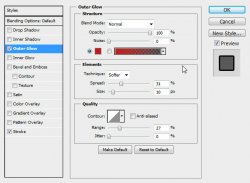
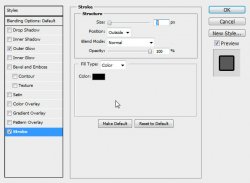
Hightlight the Front Bracket layer and add these styles:
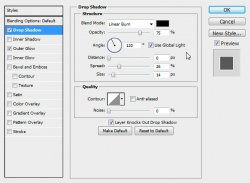
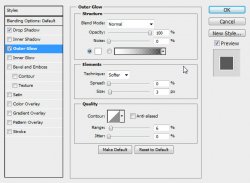
Highlight the Dots layer and give it these styles:
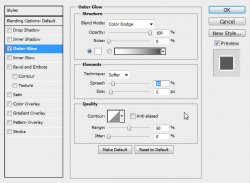
Highlight the Rt Star layer and right click > Merge Down.
Now give it these styles:
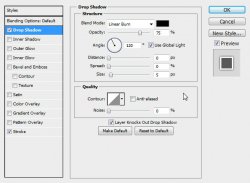
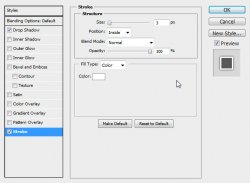
And here is the result after the layer styles have been applied:

Now add some elements where you feel appropriate.
Here is what I have added:

Right click the element layers pallet and give them all a drop shadow of choice.
Vary the size and distance of the shadows to give your tag more depth.
Select the topmost layer and place your tube where desired.
Give it a drop shadow and....
ADD THOSE CREDITS!!

Open some sparkles of choice and place them over the tube.
Add a name and any layer styles that you desire. I have added a stroke, gradient overlay and drop shadow.
Hide the white background layer and save as a .png
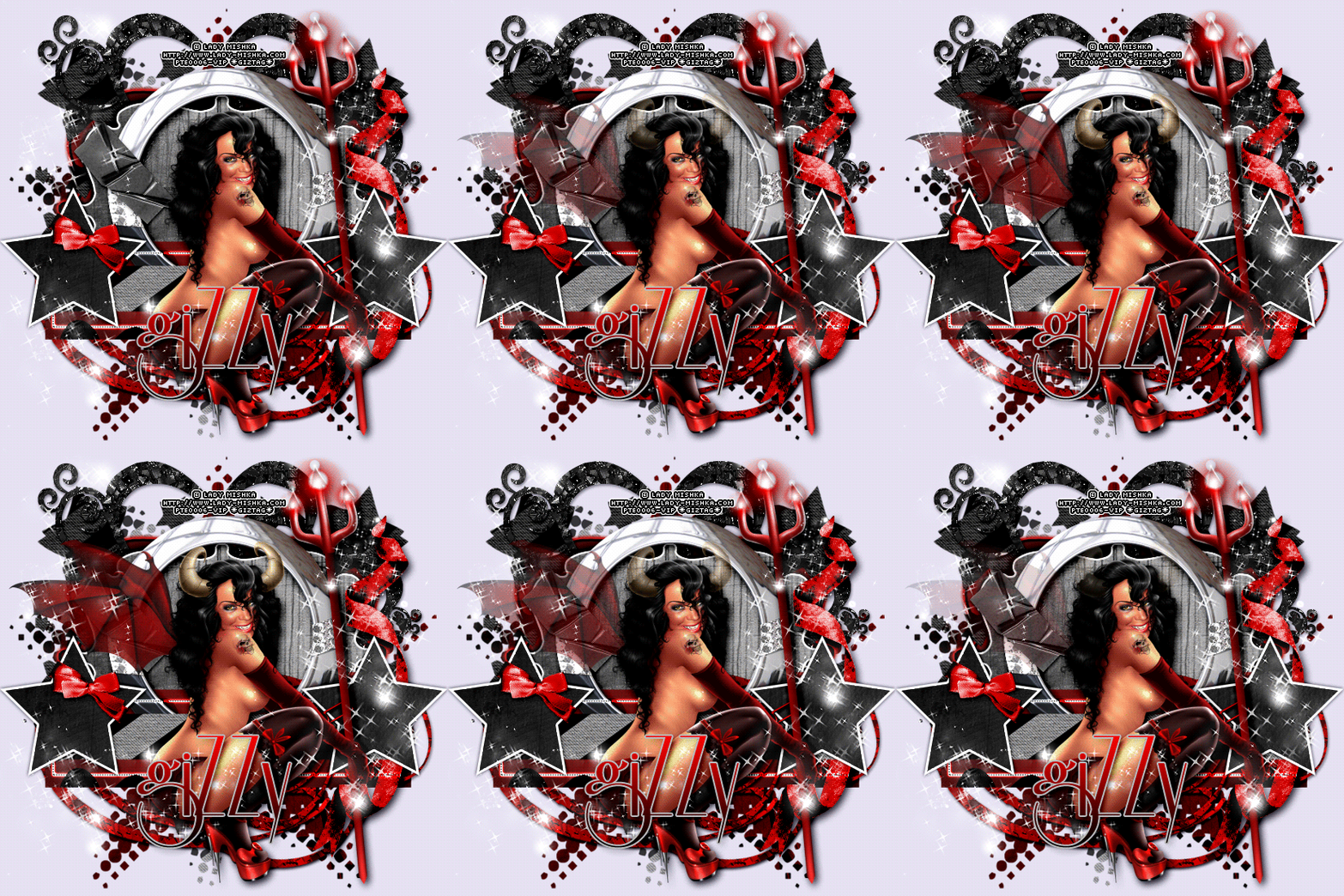
And this is my result:

OPTIONAL ANIMATION
Prepare your work area for animation.
Animation If you are using the same tube I am, you can do this nifty little animation.
Place the copy of the tube that does not have wings and horns over the top of the tube that does. Make sure they are lined up exactly.
Hide the tube with wings.
Duplicate your frame in the Animation Window UNhide the tube with wings (keep the other layer visible also).
Now at the bottom of the animation window, you will see a button that has 4 fading circles (tween)
Click that button and when the popup window appears, enter 5.
Select the last frame in your Animation window and hit the tween button again.
THIS TIME: keep the number 5 but choose "First Frame" in the drop down box.
You should have 12 frames now.
(you can reduce the number of frames by choosing a smaller tween number)
Set the first and 6th frames to 1 second.
Now to save your animation.
I hope you have enjoyed this tutorial! I would love to see your results.
♥♥♥
Hosted by permission. Please link to this tutorial instead of redistributing it or its supplies.
Back to all tutorials