REBEL DEZIGNS · TUTORIAL ARCHIVE
Deck-adence
An original Photoshop tutorial by René Kunert (giZZY), rebuilt from the preserved archive.
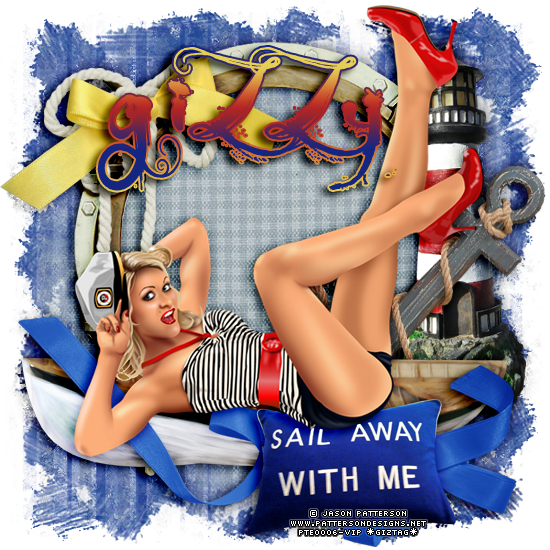
This is a very simple tutorial for those just starting out.
Materials Needed:
- Scrap by Bello Scarto called Deck-adence.
- 2-3 Masks of choice. I am using a couple of my own masks. They can be found here on the forum in the Downloadables area. Be sure to prepare your masks for working in Photoshop.
- Tube by the artist of your choice. I am using the work of Jason Patterson. Please do not use this image unless you have a license to do so.
Open a new 550x550 pixel canvas with a white background (72dpi). You can work at whatever size you want, this is just my standard size.
Place your prepared mask on the canvas and open a paper from the kit.
Place the paper on your canvas and right click the layer in the layers pallet. Choose Create Clipping Mask.
Right click it again and Merge Down.
Repeat this for your other mask(s).
I don't want to go all into what you are supposed to put where. Tutorials are just a guideline for what you could do.
Instead, I am going to show you what I have done.
Remember that Edit > Free Transform is what you would use to resize, rotate, and move your elements around your tag.

After you have placed all of your elements on your tag, right click one of the layers in the layers pallet and choose Blending Options.
Then choose Drop Shadow from the left side and add a shadow of your liking.
Highlight the topmost layer in the layers pallet and open your tube. Place the tube on the canvas.
Either drag and drop the whole layer, or
Select > All; Edit > Copy; move to your tag; Edit > Paste
Give your tube a drop shadow also.
Highlight the topmost layer of your tag (should be the tube)
Now hold shift and highlight the lowest layer that is NOT the background.
This will select all your tag layers.
Layer > Group Layers
Now let's clean up those drop shadows. Nothing like having tons of shadows outside the tag... This might take a couple of tries to get perfect.
Hold the Shift+CTRL buttons on your keyboard.
Now click on the thumbnail of each layer.
OR
Right click the thumbnail of the topmost layer and choose Select Pixels.
Right click each of the other layers (including masks) and choose Add Transparency Mask.
This will make a selection around all your tag elements.
Here you can see the difference:
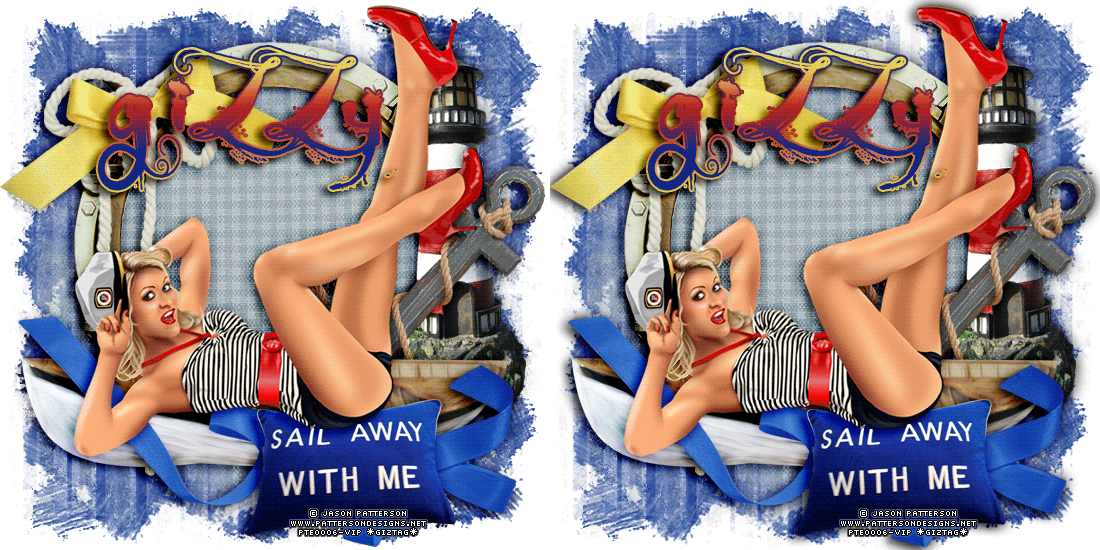
It is best not to change anything inside the group at this point. So make sure it is 'closed'. (layers not visible in the layers pallet)
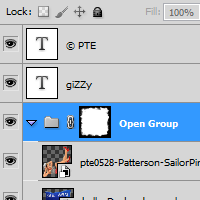
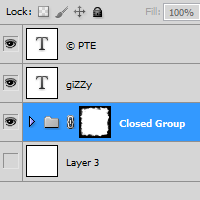
now add those copyrights!!
Add a name or snag phrase and right click it.
Bring up the Blending options and add any layer style you wish.
I have used a stroke, gradient overlay, and drop shadow.
Now hide your white background layer and save as a .png
And this is my result:
I hope you have enjoyed this tutorial! I would love to see your results.
♥♥♥
Hosted by permission. Please link to this tutorial instead of redistributing it or its supplies.
Back to all tutorials