REBEL DEZIGNS · TUTORIAL ARCHIVE
Elegance
An original Photoshop tutorial by René Kunert (giZZY), rebuilt from the preserved archive.
Materials Needed:
- Scrap Mother's Love by Crazy Carita. Was PTU, now FREE! Thank you Carita!!
- Wordart by me.
- Tubes of your choice. I am using Shawli. Please do not use this image unless you have a license to do so.
Open a new 700x700 Blank canvas.
Flood fill the first layer with white and rename it "Background" (double click the layer's name in the layers pallet)
Open frame2.psd and use your move tool to move it onto your tag canvas. Rename this layer "frame"
Edit > Free Transform
Rotate the frame 45°
Look up at the top of the screen and find this:

Then just click the check mark.
Now open doodle.psd and place it to the right of your canvas. Drag this layer and drop it under your frame layer in the layers pallet.
Duplicate this layer by right clicking the layer and choosing duplicate layer.
Select > All
Edit > Transform > Rotate 180°
Right click and Merge Down
Rename this layer "doodle"
Open flower4.psd and move it onto your canvas. Move it to the top left.
Rename this layer "flower 1"
Open flower1.psd and move it onto your canvas.
Edit > Free Transform
Resize to about 80% and move it up with the other flower.
Rename this layer "flower 2"
Select your "frame" layer and open flowers.psd
Move it onto your canvas and position it to the right.
Edit > Transform > Rotate 180°
Rename this layer "flower group"
Open JDD-lace-edged-fan-.sample-gold.psd and move it onto your canvas.
Edit > Free Transform
H: 75%
W: 75%
Rotate: -25°
Move it to the bottom left of your tag.
Rename this layer "fan"
Open flower3.psd and move it onto your canvas.
Position it to compliment the fan layer.
Rename this layer "flower 3"
Open butterfly3.psd and move it onto your canvas.
Position it over your flower.
Edit > Free Transform
H: 70%
W: 70%
Rotate: -15°
Rename this layer "butterfly"
Select the "frame" layer and use your selection wand to select the inside of the frame.
Select > Modify > Expand: 2
Select the "flower 2" layer and fill the selection with white. Edit > Fill.
Select > Deselect
Rename this layer "paper"
Open paper12.jpg and move it onto your canvas.
Move it around the center of the canvas.
Right click and Create Clipping mask.
Right click and Merge Down.
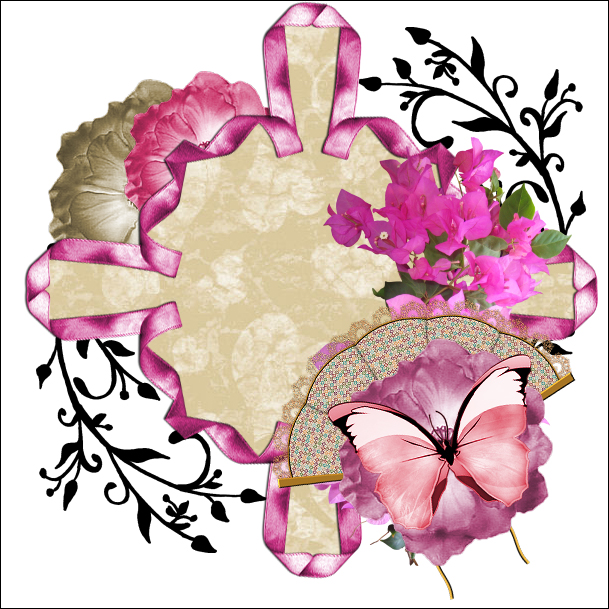
This is what you should have so far:
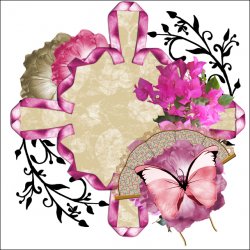
Now that we have all of the elements in position, we need some layer styles.
Select your "doodle" layer and right click it. Choose Blending Options.
Give it a style similar to this:
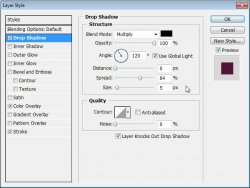
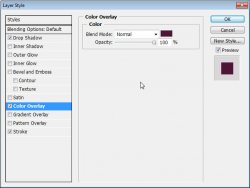
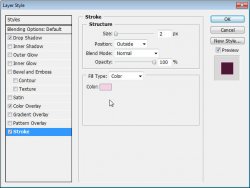
Now right click your "flower 1" layer.
Right click and choose Blending Options.
Give it a drop shadow of choice.
Right click the layer again and choose Copy Layer Styles.
Choose the "flower 2" layer.
Right click this layer and choose Paste Layer Styles.
Paste the layer styles to the following layers also:
- frame
- flower group
- fan
- flower 3
- butterfly
Ok that was the easy part. Now for the tougher part. We need to add one more element, but it will require using a few more options to make it fit in the tag.
Select your "frame" layer and open journal.psd
Move it onto your canvas and position it like so:
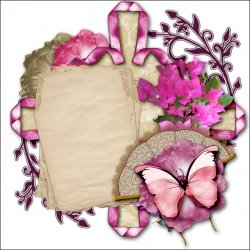
Rename this layer "journal"
Now we need to add a layer mask to it.
Layer > Layer Mask > Reveal All
Now you will see a little white box attached to it on the layers pallet.
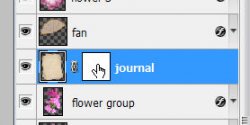
This will be what we will be working on to get rid of the excess.
We use layer masks because they are editable. If you make a mistake erasing, all you need to do is paint it back on. This will make a huge difference when we add the shadows.
Right click the thumbnail on the "frame" layer and choose Select Layer Transparency. (In CS4+, choose "Select Pixels")
Now go back to the "journal" layer. Click on the layer mask attached to the layer and use the eraser tool and erase the portion of the journal that is behind the frame. Make sure you are erasing on the mask and not the layer. If you are doing this correctly, you will see black marks on the layer mask.
Select > Deselect
Now erase the parts of the journal that are sticking out of the frame (using the layer mask)
Looks sort of flat, doesn't it? We can fix that.
Select the "frame" layer.
There is an icon that looks like this:
Right click this icon and choose "Create Layer"
This will add the drop shadow to a new layer beneath the frame.
Duplicate the "frame's Drop Shadow" layer.
Move it above the "journal" layer in the layers pallet.
Right click it and Create Clipping Mask.
Now use the eraser tool and just erase the parts that shouldn't be there.
Select the "journal" layer and add a drop shadow.
But the shadow makes it look like it is hovering over the frame... We can fix that.
Right click the icon and Create Layer.
Now just erase the parts that should not be over the frame.
Before:
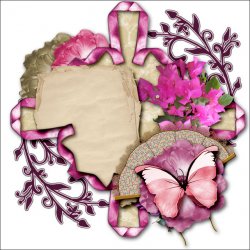
After:
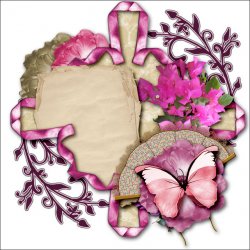
Ok the tough part is over. Relieved now, aren't you?

Now...
Select the "frame's Drop Shadow copy" layer. (the one over the "journal" layer)
Open your tube. A closeup works best for this part.
Position it over your journal and Create Clipping Mask.
Up at the top of your layers pallet, you will see a Blend Mode option.
Change it to Overlay:
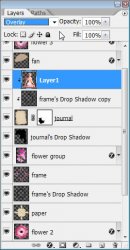
Now open your main tube and move it onto your canvas.
Give it a drop shadow of your choice.
Now is a good time to add your copyright information so you don't forget.
Select your topmost layer (which should be the "butterfly" layer)
Open the wordart that I have supplied and move it onto your canvas.
Give it a drop shadow of your choice.
Add a name to your canvas and give it this layer style (Blending Options)
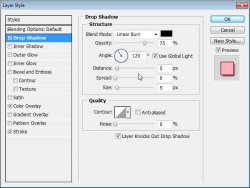
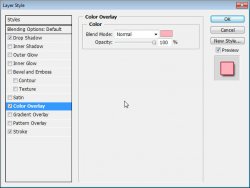
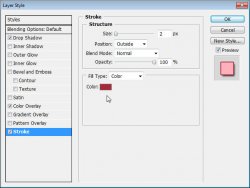
That is just about it! Unless you want to add some other things to it. Go wild! This is just a guide
And this is my result:

I hope you have enjoyed this tutorial! I would love to see your results.
Hosted by permission. Please link to this tutorial instead of redistributing it or its supplies.
Back to all tutorials