REBEL DEZIGNS · TUTORIAL ARCHIVE
Fairy Tale Forest
An original Photoshop tutorial by René Kunert (giZZY), rebuilt from the preserved archive.
Materials Needed:
- Scrap kit by Wilma4ever called Fairytale Forest.
Tips:
- Right click the thumbnail of a layer and Select Pixels for the same effect of the PSP float/defloat option.
- Using layer masks, you can erase portions of a layer without destroying the layer.
- Clipping masks are your friend.
- Use the wand tool to select the inside of frames and then Selection > Modify > Expand: 5-10 pixels. Then add a new layer below the frame and fill with white. This will add the inside to your frames. You can then clip a paper to the filled layer.
This is a very short, quick tutorial that can give you some very nice results.
Open a new 550x550 pixel canvas and flood fill the first layer with white.
Edit > Fill: White
Now start piling on some elements.
Here are the elements I have used:

Now use your selection wand to select the inner portion of the floral frame.
Create a new layer BELOW the frame layer and Edit > Fill: White.
Open a paper of choice and resize it to fit inside the frame.
Right click the paper in the layers pallet and Create Clipping Mask.
Now we want to add shadows to our element layers.
You can add your favorite drop shadow, but if you would like to use mine:
Right one of your element layers and choose Blending Options.
Add these styles:
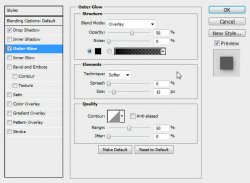
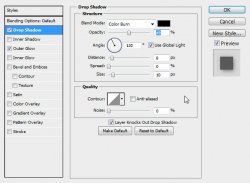
Add this style to all your elements.
Add a name and scrapkit copyright information.
You may add any layer styles to the name as you wish. I have used a stroke, outer glow, gradient overlay and drop shadow.
Prepare your work area for animation.
Animation Hide the fairy layer by clicking the eye icon beside the layer thumbnail in the layers pallet.
You will see your first frame is already present.
Duplicate the frame by clicking the "folded paper" icon at the bottom of the animation window.
Unhide the fairy layer and move it halfway across your tag. I have put it about the center.
Duplicate the frame again in the Animation window.
Move the fairy layer to the bottom left part of your tag.
Hide the fairy layer again.
You should have 3 frames in your animation window.
Highlight the first frame.
Click the Tween icon at the bottom of the window that has 4 fading circles.
Enter 5 in the popup window.
Highlight the 7th frame in the Animation window and click the Tween button again.
Enter 5 in the popup window once more.
Set your frame delay to 0.1 sec. Set the first and last frames to 0.5 seconds.
Now to save your animation.
And this is my result:

I hope you have enjoyed this tutorial! I would love to see your results.
♥♥♥
Hosted by permission. Please link to this tutorial instead of redistributing it or its supplies.
Back to all tutorials