REBEL DEZIGNS · TUTORIAL ARCHIVE
Girl's Night Out
An original Photoshop tutorial by René Kunert (giZZY), rebuilt from the preserved archive.
Materials Needed:
- Template by Me
- Wordart by Me
- PTU Scrap kit by hornyroo called Girls' Night Out
- Tube by the artist of your choice. I am using Elias Chatzoudis. This tube was purchased from MyPSPTubes.com but is now available at PSPTubesEmporium!
Open your template in Photoshop.
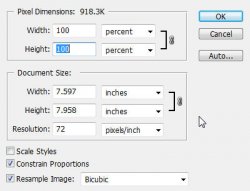
Resize your template to:
Height: 100%
Width: 100%
Resolution: 72 pixels per inch
Select the layer "Shape 2" and open GNOByRooPaper~11.jpg from the kit.
Use the move tool to move the paper onto your canvas and position it over the circles.
Double click on the name of your paper layer and rename it "circles".
If you look in your layers pallet, you will see a path on the Shape 2 layer. Drag THIS onto your paper layer only.
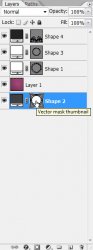
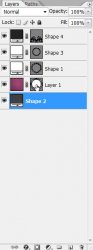
Click on the chain icon between the thumbnails to release the link. (this will help when resizing the path)
Delete the "Shape 2" layer.
Select the "Shape 1" layer and open GNOByRooPaper~01.jpg
Move it onto your canvas and position it about center. Rename this layer to "hearts".
Now move the vector mask from the "Shape 1" layer to the "hearts" layer in the same manner as before. And then delete the "Shape 1" layer.
Release the link between the thumbnails.
Select the "Shape 3" layer and open GNOByRooPaper~06.jpg
Move it onto your canvas, center it, and rename it to "dots".
Move the vector mask from the "Shape 3" layer to the "dots" layer in the same manner as before. And then delete the "Shape 3" layer.
Release the link between the thumbnails.
Select the "Shape 4" layer and open GNOByRooPaper~04.jpg
Move it onto your canvas, center it, and rename it to "swirl".
Move the vector mask from the "Shape 4" layer to the "swirl" layer in the same manner as before. And then delete the "Shape 4" layer.
Release the link between the thumbnails.
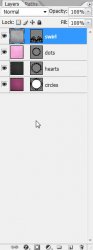
Here is what your layers pallet should look like now:
Now make the canvas size bigger so we have enough room for our layer styles.
Image > Canvas size... with these settings:
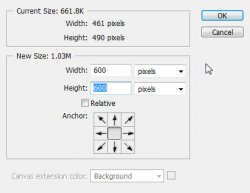
Select > All
Image > Crop
Select > Deselect
This will get rid of all the extra paper around the edges of the tag (and reduce file size for those of you that save your .psd files)
Now for the layer styles.
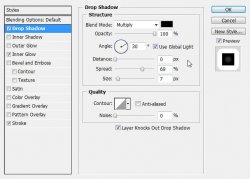
Select your "circles" layer and right click. Choose Blending Options and apply this style:
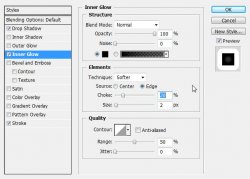
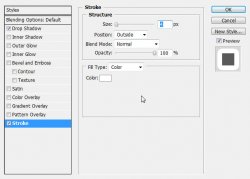
Select the "hearts" layer and apply these styles:
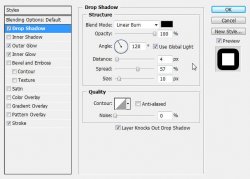
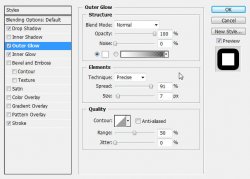
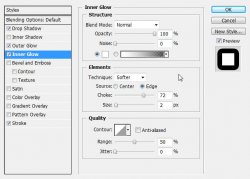
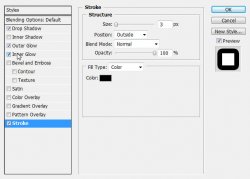
Right click the "hearts" layer and Copy Layer Style.
Right click the "dots" layer and Paste Layer Style.
Right click the "swirl" layer and Paste Layer Style.
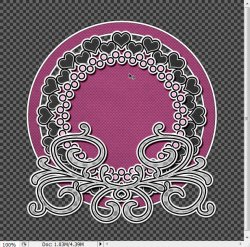
You should have something similar to this now:
Select your "circles" layer and open GNObyRooelements04.png and move it onto your canvas.
Edit > Free Transform
Look at the top of the screen and enter these values:
X: 131.0px
Y: 182.0px
H: 60%
W: 60%
Then just click the check mark.
Duplicate this layer (right click, Duplicate Layer)
Select > All
Edit > Transform > Flip Horizontal
Select > Deselect
Right click and Merge Down
Rename this layer "element 1". Give it a drop shadow of your choice.
Select "dots" and open GNObyRooelements34.png and move it onto your canvas.
Rename this layer "element 2"
Move it to the right and give it a drop shadow of choice.
Open GNObyRooelements16.png and move it onto your canvas.
Place it to the left and rename this layer to "element 3". Give it a drop shadow of your choice. I have used Alien Skin Eye Candy 5: Impact > Perspective Shadow on mine. Of course this is completely optional.
Select the "swirl" layer and open GNObyRooelements20.png
Move it onto your canvas and resize it. Edit > Free Transform:
X: 450px
Y: 470px
H: 45%
W: 45%
Then click the check mark.
Rename this layer to "element 4" and give it a drop shadow of your choice.
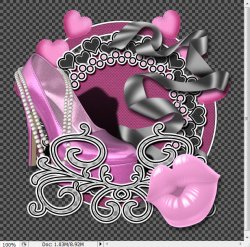
This is what you should have so far:
Select the "element 3" layer (shoe) and open the tube of your choice.
Place it on your canvas.
Edit > Free Transform:
Enter the desired size and location. (note that you are able to move it around your canvas manually)
Give it a drop shadow and rename this layer to "tube"
Now is a good time to add your copyright information so you don't forget.
Select your topmost layer and open the wordart that I have supplied. Rename this layer "girls night"
Position it where desired.
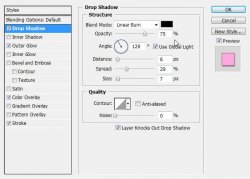
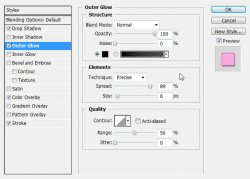
Then add these layer styles:
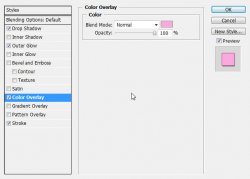
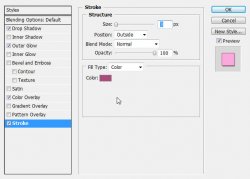
Now add a name to the tag and position it wherever you like and add the same styles as the wordart.
I would say that you are pretty much finished!
And this is my result:

I hope you have enjoyed this tutorial! I would love to see your results.
Hosted by permission. Please link to this tutorial instead of redistributing it or its supplies.
Back to all tutorials