REBEL DEZIGNS · TUTORIAL ARCHIVE
Glamorous
An original Photoshop tutorial by René Kunert (giZZY), rebuilt from the preserved archive.
Materials Needed:
- Prepared mask of choice.
- Supplies made by me. Do not redistribute or share.
- Tube by the artist of your choice. I am using the wonderful work of Barbara Jensen. Please do not use this image unless you have a license to do so. This tube is in her Fae Pack A.
Tips:
- Right click the thumbnail of a layer (in the layers pallet) and Select Pixels for the same effect of the PSP float/defloat option.
- Using layer masks, you can erase portions of a layer without destroying the layer.
- Clipping masks are your friend.
- Use the wand tool to select the inside of frames and then Selection > Modify > Expand: 5-10 pixels. Then add a new layer below the frame and fill with white. This will add the inside to your frames. You can then clip a paper to the filled layer.
First off, open the folder that contains your supplies.
Drag in the Glamorous.asl file that I provided.
This will not actually open anything, it simply loads the styles into your photoshop.
Open a new 550X550 pixel image.
Flood fill the first layer with white.
Open the image I have provided and place it on the canvas.
Type out any word of choice on the tag in a big chunky font.
Go to Window > Layer Styles and click on the style that I provided. (with or without glitter)
Highlight the image layer and hold the Shift key.
Highlight the text layer while still holding Shift.
Layer > New > Group...
Name this group Background.
Open a mask of your choice.
Do NOT move it onto the canvas.
Select > All
Edit > Copy
Close the mask.
Highlight your Background group.
Select > Edit in Quick Mask Mode
Edit > Paste
Select > Exit Quick Mask Mode.
Layer > Layer Mask > Reveal Selection.
Open your tube and place it on your canvas. (Not inside the group)
Add your choice of drop shadow to the tube. (right click the layer in the layers pallet to choose Blending options)
Add those copyrights! Now is a good time, so you don't forget.
Now comes a complicated part.
Get your pen tool out. Make sure it is set to path only (first button on the options at the top)
Draw some spirals on your tag around your tube.
This might take a couple of tries to get right.
If you click and drag, you will create a curve instead of a point.
Here is an example of what I mean:
Layer > New > Layer...
Name this layer Swirl.
Now grab your brush tool and set the size to 6 pixels.
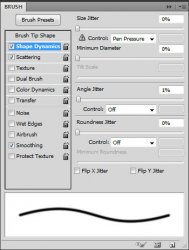
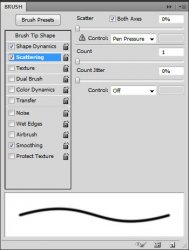
Now go to Window > Brush
Set it like this:
Set your foreground color to white.
Now grab your pen tool again.
Right click ON your tag and choose Stroke Path.
Check the Simulate Pressure and choose Brush from the dropdown box.
Click ok
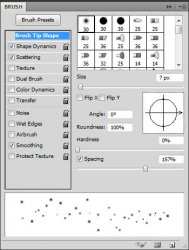
Create a new layer and call it Sparkle.
Grab your brush tool again and set the brush to this:
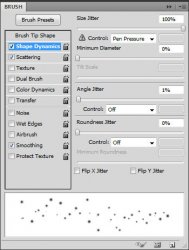
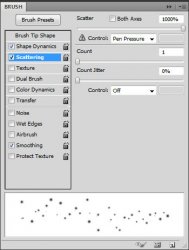
Grab your pen tool again.
Repeat the stroke on your Sparkles layer.
Right click and Delete Path.
This part is important to the effect of the tag. If you don't follow this exactly, your glows will not look right on the tube.
Create a new Group and name it Light.
Drag the Swirl and the Sparkles layer into the group.
Make sure the Light group is highlighted in the layers pallet.
Layer > Layer Mask > Reveal All.
This will add a layer mask to your group. It will look like a white square on the group in the layers pallet.
We are going to be using it to erase parts of the swirl and sparkles.
CTRL + Click on the thumbnail of the tube layer.
Click ON the mask that is attached to the Group. (in the layers pallet)
Now use your eraser tool to erase some parts of the swirl that should be behind the tube.
Now select the swirl layer and right click in the layers pallet.
Choose Blending Options.
Give this layer an outer glow.
Size: 10px
Blend Mode: Color Dodge.
Add the same to the Sparkles layer.
Now add your name to the tag.
I have used the Quick Gold tutorial from this page:
http://psd.tutsplus.com/tutorials/text- ... m-scratch/
If you only want a static tag without animation, you may stop here. If you would like to add the animation, please proceed.
Prepare your work area for animation.
Animation Is your animation window open? Good.
The first frame is already there.
Duplicate the frame by clicking the folded paper icon at the bottom of your animation window.
Highlight the Text layer that you created earlier (the one with just the styled word)
Right click it in the layers pallet to bring up the Blending Options.
Select the Pattern Overlay.
Do not change anything.
If you hover over your tag, you will notice that your cursor will turn into what looks like the move tool.
Use this tool to move the pattern over a little. Click Ok.
Duplicate your frame again.
Move the pattern over in this frame again.
Duplicate your frame again.
Move the pattern over once more.
That is all you need to do for the animation.
Set your frame delay to 0.1 sec.
Now to save your animation.
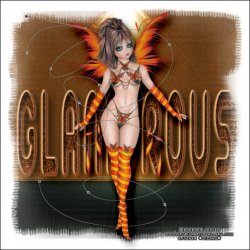
And this is my result:

I hope you have enjoyed this tutorial! I would love to see your results.
♥♥♥
Hosted by permission. Please link to this tutorial instead of redistributing it or its supplies.
Back to all tutorials