REBEL DEZIGNS · TUTORIAL ARCHIVE
Glitz
An original Photoshop tutorial by René Kunert (giZZY), rebuilt from the preserved archive.
Material Needed:
I have supplied two versions of the same template in this tutorial. If you prefer using raster layers over vector layers, then open the "raster template.psd" and select layer "1".
Now go to Image > Canvas Size...
25px in both boxes and make sure that the "relative" checkbox is checked.
Open two papers of your choice from the scrap kit.
Choose a darker paper and then go to Edit > Define Pattern. This will add the paper as a pattern to use in a layer style. (we will use this later)
Drag this paper onto your template. This should position the layer directly above the layer "1" in the layers pallet. If it does not, simply click and drag the layer down until it is directly above that layer. You may now close this paper.
Now right click your paper layer and choose "Create clipping mask". This will mask your paper to the layer beneath it. Merge the layers. Right click your paper layer and "Merge down".
Open another paper that compliments the first. Go to Edit > Define Pattern. Do not close this paper.
Back to our template.
Double click on the layer "1" (or right click and choose blending options)
We are going to add a stroke to our layer.
Size: 8px
Position: Center
Fill Type: Pattern
Now find your lighter pattern in the drop down box.
You may also add a drop shadow to your layer before you click ok.
Now your circle layer is finished. On to the next layer.
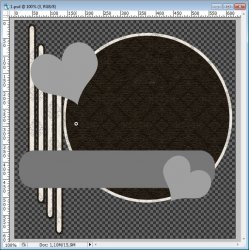
Select layer "2". Drag your still open paper onto your template and then close the paper.
Right click your paper layer and choose "Create clipping mask". Merge the layers.
Now open the blending options of layer "2" and add a stroke.
Size: 5px
Position: Outside
Fill Type: Pattern
This time use the first pattern that we created out of the darker paper.
You may add a drop shadow to your layer before you click ok.
Take a sip of your coffee.
Now for the next layer.
Open two different papers of choice. (one lighter, one darker)
Edit > Define Pattern on both papers.
On your template, click on layer "3".
Drag your lighter paper onto your template. Create clipping mask (right click paper). Merge the layers.
Double click (or right click) on layer "3" to open blending options.
Add a stroke of
Size: 8px
Position: Center
Fill Type: Pattern
Find the pattern of the second paper in the drop down box.
Add your shadow.
Next...
Click on your layer "4" and drag your next paper onto your template. Create clipping mask as before. Merge the layers.
Open your blending options for layer "4" and add a stroke just as before only using the pattern of your first paper.
Make sure your coffee has not gotten cold.
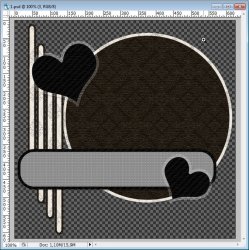
Ok that pretty much finishes up the base for your tag.
Now select layer "1"
Open the tube of your choosing. Drag the tube layer onto your template.
Position and/or resize (larger) your tube and create a clipping mask (right click).
Edit > Transform > Flip Horizontal
Change the fill opacity of your tube layer to 50%. (in the blending options)
Select layer "4".
Drag your tube onto the template again (or chose another tube by the same artist). This time do not create a clipping mask. Resize (smaller) and position where you think looks best.
Add a drop shadow of your liking.
Pour out coffee and get a new one.
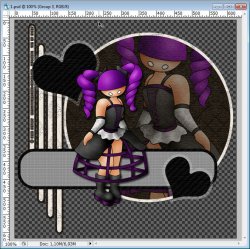
Now add any text you wish (preferably in a dark color). Only add a name if you do not plan to edit it in the future.
Add the same layer style as the circle layer. (right click layer "1" and "copy layer style"... Right click the text layer and "paste layer style")
Now right click your text layer and choose blending options. (we are going to change the stroke)
Click on stroke and change the size to 5 and the Position to "Outside".
Ok that is it for the main portion of the tag. Now we are going to attempt to animate it. You may stop here if you wish.
Now go to Select > Color Range
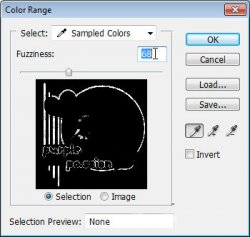
This is a tricky part. We want to select the light colors of the tag. So while this window is open, click directly on the lightest color of your tag.
Now adjust the fuzziness until you get something like this:
Edit > Copy Merged
Edit > Paste
With this layer selected:
Layer > Group layers
Now select the layer again and duplicate it 3 times (four layers inside the group).
Layer > Duplicate OR
Right click > Duplicate Layer
Hide all but the first of your grouped layers. (hide the copies)
Now apply the filter:
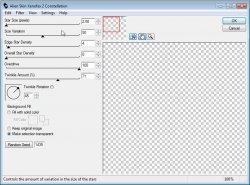
Now make sure your animation window is open. Window > Animation
You will see that your first frame is already there. Now click on the icon that looks like a piece of paper to duplicate the frame.
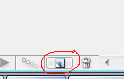
Hide your freshly filtered layer and unhide the next layer up.
Apply the filter again. ONLY click the "random seed" button.
Do this for all four layers. Making sure that you duplicate the frame for each layer.
Now in your animation window, select frame 1.
Now add any other text you wish to the tag (names are good for this part.
But you are not finished!
Now click the first animation frame. Hold shift and click the last animation frame.
At the bottom of each frame, there is a number. This is the frame delay. If it is set to 0, there will be no delay and your animation will be too fast.
To change this, simply click on the arrow beside the number and change it to 0.1 (make sure you still have all frames highlighted)
This will slow your animation down. (you may change it to any number you wish, including decimals)
To view your animation, simply click the play button.
Now to save your animation:
Go to File > Save for Web
This will bring up a completely different save window than you are probably used to. Simply set everything like so:
Note that these settings are the ones that I use for the background of the posts of THIS forum.
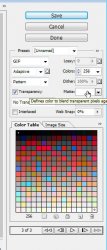
And you are done! You have finally done an animation using Photoshop.
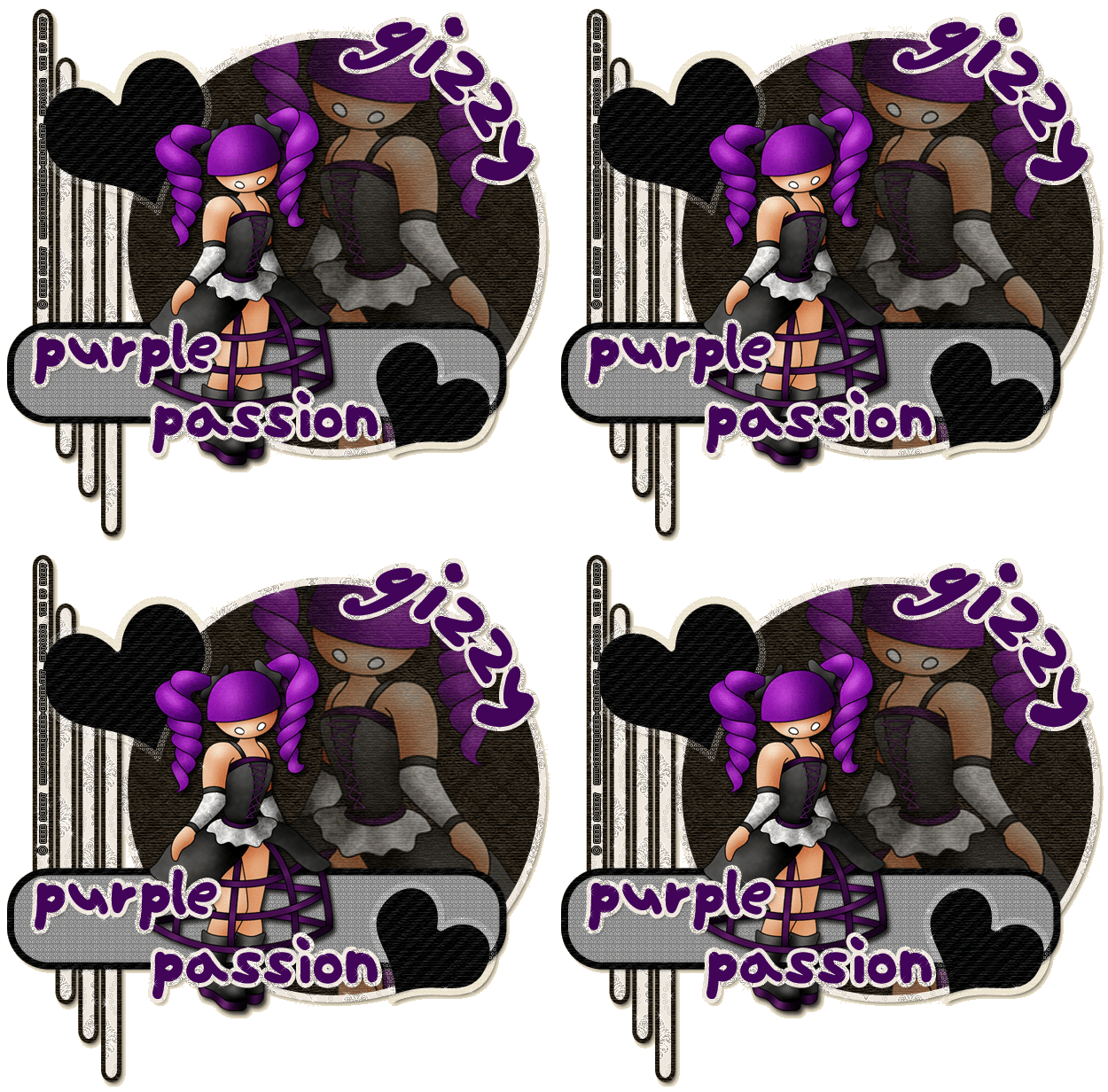
This technique seems a whole lot more complicated than using Animation Shop, but I do think your results will look tons more appealing.
Here is my result:

Now you can finish off your coffee and revel in your achievement
I hope you have enjoyed this tutorial! I would love to see your results.
- My Supplies: supplies.zip (do not supply or share these items anywhere else)
- Scrap kit of choice (I am using a scrap kit found in our Forum Store called Lace. Note that you will need forum points to download this kit. There are several ways on the forum to earn points.)
- Tube of choice (I am going to use my own. Please do not use this tube unless you have a license to do so. You may find it at PSPTubesEmporium)
- Photoshop CS2 or higher
- Alien Skin Xenofex 2: Constellation
- A large coffee
I have supplied two versions of the same template in this tutorial. If you prefer using raster layers over vector layers, then open the "raster template.psd" and select layer "1".
Now go to Image > Canvas Size...
25px in both boxes and make sure that the "relative" checkbox is checked.
Open two papers of your choice from the scrap kit.
Choose a darker paper and then go to Edit > Define Pattern. This will add the paper as a pattern to use in a layer style. (we will use this later)
Drag this paper onto your template. This should position the layer directly above the layer "1" in the layers pallet. If it does not, simply click and drag the layer down until it is directly above that layer. You may now close this paper.
Now right click your paper layer and choose "Create clipping mask". This will mask your paper to the layer beneath it. Merge the layers. Right click your paper layer and "Merge down".
Open another paper that compliments the first. Go to Edit > Define Pattern. Do not close this paper.
Back to our template.
Double click on the layer "1" (or right click and choose blending options)
We are going to add a stroke to our layer.
Size: 8px
Position: Center
Fill Type: Pattern
Now find your lighter pattern in the drop down box.
You may also add a drop shadow to your layer before you click ok.
Now your circle layer is finished. On to the next layer.
Select layer "2". Drag your still open paper onto your template and then close the paper.
Right click your paper layer and choose "Create clipping mask". Merge the layers.
Now open the blending options of layer "2" and add a stroke.
Size: 5px
Position: Outside
Fill Type: Pattern
This time use the first pattern that we created out of the darker paper.
You may add a drop shadow to your layer before you click ok.
Take a sip of your coffee.
Now for the next layer.
Open two different papers of choice. (one lighter, one darker)
Edit > Define Pattern on both papers.
On your template, click on layer "3".
Drag your lighter paper onto your template. Create clipping mask (right click paper). Merge the layers.
Double click (or right click) on layer "3" to open blending options.
Add a stroke of
Size: 8px
Position: Center
Fill Type: Pattern
Find the pattern of the second paper in the drop down box.
Add your shadow.
Next...
Click on your layer "4" and drag your next paper onto your template. Create clipping mask as before. Merge the layers.
Open your blending options for layer "4" and add a stroke just as before only using the pattern of your first paper.
Make sure your coffee has not gotten cold.
Ok that pretty much finishes up the base for your tag.
Now select layer "1"
Open the tube of your choosing. Drag the tube layer onto your template.
Position and/or resize (larger) your tube and create a clipping mask (right click).
Edit > Transform > Flip Horizontal
Change the fill opacity of your tube layer to 50%. (in the blending options)
Select layer "4".
Drag your tube onto the template again (or chose another tube by the same artist). This time do not create a clipping mask. Resize (smaller) and position where you think looks best.
Add a drop shadow of your liking.
Pour out coffee and get a new one.
Now add any text you wish (preferably in a dark color). Only add a name if you do not plan to edit it in the future.
Add the same layer style as the circle layer. (right click layer "1" and "copy layer style"... Right click the text layer and "paste layer style")
Now right click your text layer and choose blending options. (we are going to change the stroke)
Click on stroke and change the size to 5 and the Position to "Outside".
Ok that is it for the main portion of the tag. Now we are going to attempt to animate it. You may stop here if you wish.
Now go to Select > Color Range
This is a tricky part. We want to select the light colors of the tag. So while this window is open, click directly on the lightest color of your tag.
Now adjust the fuzziness until you get something like this:
Edit > Copy Merged
Edit > Paste
With this layer selected:
Layer > Group layers
Now select the layer again and duplicate it 3 times (four layers inside the group).
Layer > Duplicate OR
Right click > Duplicate Layer
Hide all but the first of your grouped layers. (hide the copies)
Now apply the filter:
Now make sure your animation window is open. Window > Animation
You will see that your first frame is already there. Now click on the icon that looks like a piece of paper to duplicate the frame.
Hide your freshly filtered layer and unhide the next layer up.
Apply the filter again. ONLY click the "random seed" button.
Do this for all four layers. Making sure that you duplicate the frame for each layer.
Now in your animation window, select frame 1.
Now add any other text you wish to the tag (names are good for this part.
But you are not finished!
Now click the first animation frame. Hold shift and click the last animation frame.
At the bottom of each frame, there is a number. This is the frame delay. If it is set to 0, there will be no delay and your animation will be too fast.
To change this, simply click on the arrow beside the number and change it to 0.1 (make sure you still have all frames highlighted)
This will slow your animation down. (you may change it to any number you wish, including decimals)
To view your animation, simply click the play button.
Now to save your animation:
Go to File > Save for Web
This will bring up a completely different save window than you are probably used to. Simply set everything like so:
Note that these settings are the ones that I use for the background of the posts of THIS forum.
And you are done! You have finally done an animation using Photoshop.
This technique seems a whole lot more complicated than using Animation Shop, but I do think your results will look tons more appealing.
Here is my result:
Now you can finish off your coffee and revel in your achievement
I hope you have enjoyed this tutorial! I would love to see your results.
Hosted by permission. Please link to this tutorial instead of redistributing it or its supplies.
Back to all tutorials