REBEL DEZIGNS · TUTORIAL ARCHIVE
Goth Beauty
An original Photoshop tutorial by René Kunert (giZZY), rebuilt from the preserved archive.
Materials Needed:
- Scrap kit called Goth Given Love by Bello Scarto
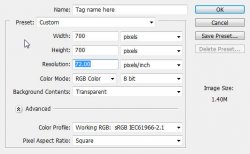
Open a new canvas. File> New...
Open bs-ggl-element17.png from the kit.
Use your move tool to move it over to your blank canvas. Double click the name of this layer in the layers pallet and rename it to "backing"
Select > All
Layer > Align Layers To Selection > Horizontal Center
Layer > Align Layers To Selection > Vertical Center
Select > Deselect
Don't worry about all the extra space, we will deal with it at the end of the tutorial.
Open bs-ggl-element6.png and move it onto your canvas.
Position it where desired. You may use my finished tag as a guide.
Rename this layer to "hearts"
Open bs-ggl-element13.png and move it onto your canvas.
Edit > Free Transform (look up at the top and enter these values):

Now just click the check mark to apply it.
Rename this layer "ribbon"
Open bs-ggl-element21.png and move it onto your canvas.
Edit > Free Transform:

Rename this layer "flowers"
Open bs-ggl-element42.png and move it onto your canvas.
Edit > Free Transform:

Rename this layer "bow"
Open bs-ggl-element11.png and move it onto your canvas.
Edit > Free Transform:

Rename this layer "candle"
Ok we have all of our elements in place. Lets add some effects, shall we?
Select your "backing" layer.
Right click it and choose Blending Options.
Add these effects to the layer:
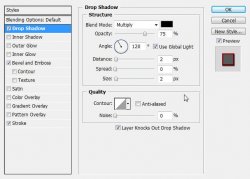
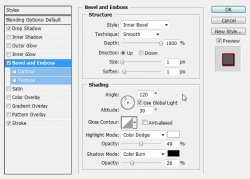
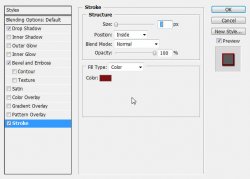
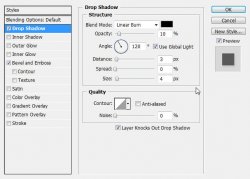
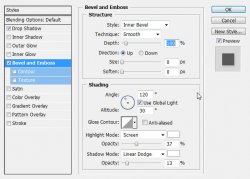
Select the "hearts" layer and add these styles:
Select the "flowers" layer and add the default drop shadow in the Blending Options.
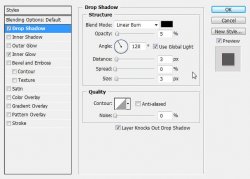
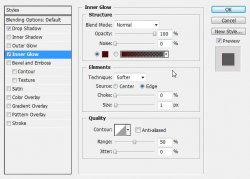
Select the "bow" layer and add these styles:
 Note
Note
The inner glow will take away the white outline that is around the bow. This is a useful trick if you come across elements in kits that contain that white outline.
Now for a tricky part. We are going to utilize the warp function in this tutorial.
First, we want to give our "ribbon" layer a drop shadow. Something like this:
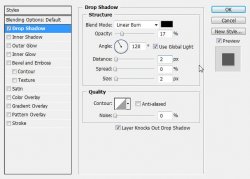
Now, on the layer is a little icon that represents the layer style.
 Right click this icon and choose Create Layer.
This will add the drop shadow on a new layer below the original:
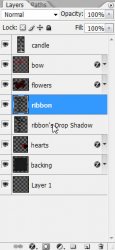
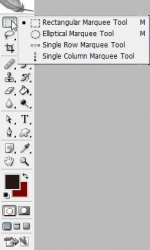
Select this layer and grab your Rectangular Marquee tool (selections) It can be found by right clicking the first tool on your tools pallet:
Now select an area of your shadow like this:
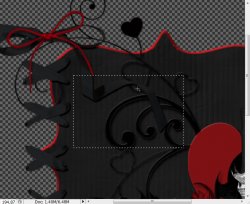
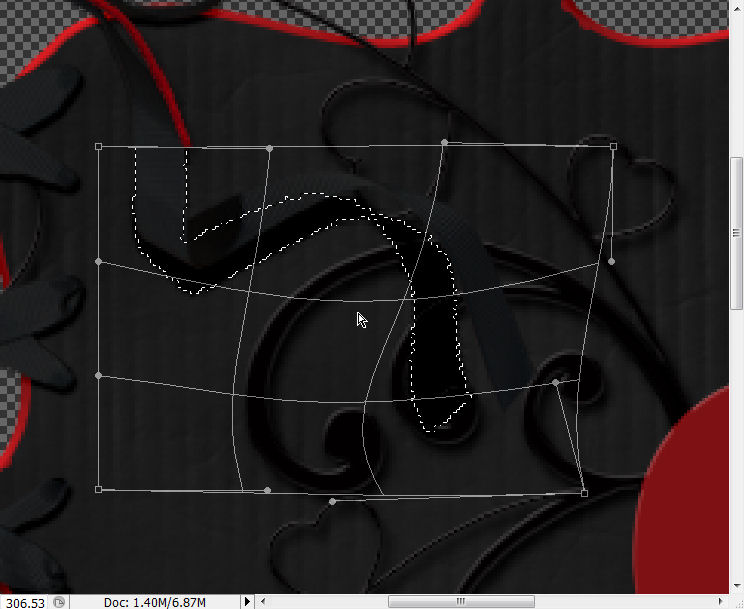
Now go to Edit > Transform > Warp:
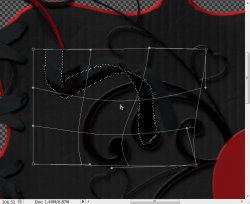
Now just click the check mark at the top of your screen.
Now we want to soften that part of the shadow just a little bit. Grab your eraser tool and a very large soft brush:
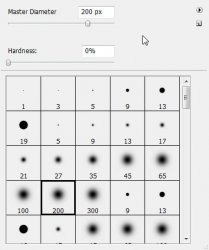
Now just erase a small area of the shadow:
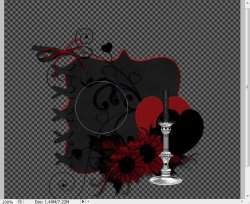
And now for the candle. We are going to pretty much do the same technique with this layer. This time we are going to use the skew method instead of warp.
Add the same drop shadow to the candle layer that you did the ribbon. (perhaps make the opacity a little higher. 40 maybe.)
Create a layer from the style (right click the icon and Create Layer)
Now select the shadow layer and go to Edit > Free Transform:
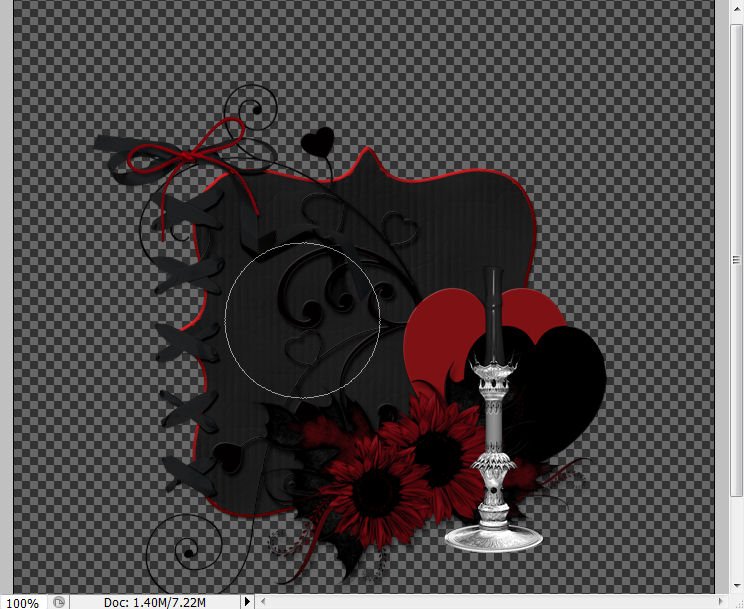
Don't forget the red part.
Filter > Blur > Gaussian Blur: 2
Now use your eraser tool and carefully erase a little bit at the top of the shadow.
No need for Alien Skin, right?

Ok all of our elements are done... Let's add a tube. You can either use one from the kit or use another artist. I have opted to use the two from the kit.
Select the "ribbon" layer.
Open your tube and move it onto the canvas. Resize and position where best suits.
Give it a drop shadow if you wish.
Add your copyright information now so you don't forget.
Select the topmost layer in the layers pallet.
Now add name(s) to your tag.
Since there is sooooooo much excess space around the tag we need to get rid of, there is a little function that I just LOVE.
Image > Trim: Transparent Pixels (all boxes checked)
Holy crap, that was easy...
Simple enough. (we could make it animated, but I will save that for another time)
Save your tag as a .png or .jpg, as you wish and viola! Done!
And this is my result:
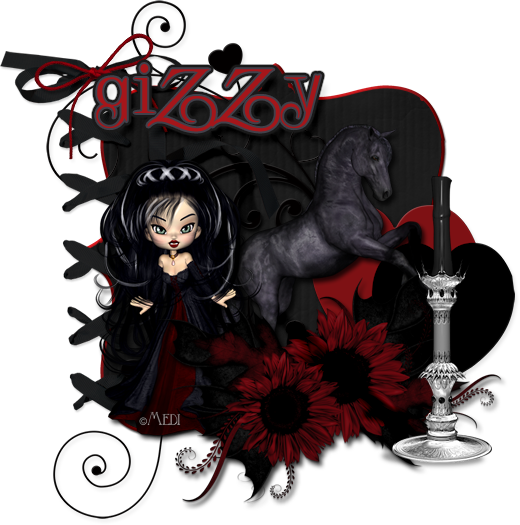
I hope you have enjoyed this tutorial! I would love to see your results.
Hosted by permission. Please link to this tutorial instead of redistributing it or its supplies.
Back to all tutorials