REBEL DEZIGNS · TUTORIAL ARCHIVE
Goth Princess
An original Photoshop tutorial by René Kunert (giZZY), rebuilt from the preserved archive.
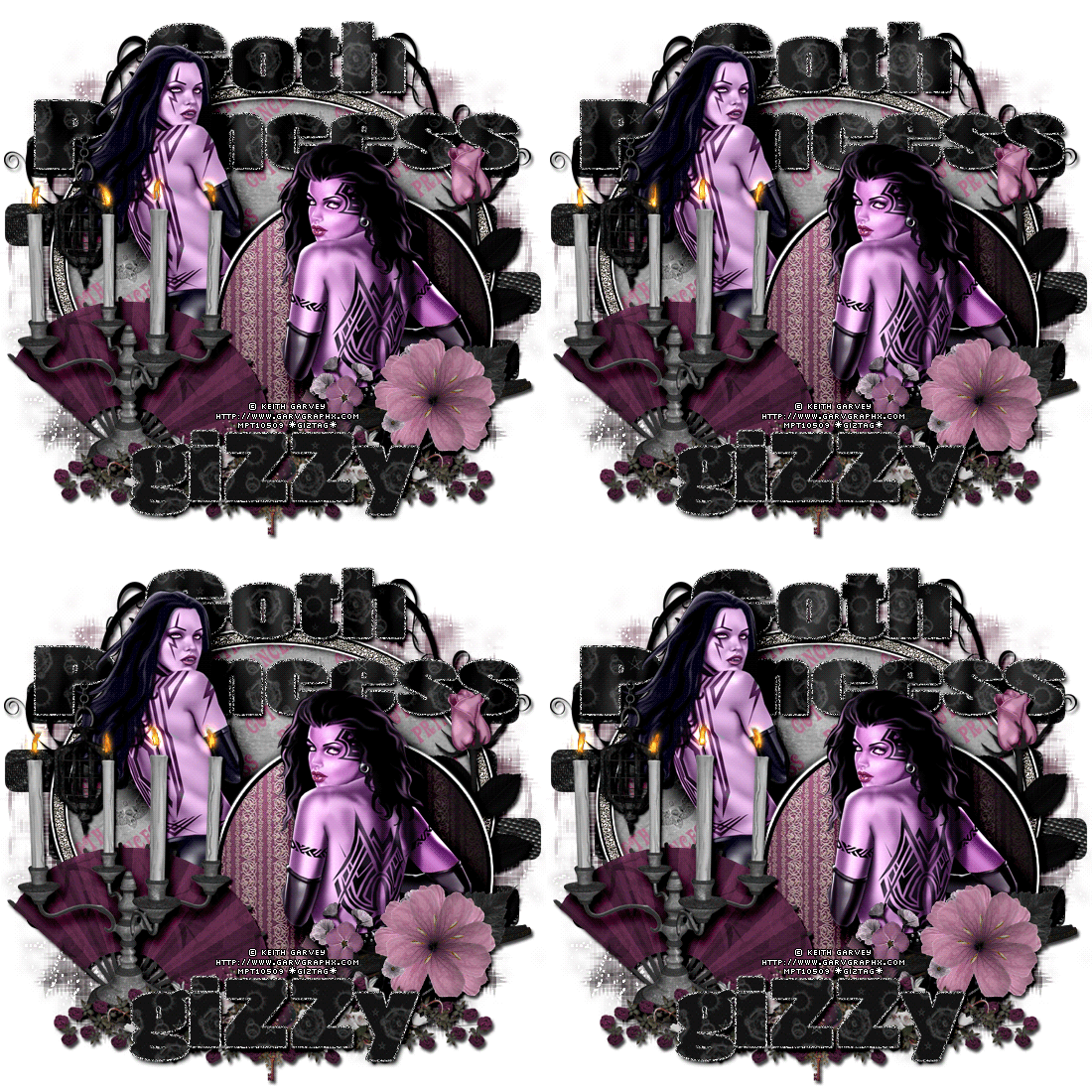
This tutorial is not meant for beginners. This tutorial will end with lots of layers for easier editing.
Materials Needed:
- Template by me
- Kit by Rieka Rafita called Goth Princess
- Tube by the artist of your choice. I am using Keith Garvey. This tube was purchased from MyPSPTubes.com but is now available at PSPTubesEmporium!
The second tag uses Elias Chatzoudis. Also with the same licensing company. - Filter: Alien Skin Eyecandy 5 > Nature > Fire
- Filter: Alien Skin Eyecandy 5 > Textures > Texture Noise
Open your template in Photoshop.
Select the Mask layer and open a paper from the kit.
Place the paper on your the tag and right click it in the layers pallet.
Create Clipping Mask.
Right click it again and Merge Down.
Select the Bars layer and open another paper.
Place the paper on the canvas and Create Clipping mask. Merge Down.
Select the Oval layer. Repeat the paper clipping.
Do the same for the Circle layer.
Use my guide and place some elements on the canvas.
Right click one of the elements and choose Blending Options.
Give the layer a drop shadow of choice. I have mine set at Distance: 3, Size: 3, Blend Mode: Linear Burn.
Do the same for your other element layers. Change the distance and size of each one to give it more depth.
Now select your circle layer. Bring up the Blending Options and give this layer a Stroke, outer glow, and drop shadow.
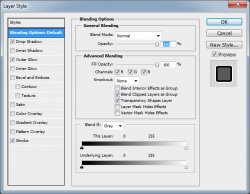
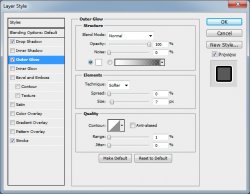
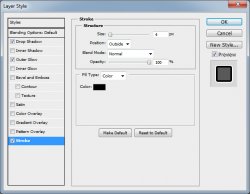
Select the Oval frame layer and apply the same layer styles. This time making the width of each a little smaller.
Here is what I have so far. The only element that is necessary is the candelabra:
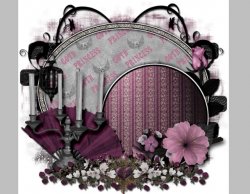
Select the Oval frame layer.
Find the tube you want to use and open it. Place it on your tag where desired.
Erase any portions sticking out the bottom and duplicate it.
If you want to use another tube, just place it on the canvas instead of duplicating.
Edit > Transform > Flip Horizontal
Drag it up in the layers pallet to above the circle layer. Position it where it looks best and erase any parts hanging out the bottom.
Give both tube layers a drop shadow.
Add your copyright information now, so you don't forget.
Select the candelabra layer.
Then create a Layer > New > Layer. Name the layer "flame 1"
Use your selection tool set at circle to select small areas on each of the candle wicks:
Filter > Alien Skin Eyecandy 5 Nature > Fire:
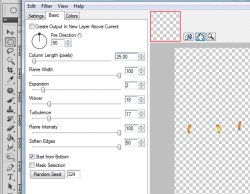
Create a new layer and name it "flame 2".
Repeat the fire filter exactly EXCEPT hit the random button.
Repeat this twice more. You should have 4 flame layers.
Hide the top three flame layers by clicking the eye beside the layer on the layers pallet.
Select your Oval frame layer and type out "Goth Princess" in a large block style font.
Open another paper and place it on your canvas. Right click it and Create Clipping Mask.
Duplicate this paper layer 3 times. (total 4 papers)
Filter > Eyecandy 5 Textures > Texture Noise
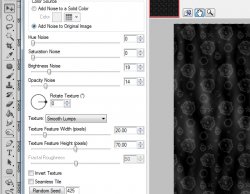
Repeat this with the other layers EXCEPT hit the random button each time.
Hide the top three paper layers.
Making noise Create a new 50x50 image.
Flood fill with medium gray (50%)
Filter > Noise > Add Noise: 25%
Edit > Define pattern
Close image
Select your "goth princess" text layer. Now add these layer styles:
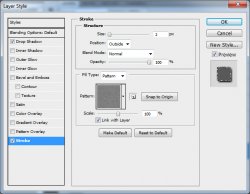
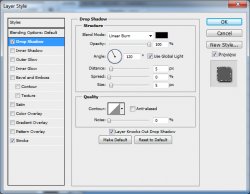
Now select the top layer and add a name. You can place the same paper and layer style as above if desired. (we will not animate the name)
Here is my tag so far:

If you only want a static tag without animation, you may stop here. If you would like to add the animation, please proceed.
Prepare your work area for animation.
Animation This is a WHOLE lot easier than it looks.
Hide your first flame layer and unhide the second flame layer.
Hide the first paper layer (on the text) and unhide the second paper layer.
Open the blending options on your text layer (right click)
Select the Stroke. Use the mover tool (this is automatic) and MOVE the stroke on your tag itself. This will move the noise around to look like glitter.
Repeat this twice more to have 4 frames in your animation window.
Set your frame delay higher than 0.
Now to save your animation.
That was it. Fun, huh? lol
And this is my result:

I hope you have enjoyed this tutorial! I would love to see your results.
Hosted by permission. Please link to this tutorial instead of redistributing it or its supplies.
Back to all tutorials