REBEL DEZIGNS · TUTORIAL ARCHIVE
Gothina
An original Photoshop tutorial by René Kunert (giZZY), rebuilt from the preserved archive.
Materials Needed:
- Template by me
- Scrap kit from Simply Sensational Scraps called Gothic Romance
- Tube by the artist of your choice. I am using Angela Newman. Please do not use this image unless you have a license to do so.
Open your template in Photoshop.
Select layer 1 in your layers pallet.
Open Paper13 from the kit and use your move tool to move it onto your template.
Position it over your large back circle then right click and choose Create Clipping Mask.
Select layer 2 and open Paper3.
Move it onto your tag and Create Clipping Mask.
Select layer 3 and open Paper6.
Move it onto your tag and Create Clipping Mask.
Select layer 4 and open Paper11.
Move it onto your tag and Create Clipping Mask.
Ok now we have all of our papers on our tag. To keep things nice and tidy, we are going to transfer the vector masks onto the paper. This will eliminate a few layers.
Look in your layers pallet and you will see something like this:
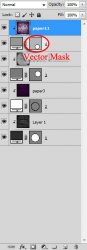
Click on the vector mask and Drag it onto the paper layer.
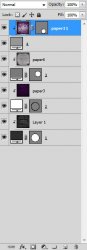
Now delete the layer below it.
Repeat this process for all the layers.
This should be what you are left with:
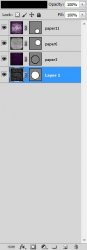
Now Double click on the names in the layers pallet and rename the layers back to the original names:
- 4
- 3
- 2
- 1
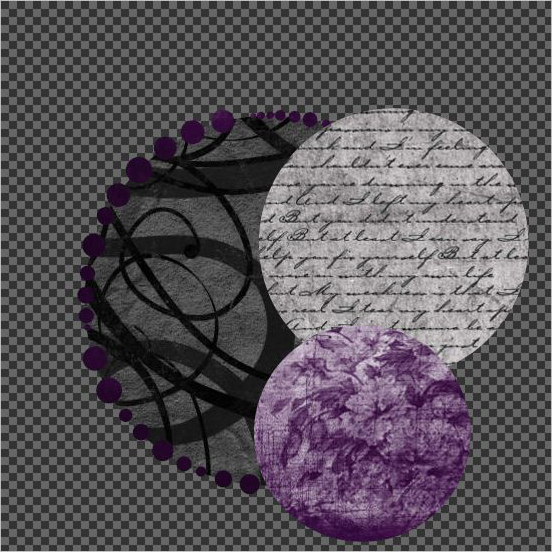
This technique will allow resizing of the tag without so much quality loss. (if you keep your PSD file)
Your tag should now look something like this:
Now we need to add some layer styles.
Select layer 1 and right click. Choose Blending Options.
Now add these styles:
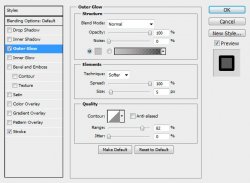
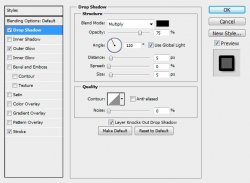
Go to the Blending Options of layer 2 and just add a stroke of 2px with the color #c0bcbd.
Now add this layer style to layers 3 and 4:
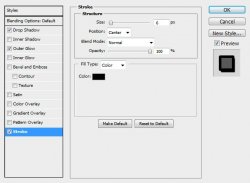
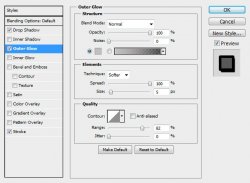
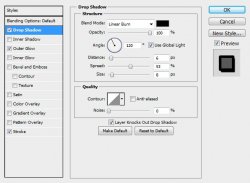
Now we need some elements.
With each element, go to Edit > Free Transform... to rotate and resize as you wish.
I am not going to go through the procedures of what values to enter this time.
Open Flower3 and move it onto your canvas. Layer > Arrange > Send to Back.
Open Flower12 and move it onto your canvas. Position it where desired.
Open Bow11 and move it onto your canvas. Position where desired.
Select layer 2 and open Diamondflower4.
Move it onto your canvas and place it behind your two smaller circles.
Select layer 3 and open Fan4 and move it onto your tag.
Position it behind your top circle.
Select layer 4 and open Glitterswirl1.
Place it on your tag as desired.
Now open the blending options of your element layers and give each one of them a drop shadow. I have used the default shadow set to Linear Burn instead of Multiply.
Here is my tag so far:
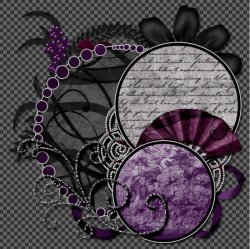
Now for the tubes.
Select layer 3.
Hopefully you are using a tube that includes a closeup.
If so, open the tube and place the closeup on your tag.
Position the tube over the circle and Create Clipping Mask (right click).
Now bring up the blending options of this layer and change the overall opacity (first one you see) to 70%.
Duplicate the layer and Move it above layer 4 by dragging it in the layers pallet.
Edit > Transform > Flip Horizontal.
Position it over the bottom circle and Create Clipping Mask.
Select the topmost layer in your layers pallet and move your fullsize tube onto your tag.
Position it where desired and give it a drop shadow of choice.
Get that copyright information on there so you don't forget.
Now put a name, or phrase, or wordart of choice. You may also choose to give this layer a style. I just used the same layer styles as the two upper circle layers.
Open Paper16 and move it onto your canvas. Now Create Clipping Mask. This will give your wording a nice texture.
And now you are finished. Pretty easy, huh?
Now just save as .png
And this is my result:
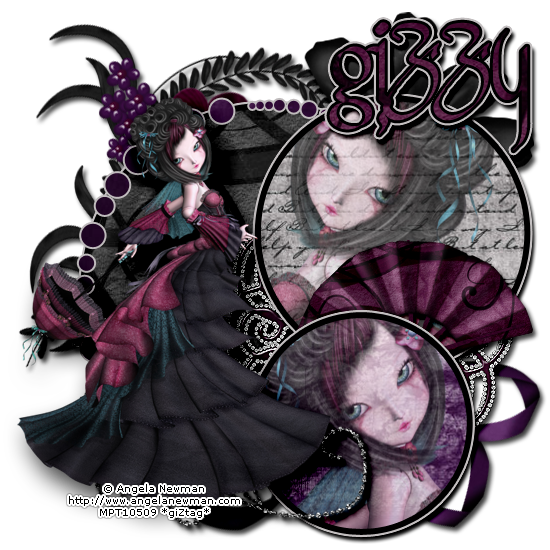
I hope you have enjoyed this tutorial! I would love to see your results.
Hosted by permission. Please link to this tutorial instead of redistributing it or its supplies.
Back to all tutorials