REBEL DEZIGNS · TUTORIAL ARCHIVE
Gothique
An original Photoshop tutorial by René Kunert (giZZY), rebuilt from the preserved archive.
Materials Needed:
- Prepared mask(s) of choice. I am using a couple of my own for this tutorial.
- Scrap kit by Puddicat Creations called Gothique Dark Night
- Tube by the artist of your choice. I am using the wonderful work of FetchArt. Please do not use this image unless you have a license to do so.
I am going to assume you are using 2 masks as I am.
You have your masks prepared, right? Good.
Open a new 550x550 pixel image.
Place your prepared masks on the canvas.
Just drag and drop them onto your new canvas.
Now lets make sure our masks are centered on the tag.
Select > All
Layer > Align Layers to Selection > Horizontal Center
Layer > Align Layers to Selection > Vertical Center
Select > None
Repeat this for the second mask.
Now highlight the bottom mask in your layers pallet.
Open one of the papers from the kit and place it on your tag.
Right click the paper in the layers pallet and choose Create Clipping Mask.
Right click it again and Merge Down.
Highlight the other mask in your layers pallet.
Open another paper from the kit and place it on the tag.
Right click in the layers pallet and Create Clipping Mask.
Right click it again and Merge Down.
For the elements, I am not going to go into vivid detail about what I put where.
So instead, I am going to show you what I have done.
Remember that Edit > Free Transform is for moving, rotating, and resizing your elements.
If you need to adjust the color of an element, there is a tool that allows you to do so without disturbing the other colors on the element.
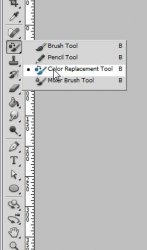
Then look up at the top of your window and set the options like this:
Image coming soon
Once you have it set, click on your foreground color and choose the color you wish the element to be.
Then, simply click on the color in your element you wish to change. No need to move the brush around.
If it is changing too much at one time, simply turn down the tolerance at the top of your window.
Image coming soon
After you have your elements placed, right click each of the layers and choose Blending Options.
In the left menu, choose Drop Shadow and give your elements a shadow of choice.
Remember that varying your shadows will give your tag more depth.
Now highlight your topmost layer of the tag.
Place your tube on the tag and give it a drop shadow also.
Add those copyrights. Now is the best time so you don't forget.
Now add a name or snag phrase to your tag. Let's not have any blanks

If you like, you can also add a layer style to your name/phrase.
I have used a drop shadow, inner glow, gradient overlay, and a stroke.
File > Save As > gothique.png
And this is my result:
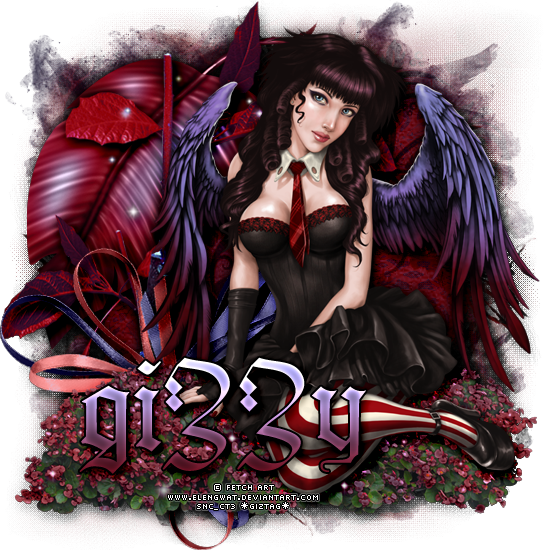
I hope you have enjoyed this tutorial! I would love to see your results.
♥♥♥
Hosted by permission. Please link to this tutorial instead of redistributing it or its supplies.
Back to all tutorials