REBEL DEZIGNS · TUTORIAL ARCHIVE
Grace
An original Photoshop tutorial by René Kunert (giZZY), rebuilt from the preserved archive.
Materials Needed:
- Prepared mask of choice
- Sparkles of choice
- Scrap kit by BabyCakesScraps called Fairy Grace
- Alien Skin Eye Candy 5 Textures > Texture Noise
- Alien Skin Xenofex 2 > Constellation
- Tube by the artist of your choice. I am using the wonderful work of Unholy Vault Designs. Please do not use this image unless you have a license to do so.
You have opened and prepared your mask? Good, then let's get started.
Open a paper of your choice and move it onto your mask.
Right click the paper in the layers pallet and choose Create Clipping Mask.
Right click again and Merge Down.
Done with that part.
I don't want to go into a whole lot of detail in the arranging of elements.
If you have followed any of my earlier tutorials, you will see that all we use is:
Edit > Free Transform
You can rotate, resize, skew, change perspective, etc.
Here is what I have done:
(Note I have used two masks in my tag)
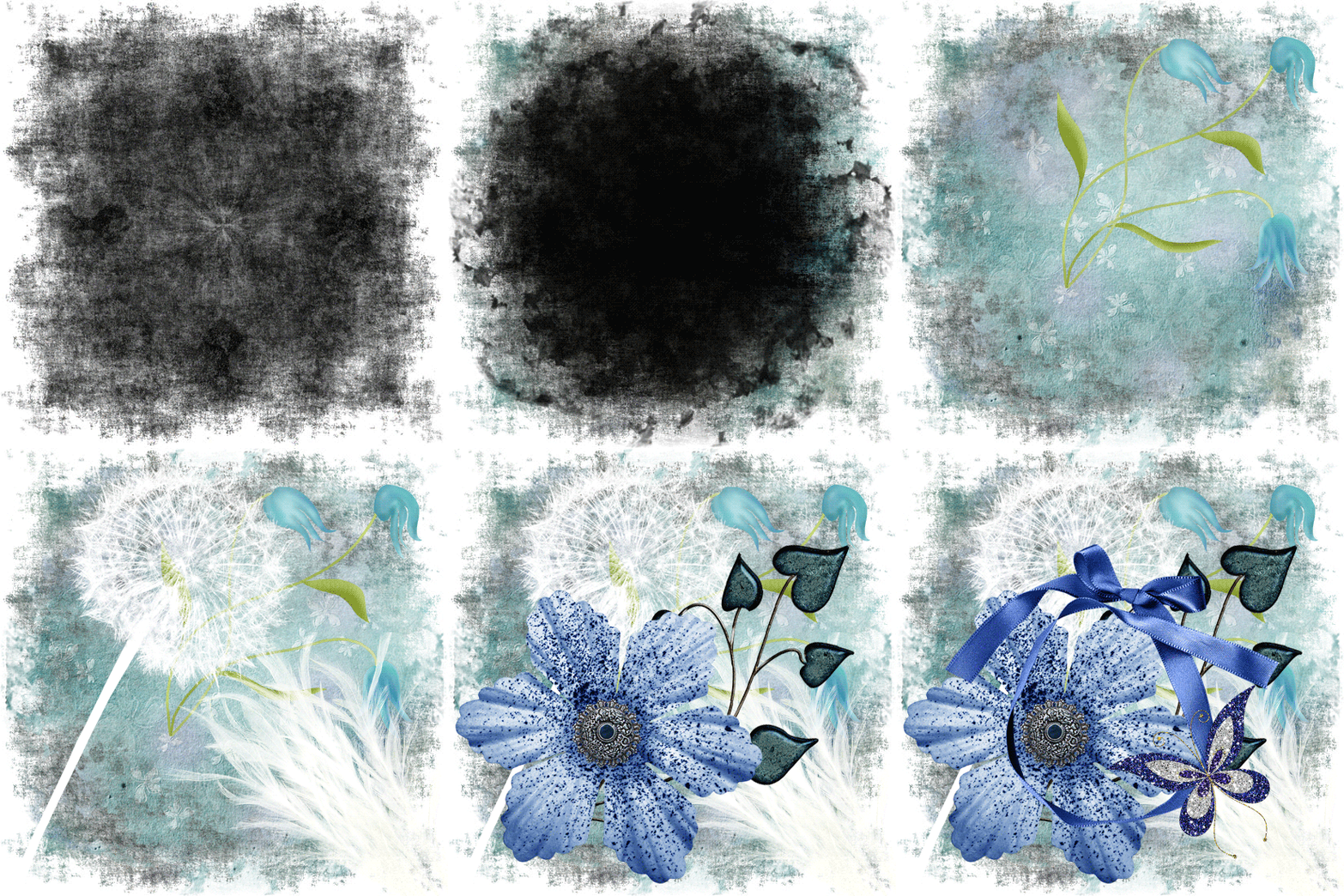
Right click one of the element layers in the layers pallet and choose Blending Options.
Add a drop shadow to your element and click OK.
Repeat this for all your element layers EXCEPT the two white elements.
Now highlight the ribbon frame and use your Selection Wand Tool to select the inside of the frame.
Select > Modify > Expand: 3
Highlight the layer below the ribbon frame and add a new layer.
Layer > New > Layer... Name it Frame Inside.
Flood fill the selection with white. Edit > Fill: White
Select > Deselect
Open a paper of choice and place it on your tag.
Right click the paper in the layers pallet and Create Clipping Mask.
Right click again and Merge Down.
Highlight the frame layer again and open a tube of choice.
Place the tube on the canvas and give it a drop shadow as before.
Now add those copyrights so you don't forget.
Now we are going to do a technique to get the tube inside the frame without having any stray shadows. Be sure to follow this part closely.
Highlight your tube layer and go to Layer > New > Group from Layers... Name it Tube Group.
Now go to Layer > Layer Mask > Reveal all
Right click on the thumbnail of the ribbon frame layer and choose Select Pixels.
This will make a selection around your frame.
Click ON the mask of the Tube Group. It will look like a blank white attachment on the layer group itself in the layers pallet.
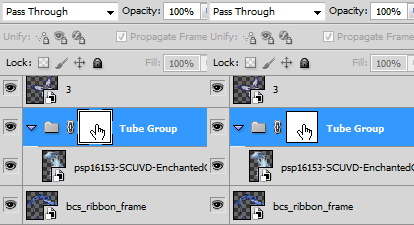
Don't click off the mask in the layers pallet.
Now grab your eraser tool and erase parts of the tube that are overlapping the frame at the bottom.
Select > Deselect
Using the eraser, continue to erase the portions of the tube that are outside the frame at the bottom.
It still doesn't look like it is IN the frame, does it?
Well we are going to fix that now.
Highlight your tube layer and create a new layer above it (still inside the group)
Layer > New > Layer... Shadow
Grab your brush and paint a little bit where a shadow would be touching her from the frame:
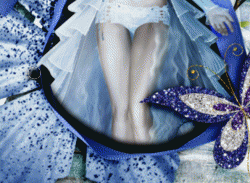
If you need, you can blur it by going to Filter > Blur > Gaussian Blur: 5 - 15 pixels
Right click it in the layers pallet and Create Clipping Mask.
Highlight the topmost layer of the layers pallet.
Add a name or other wordart you would like to use.
You may also give your name/wordart layer styles by testing out features in the Blending Options.
I used a stroke, gradient overlay and a drop shadow.
Now add a sparkle of choice. It can be premade, or a brush, or anything else that would make a good sparkle.
If you only want a static tag without animation, you may stop here. If you would like to add the animation, please proceed.
Prepare your work area for animation.
Animation Duplicate your sparkles 3 times.
Do this to each of your sparkles layers:
Filter > AS EC5 Texture > Texture Noise (be sure to hit the random seed button)
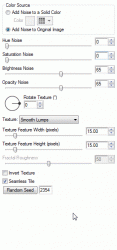
Filter > AS Xenofex 2 > Constellation (be sure to hit the random seed button)
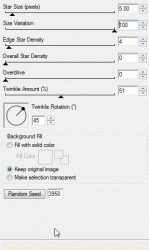
Right click the layer and set the blend mode to Linear Dodge.
Hide the Sparkles copy, Sparkles copy 2, and Sparkles copy 3 layers. Click on the eye icon beside the thumbnail in the layers pallet.
Your animation window is open, yes? Good.
Your first frame is already there, so just duplicate it by clicking the folded paper icon at the bottom of the window.
Hide the Sparkles layer and Unhide the Sparkles copy layer.
Duplicate the frame again.
Hide the Sparkles copy layer and Unhide the Sparkles copy 2 layer.
Duplicate the frame again.
Hide the Sparkles copy 3 layer and Unhid the Sparkles copy 3 layer.
You should now have 4 frames.
Set your frame delay to 0.1 sec.
Now to save your animation.
And this is my result:
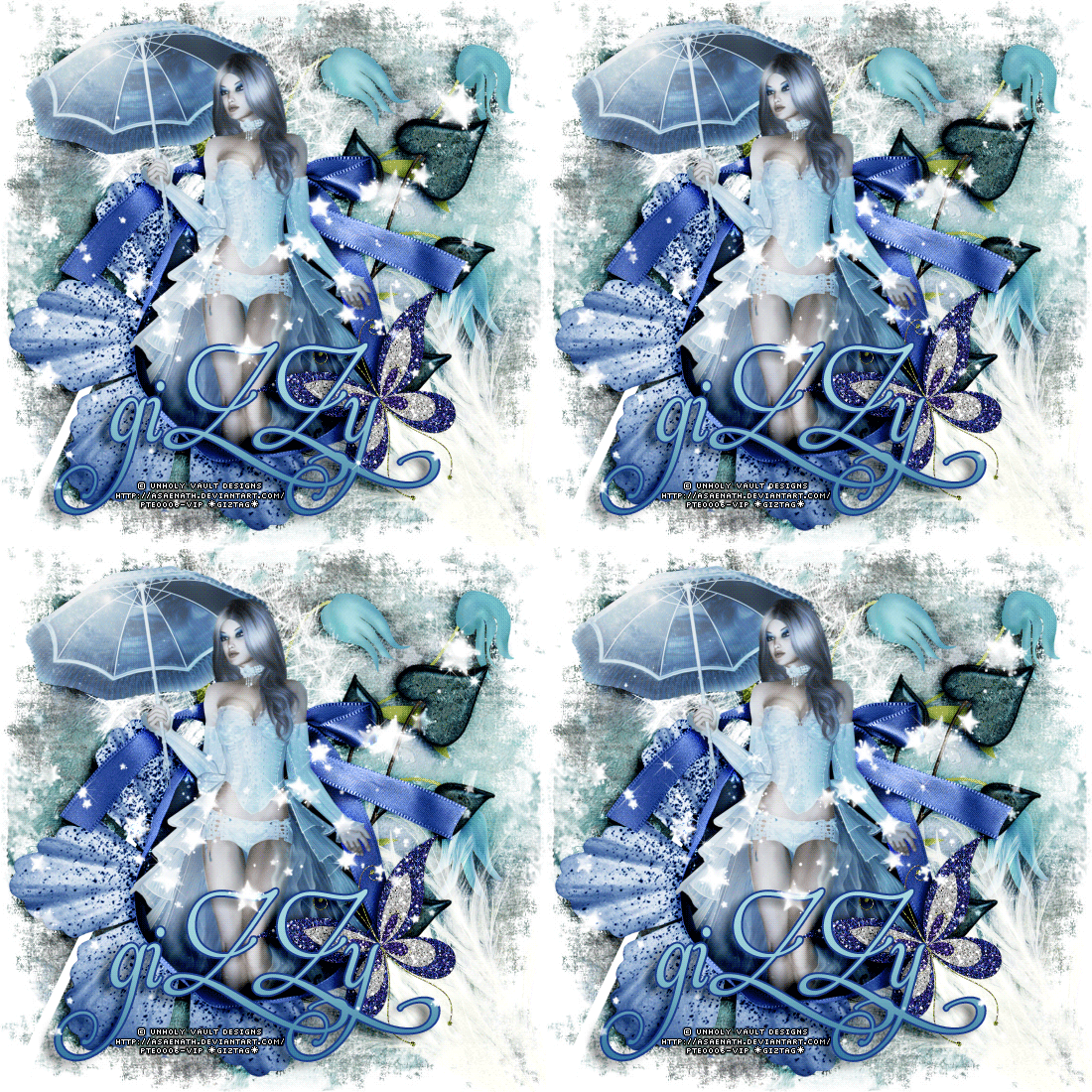
I hope you have enjoyed this tutorial! I would love to see your results.
♥♥♥
Hosted by permission. Please link to this tutorial instead of redistributing it or its supplies.
Back to all tutorials