REBEL DEZIGNS · TUTORIAL ARCHIVE
Highway Honey
An original Photoshop tutorial by René Kunert (giZZY), rebuilt from the preserved archive.
Materials Needed:
- Wordart by Me
- Scrap kit: Highway Honey by CrazyCarita Scraps
- Tube by the artist of your choice. I am using Keith Garvey. This tube was purchased from MyPSPTubes.com but is now available at PSPTubesEmporium!
- OPTIONAL: Alien Skin Eye Candy 5 Impact: Perspective Shadow
Open a new 700x700 pixel image at 72 dpi resolution.
Edit > Fill: White
Double click the layer name in your layers pallet and rename this layer to "background"
Open frame1.png from the kit and use the move tool to place it on your blank canvas. Double click the frame layer's name in the layers pallet. Rename it "frame".
Keep your Move tool selected.
Select > All
If you look up at the top of your screen, you will see options to center the frame in your canvas:

Click both of these options to center it in your canvas.
Select > Deselect
Use the wand tool to select the inside of the frame. Make sure the tool options at the top of the screen look like this:

Now go to Select > Modify > Expand: 5
Select your background layer and Create a new layer. Layer > New > Layer...
Name this layer "frame inside" and Edit > Fill: white
Select > Deselect
Open paper5.jpg and move it onto your canvas. Position it over the frame inside and right click it. Create Clipping Mask. Right click once more and Merge Down.
Select your frame layer.
Open the wordart that I have supplied and move it onto your canvas. Position it where desired. Rename this layer "wordart".
Open leaf2.png and move it onto your canvas.
Edit > Free Transform and resize and place it similar to this:
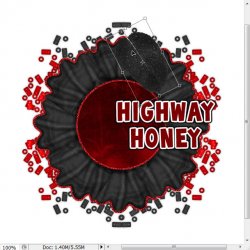
Duplicate this layer by rightclicking and choosing Duplicate Layer.
Edit > Free Transform
Position it similar to this:
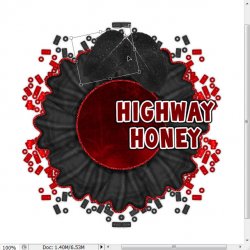
Right click this layer and Merge Down. Rename this layer "leaves"
Open flower1.png and place it on your canvas. Resize it to about 60% and position it over your leaves. (Edit > Free Transform: UP top= W: 60 H: 60)
Rename this layer "flowers"
Ok now we are going to get a little involved.
Right click the flowers layer and choose Blending Options.
Give this layer a drop shadow of choice. (it is best to have a 90° angle)
Now click the icon on that layer that represents the layer style.
 And choose Create Layer.
Now right click the "flowers's Drop Shadow" layer and Create Clipping Mask. Right click this layer again and Merge Down.
Now right click your "flowers" layer and Merge Down.
Open bow2.png and resize and place on top of the leaves. Rename this layer "bow"
Give this layer the same drop shadow. Right click the layer styles icon and Create Layer.
Right click the "bow's Drop Shadow" and Create Clipping Mask.
Right click it again and Merge down.
Right click the bow layer and Merge down.
Open bike.png and move it onto your canvas. Resize to about 75% and position where desired.
Rename this layer "bike"
Go to Filter > Alien Skin Eye Candy 5 Impact: Perspective Shadow. Use the shadow of your choice.
Ok now for some shadows.
Right click the "frame inside" layer and choose Blending Options. Give an INNER shadow of choice.
Right click the "frame" layer and give a DROP shadow of choice.
Do the same for the "wordart" and "leaves" layers.
Here is what you should have so far:
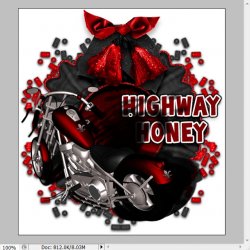
Open the tube of your choice and move it onto your canvas.
Now is a good time to add your copyright information, so you don't forget.
Resize as needed and place it over the bike.
Give this layer a Perspective shadow.
Now... here we go again.
Go to Layer > Layer Mask > Reveal All
Right click the thumbnail of the "bike" layer and choose Select Layer Transparency (or CTRL + Click the layer's thumbnail)
Click on the layer mask of your tube layer.
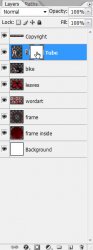
Use your Eraser tool and carefully erase one leg that would be behind the bike.
Optional: you can use the burn tool to create the illusion of shadows on her back leg.
Select the topmost layer. (the copyright layer in my case) Add a name or wording of choice.
Now add these layer styles:
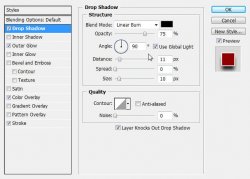
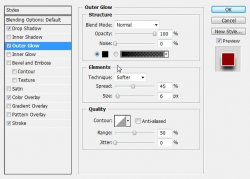
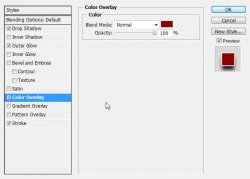
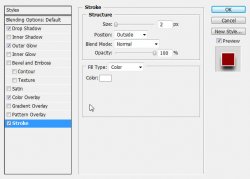
That is about it! Save your work as a .png or a .jpg and you are finished

And this is my result:
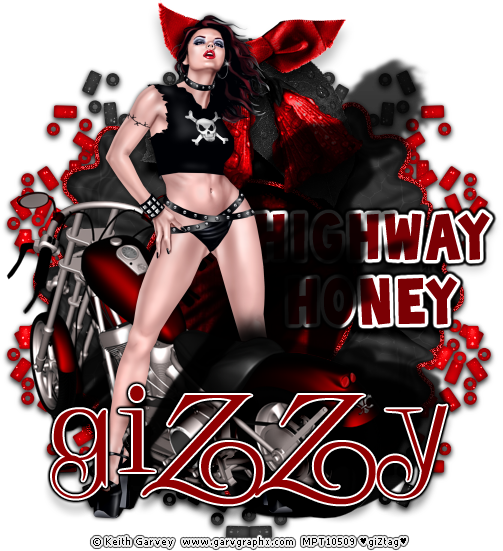
I hope you have enjoyed this tutorial! I would love to see your results.
Hosted by permission. Please link to this tutorial instead of redistributing it or its supplies.
Back to all tutorials