REBEL DEZIGNS · TUTORIAL ARCHIVE
Holly Jolly
An original Photoshop tutorial by René Kunert (giZZY), rebuilt from the preserved archive.

Materials Needed:
- Scrap kit by CrazyCarita called Yule Fest. Thanks CC
- Tube by the artist of your choice. I am using Keith Garvey. This tube was purchased from MyPSPTubes.com but is now available at PSPTubesEmporium!
- Filter: Mac's Remove White (if needed)
- Filter: XenofexII Constellation (optional)
- Winter Brushes of choice (optional)
- Masks of choice. I am using a couple from Vix.
Open a new 550X550 pixel canvas and flood fill it with the background color of your choice. I have used the color of the page background here.
Now open your masks (if using) and place them on your canvas.
You can use this technique to get rid of the black around the mask:
Image > Adjustments > Invert
Filter > Mac's Remove White
Image > Adjustments > Invert
Color the masks by right clicking and choosing Blending Options > Color Overlay
If you want to use brushes:
Add a new layer: Layer > New > Layer
Stamp a few winter brushes where desired.
Noe open some elements and place them on your canvas.
Edit > Free Transform to resize, rotate, and place your elements.
Here are the items I have used:

Right click your elements and choose Blending Options.
Give each of the elements a drop shadow of choice.

Now select one of the center layers above the frame but below the "tag" elements.
Place your tube in between there. Give it a drop shadow also.
ADD COPYRIGHTS!!
Add a name or other text.
You can add a layer style to this layer also.
I have used a stoke and a drop shadow.
If you only want a static tag without animation, you may stop here. If you would like to add the animation, please proceed.
Prepare your work area for animation.
Animation Hide the name layer using the eye on the layers pallet.
Select the topmost layer of your tag. Create a new layer.
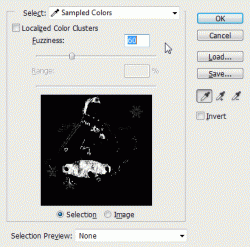
Go to Select > Select Color Range
Using the little dropper tool, click on a red portion of your tag.
These are the settings I have used.
Now go to
Edit > Copy Merged ... Edit > Paste
Duplicate this layer 3 times (4 layers total)
On the first layer Filter > Noise > Add Noise: 5%
Filter > Xenofex II > Constellation
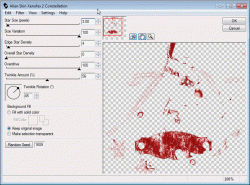
Repeat this on the copies.
(hit the random seed button each time you apply the constellation filter)
Erase any portion of the constellation that is not where it should be.
Hide the copies.
Unhide the name layer.
You have your animation window open already, right?
Duplicate the frame (the paper icon at the bottom).
Hide the first noise layer and UNhide the second one.
Duplicate the frame again.
Hide the second noise layer and UNhide the third.
Duplicate the frame again.
Hide the third noise layer and Unhide the fourth.
That concludes the animation.
Set your frame delay to 0.1 sec.
Now to save your animation.
And this is my result:

I hope you have enjoyed this tutorial! I would love to see your results.
Hosted by permission. Please link to this tutorial instead of redistributing it or its supplies.
Back to all tutorials