REBEL DEZIGNS · TUTORIAL ARCHIVE
I Believe
An original Photoshop tutorial by René Kunert (giZZY), rebuilt from the preserved archive.
Materials Needed:
- Scrapkit called Vintage Angel which you can purchase at P&A Dezigns.
Open a new 600 X 600 canvas (72 DPI Resolution) File > New
Open pouyou_springfoliage4.png and use your Move tool to place it on your tag canvas. Center it on your tag. Double click the name on the layer and rename it "vine".
Use your Selection tool (wand) to select the center of the vine. Then go to Select > Modify > Expand: 2
Create a new layer and fill this layer with white. Edit > Fill.
Select > Deselect.
Rename it "backing"
On the Layers Pallet, drag this layer under your vine.
Open paper3.jpg and move it onto your tag. Resize it to just bigger than the white area. (about 60%)
Center it over the white area and then right click the paper layer in the Layers Pallet. Choose Create Clipping Mask.
Now right click your paper layer again and choose Merge Down.
Open carraige1.png, move it onto your tag, and resize it to about 65%. Move it somewhere in the middle of the vine. (just off center looks best)
Rename it "carriage"
Right click the carriage layer and Create Clipping Mask.
Add a shadow to your carriage layer:
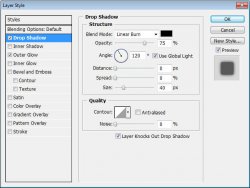
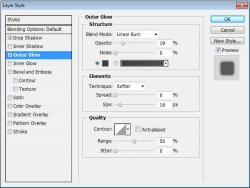
Select the "vine" layer.
Ok here comes a little bit of a complicated part.
Open Rose1.png and place it at the bottom right of the tag.
Right click the rose and choose Blending Options. Add a drop shadow. The default setting works fine.
Now you will see a little icon on the layer that represents your layer style:
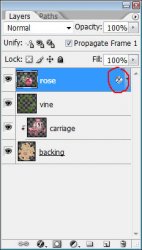
Right click this icon and choose Create Layer.
This will convert the shadow to its own layer:
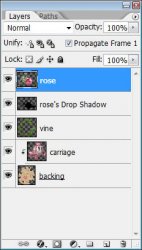
Now right click this shadow layer and Create Clipping Mask. Then merge it down onto the vine.
Now merge your rose down onto the vine.
Open Cluster1.png and place it to the left of your tag.
Apply the same drop shadow.
Right click the icon and Create layer.
Right click the shadow layer and Create Clipping Mask.
Merge the shadow onto the vine.
Now merge the cluster onto the vine.
This will put all your flowers and vines on the same layer so that the shadows are not too strong on the tag.
Now add the same drop shadow to the vine layer.
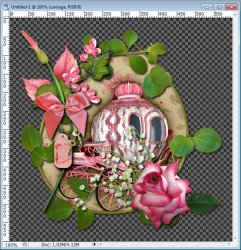
Here is what you should have so far:
Now open one of the fairy tubes from the kit and resize it to about 30% and place it on the left side of the tag. Rename this layer "fairy".
Give her your preferred drop shadow. (default is ok)
You may also use Alien Skin EyeCandy 5 Impact: Perspective shadow on this layer if you like.
Place all copyrights on the tag at this point so you don't forget.
Now add any text and / or names. I have added these layer styles to my words:
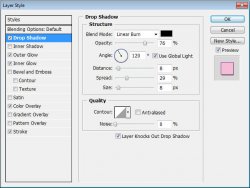
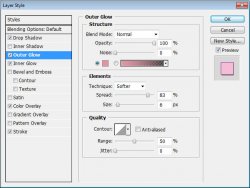
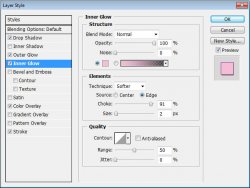
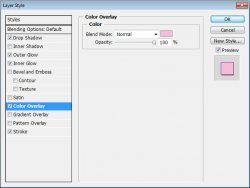
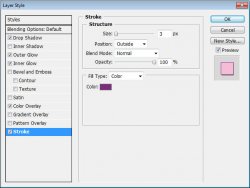
Now simply save your tag as a .png or .jpg and you are done!
And this is my result:

I hope you have enjoyed this tutorial! I would love to see your results.
Hosted by permission. Please link to this tutorial instead of redistributing it or its supplies.
Back to all tutorials