REBEL DEZIGNS · TUTORIAL ARCHIVE
I could be Irish
An original Photoshop tutorial by René Kunert (giZZY), rebuilt from the preserved archive.

Materials Needed:
- Template by Me.
- Scrap kit by Rieka Rafita called Happy St Patrick's Day.
- Tube by the artist of your choice. I am using the wonderful work of Barbara Jensen. Please do not use this image unless you have a license to do so. Tube is a recolored version of All Yours.
Open your template in Photoshop.
Hightlight the Rectangle layer and open a paper of choice from the kit.
Place the paper on the template and right click it in the layers pallet. Choose Create Clipping Mask.
Right click again and Merge Down.
Repeat this for the Circle layer and the Wordart layer.
Now let's add a few layer styles.
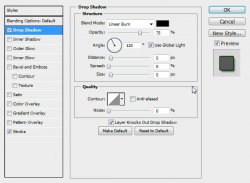
Highlight your Rectangle layer. Right click and choose Blending Options.
Add these styles:
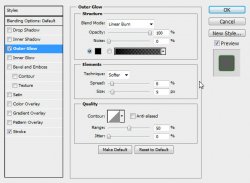
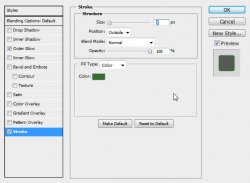
Now add these to your Circle layer:
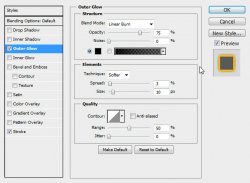
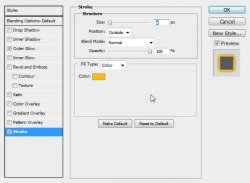
And these to your Wordart's Outer Stroke layer:
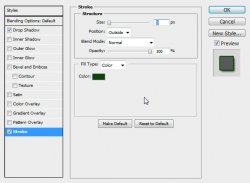
Here is what I have so far:
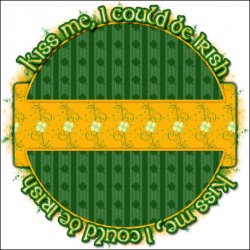
Now start adding your elements.
To arrange and resize, go to Edit > Free Transform and drag the bounding box where you want it.
Here is what I did:
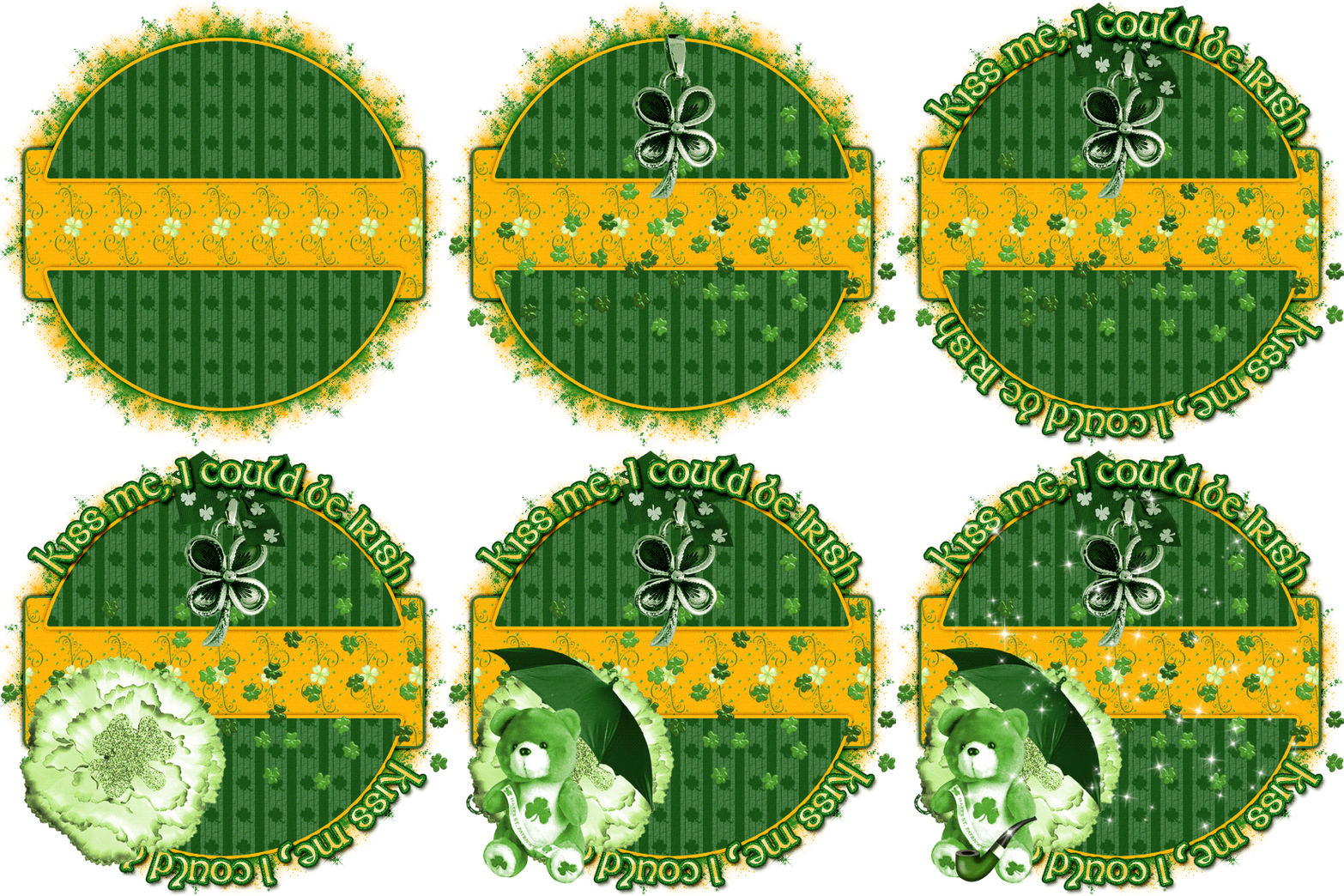
Now give your elements a drop shadow. Vary the distance and size of your shadows to give your tag more depth.
Highlight the topmost layer in your layers pallet and add your tube.
Erase any portions of the tube that do not belong.
Give it a drop shadow also.
(I placed my tube just below the sparkles)
ADD THOSE COPYRIGHTS!! Can't be leaving those off.
Add a name to your tag and add any layer styles to it you wish.
I added a stroke, gradient overlay, and drop shadow.
Hide the background layer and save your tag as a PNG

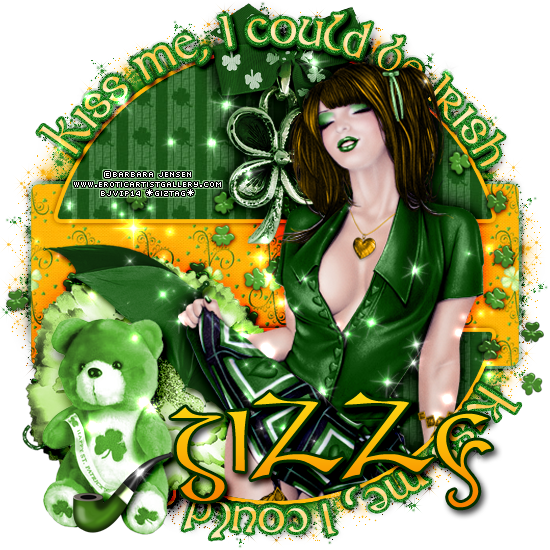
And this is my result:
Optional Animation
Prepare your work area for animation.
Animation Duplicate your Sparkles layer.
Rename the duplicate to Ani.
Go to Layer > Group Layers
Duplicate the Ani layer 3 times (for Ani layers)
Highlight the original Ani layer and press the D button on your keyboard to reset your colors to black and white.
Filter > Render > Difference Clouds (5X)
Highlight your original Sparkle layer. (not the Ani layer)
Give it an outer glow. The default glow with ONLY the blend mode changed to Color Dodge.
Highlight the GROUP (the "layer" with the folder as a thumbnail)
Set it's blend mode to Overlay (at the top of the layers pallet where you see the dropdown box that says Normal)
Now for the animation.
You frist frame is already present in your animation window.
Hide the Ani Copy layers.
Duplicate your animation frame in your Animation window.
Hide the Ani layer and unhide the Ani Copy layer.
Duplicate the frame again.
Hide the Ani Copy layer and unhide the Ani Copy 2 layer.
Duplicate the frame again.
Hide the Ani Copy 2 layer and unhide the Ani Copy 3 layer.
You should have 4 frames in your animation window.
Set your frame delay to 0.1 sec.
Now to save your animation.

I hope you have enjoyed this tutorial! I would love to see your results.
♥♥♥
Hosted by permission. Please link to this tutorial instead of redistributing it or its supplies.
Back to all tutorials