REBEL DEZIGNS · TUTORIAL ARCHIVE
In a Day
An original Photoshop tutorial by René Kunert (giZZY), rebuilt from the preserved archive.
Materials Needed:
- Scrap kit called Italian Passion by CrazyCarita
- Supplies by Me. Do not redistribute. (wordart and template)
- Tubes artist of your choice. I am using Suzanne Woolcott. Please do not use this image unless you have a license to do so.
- Eye Candy 4000 > HSB Noise
- OPTIONAL: Alien Skin Eye Candy 5: Impact > Perspective Shadow
Open your template in Photoshop.
Right click the "frame" layer and choose Blending Options. Apply these layer styles in the popup window:
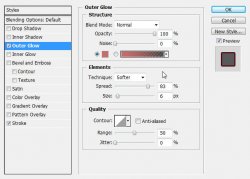
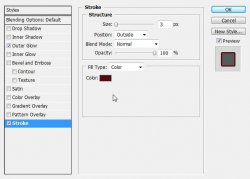
Apply the same layer styles to the "dots" layer and the "thin stripe" layer.
You should now have something that looks like this:
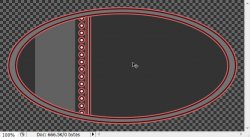
Select the "back" layer and open paper14.jpg from the kit. Using the move tool, move it onto your canvas and position it about center and right click it. Choose Create Clipping Mask.
Select the "thin stripe" layer and open paper10.jpg
Move it onto your canvas and position it about center. Create Clipping Mask again.
Select the "frame" layer and open paper12.jpg
Move it onto your canvas, position it, and Create Clipping Mask.
So far:
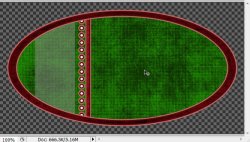
Select the paper layer that is clipped to the "back" layer. (Should be "Layer 1" at this point)
Open pink_perfume_bottle.psd and move it onto your canvas. (yes, I am aware that it isn't pink)
Use my tag as a guide of where to place it.
Right click and Create Clipping Mask. Give it a drop shadow of your choice via the Blending Options.
Open feather.psd and move it onto your canvas. Position it where desired and Create Clipping Mask again. Give it the same drop shadow as your bottle layer.
Open rose.psd and move it onto your canvas. Position it as desired and Create Clipping Mask again. Give it the same drop shadow as previously done.
Open Image61.psd and move it onto your canvas.
Edit > Free Transform
Look up at the top of the screen and enter these values:

Now right click and Create Clipping Mask as before and add the same drop shadow as the previous layers.
Now select the paper layer that is clipped to your "frame" layer. (should be "Layer 3" at this point)
Open bow3.psd and move it onto your canvas.
Edit > Free transform:
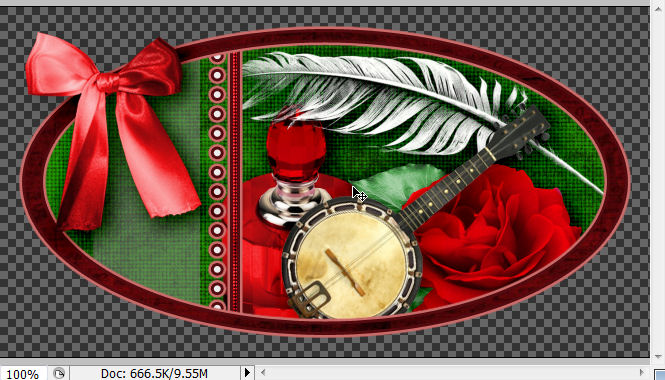
Add the same drop shadow as before but DO NOT create clipping mask this time.
So far:
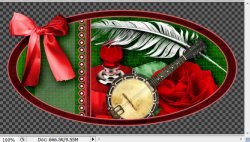
Open lamp.psd and move onto your canvas.
Edit > Free Transform:

If you would like to use Perspective shadow on this layer, here are the settings I have used:
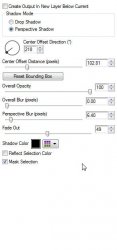
Now add a normal drop shadow as the other layers EXCEPT turn the Distance all the way to 0.
Now we want to create a group for the animation of the lamp.
Layer > New > Group...
Name this group "animation" and click OK.
Now... Layer > New > Layer...
Name this layer "lamp animation"
Use your paintbrush tool to make spots with a light orange color like shown here:
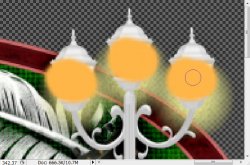
Filter > Blur > Gaussian Blur: 5
Duplicate this layer 3 times. (4 total)
Select the original.
Go to Filter > Eye Candy 4000 > HSB Noise:
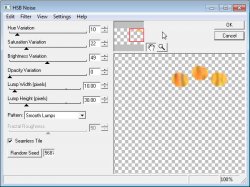
Select "lamp animation Copy" and Go to Filter > Eye Candy 4000 > HSB Noise:
Do not change any settings. BUT do click the Random Seed button.
Do the same for the other two copy layers.
Now Hide all the lamp animation layers EXCEPT the original. (click the eye beside the layer in the layers pallet)
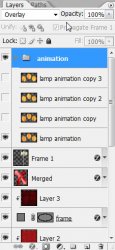
Now select the "animation" GROUP
Up at the top of your layers pallet, you will see a blend mode option. Set this to Overlay:
Open the wordart I have provided and move it onto your canvas.
NOTE! This will put it inside the group. You must move it outside the group by dragging it outside the group in the layers pallet.
OR you can go to Layer > Arrange > Bring to Front
Edit > Free Transform:
H: 75%
W: 75%
Use the move tool to position it where desired. Add the same drop shadow as the other layers.
Add your tube, resize, and give it any shadows you wish.
Add your copyright information so you don't forget.
Now add any name or words you wish.
You may either give this layer the layer style of the "frame" or simply give it a drop shadow. I have opted for both.
So far:
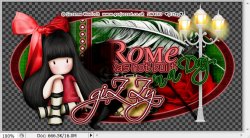
If you only want a static tag without animation, you may stop here. If you would like to add the animation, please proceed.
Make sure your animation window is open. Window > Animation
You will see that your first frame is already there.
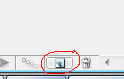
Now Create a new frame by clicking on the little icon at the bottom of your animations window.
Hide the "lamp animation" layer and UNhide the "lamp animation Copy" layer.
Duplicate your frame again.
Hide the "lamp animation Copy" layer and UNhide the "lamp animation Copy 2" layer.
Duplicate your frame again.
Hide the "lamp animation Copy 2" layer and UNhide the "lamp animation Copy 3" layer.
Now we want to set the delay of the frames higher than 0.
Select all your frames. (click first frame, then shift+click your last frame)
Click the arrow beside the number at the bottom of one of the frames. Set this number to 0.08 (there is an "Other" option) You may also play with this setting to get the effect you want.
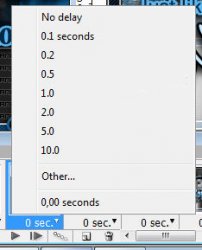
To view your animation, simply click the play button.
Now to save your animation:
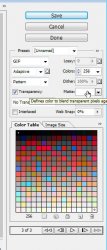
Go to File > Save for Web
This will bring up a completely different save window than you are probably used to. Simply set everything like so:
Note that these settings are the ones that I use for the background of the posts of THIS forum.
And this is my result:

I hope you have enjoyed this tutorial! I would love to see your results.
Hosted by permission. Please link to this tutorial instead of redistributing it or its supplies.
Back to all tutorials