REBEL DEZIGNS · TUTORIAL ARCHIVE
Insanity
An original Photoshop tutorial by René Kunert (giZZY), rebuilt from the preserved archive.
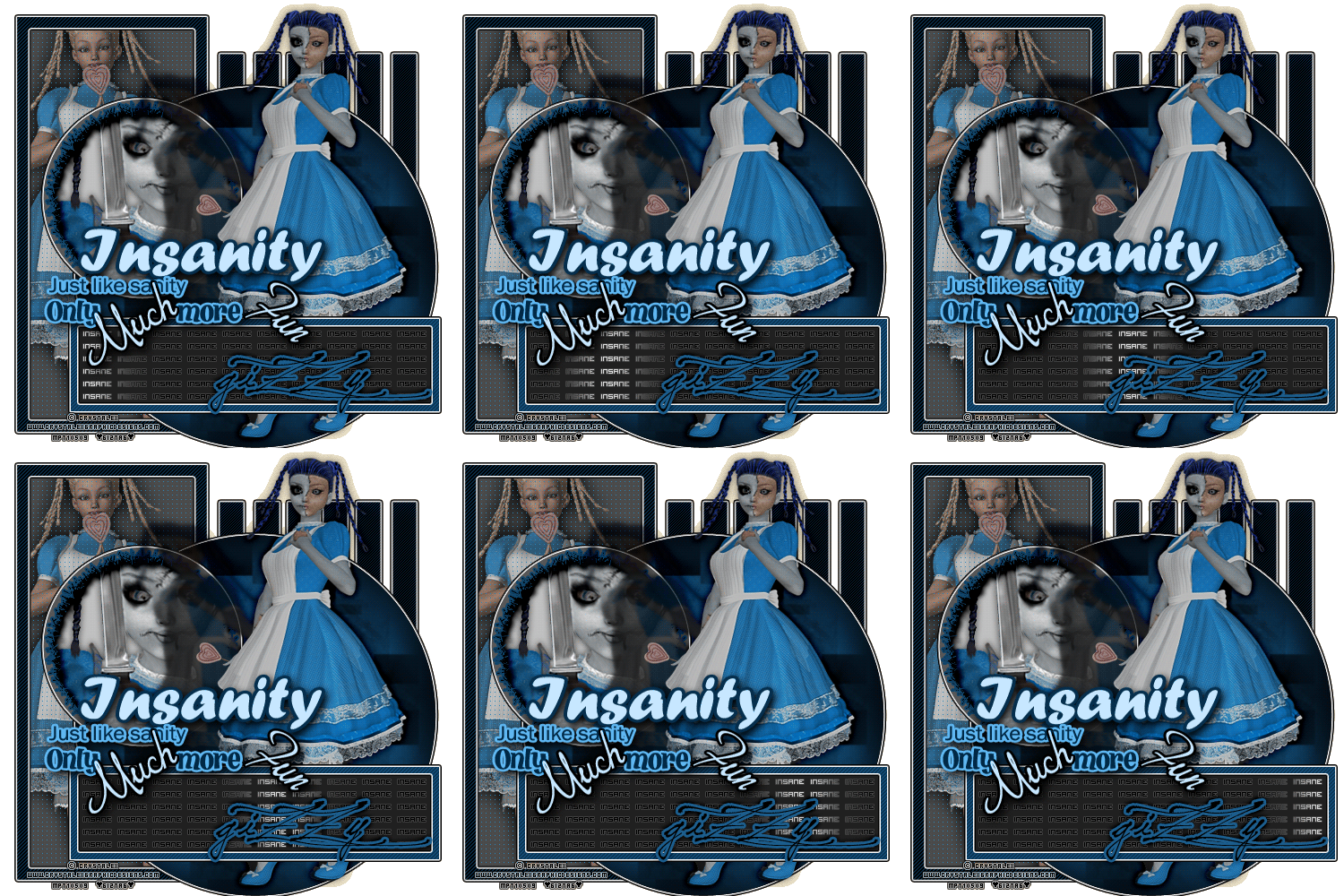
Material Needed: Template Collaboration project result
Tube of choice. I am using crystalex. Do not use these tubes unless you have purchased it from MPT.
This patterns (right click and save):


Open the patterns that you saved.
Now go to Edit > Define Pattern. Name the corresponding to the name of the file. (insanity1, insanity2, etc) Repeat for both.
Open your template in Photoshop.
Go to Select > Select all and then Image > Crop and back to Select > Deselect. You will not notice any change, but it will affect the image later on.
You may either hide or delete the background layer if you like. (optional)
Now we are going to apply a whole bunch of layer styles.
Select the "bars" layer and add the following layer styles (right click the layer and select blending options):
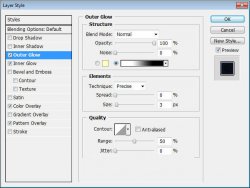
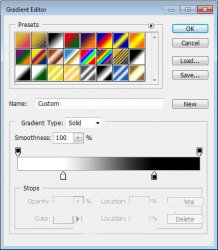
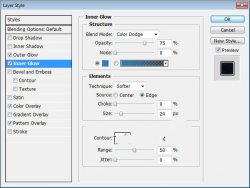
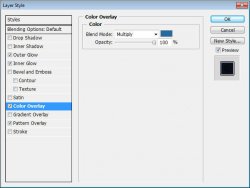
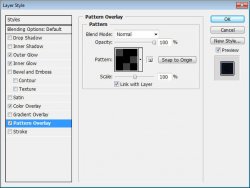
Now select your "rectangle back" layer and apply these layer styles:
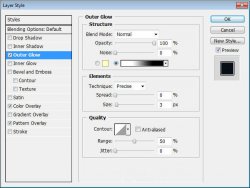
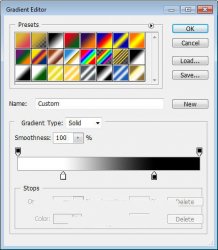
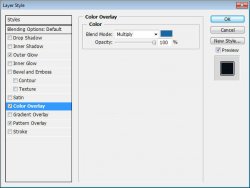
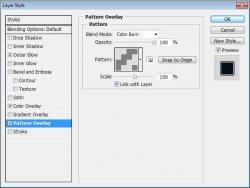
Now select your "rectangle inner" layer and apply these settings:
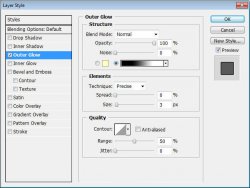
And now your "dots" layer:
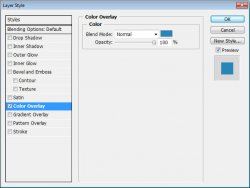
"Circle large" layer:
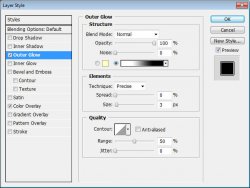
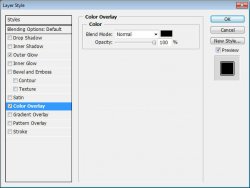
And the "masked circle" layer:
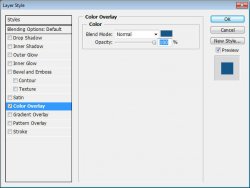
The layer called "small circle":
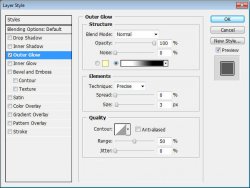
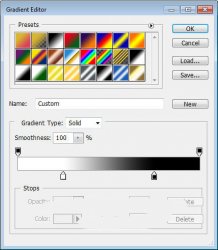
"sketched circle":
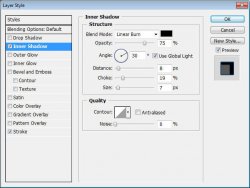
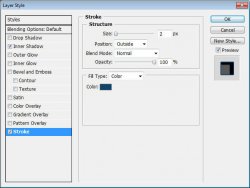
Now the "rectangle 2" layer:
Go to Image > Adjustments > Brightness and contrast and use these settings:
Brightness: +65
Contrast: 0
And then the layer styles:
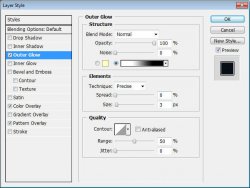
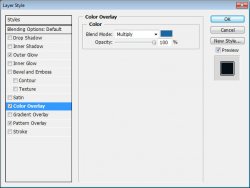
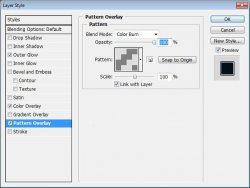
"rectangle 2 inner" settings:
Select your "insane tiles" layer and go to Image > Adjustments > Brightness and contrast with these settings:
Brightness: -100
Contrast: +100
Duplicate this layer twice and merge them back into the original. (right click > merge down, twice) Duplicate it once more and merge down again. This will take out all the transparency of the layer.
then add these layer styles:
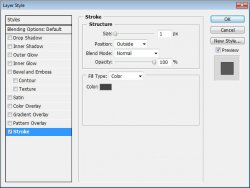
Now the "insanity outline" layer:
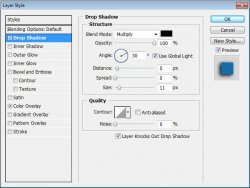
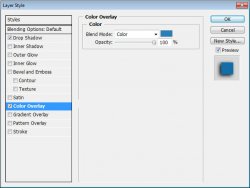
Only one more layer to go!
Now for the "insanity layer":
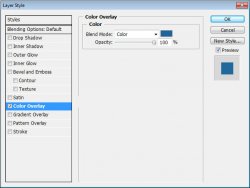
That wasn't so difficult, was it? You only had to change 27 different settings.

Here is what you should have so far:
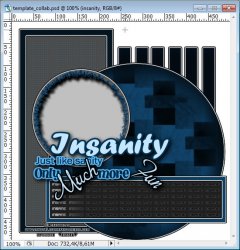
Ok now for the fun stuff.
Select your "rectangle inner" layer.
Open your tubes. Three different tubes by the same artist is the best to use.
Drag your tube onto your template canvas using the move tool. (it will slide right off the image)
Position it where you would like over the rectangle.
Now right click the tube layer and select "Create clipping mask".
Now let us add a drop shadow:
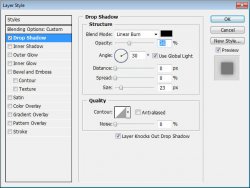
Select your "sketched circle" layer and place your next tube. Position it where you like and then "Create clipping mask" again.
Apply the same drop shadow as before.
Now position your main and final tube. No layer change or clipping mask required for this one.
Apply a drop shadow of your choice. If you like, you may also use Alien Skin Eye Candy 5: Impact > Perspective Shadow. Although, this is completely optional.
Add any and all copyrights to your image.
Add your name to the tag (or whoever you are making it for)
Add a stroke and shadow to the name.
Now for the animation part of the tutorial. This is what you have been waiting on, isn't it? Don't fib... I know better.

Select your "insane tiles" layer.
Now create a new layer. Layer > New > Layer... and name it "glow".
Now create a selection something like this:
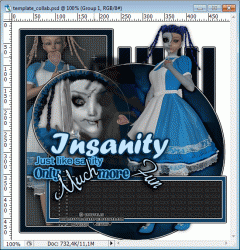
Flood fill that selection with white. Edit > Fill > White and deselect.
Now go to Filter > Blur > Gaussian blur with a radius of 5px.
Duplicate the layer and merge it back down.
Apply a Gaussian blur of 10.
Duplicate the layer again and merge it down.
Apply a Gaussian blur of 20.
Duplicate and merge down one more time.
Now right click the layer and create a clipping mask.
This concludes your glow...
Now to animate it.
Make sure your animation window is open. Window > Animation
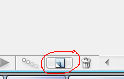
You will see that your first frame is already there. Now click on the icon that looks like a piece of paper to duplicate the frame.
Using your Move tool, move the glow layer to the other side of your "insane tiles".
Now look at your animation window and you will see an icon that looks like this:
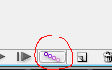
This will tween your animation frames. (tween means to create a blending or moving effect with the next frame)
Click this and you will have a window pop up. Set it to look like this:
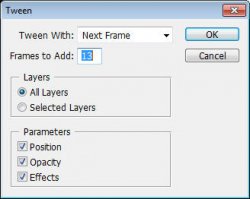
You should now have 15 frames. (13 plus the original 2)
We want to set the delay of the frames higher than 0.
Select all your frames. (click first frame, then shift+click your last frame)
Click the arrow beside the number at the bottom of one of the frames. Set this number to 0.1 (you may also play with this setting to get the effect you want)
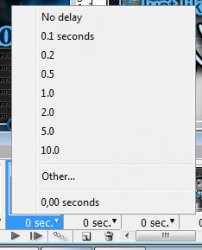
To view your animation, simply click the play button.
Now to save your animation:
Go to File > Save for Web
This will bring up a completely different save window than you are probably used to. Simply set everything like so:
Note that these settings are the ones that I use for the background of the posts of THIS forum.
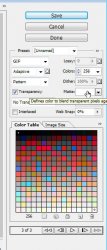
Here is what I have:
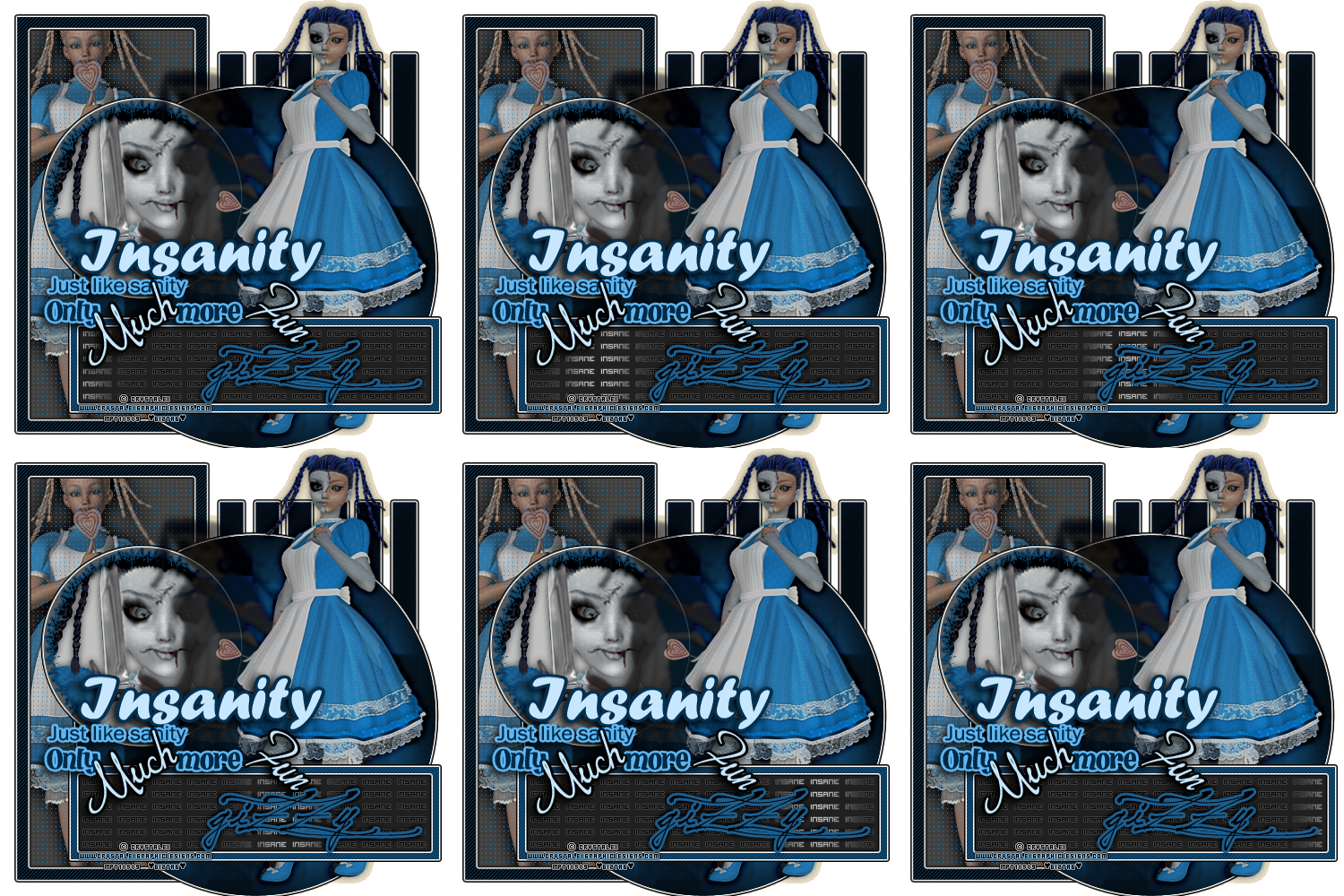
I hope you have enjoyed this tutorial! I would love to see your results.
Hosted by permission. Please link to this tutorial instead of redistributing it or its supplies.
Back to all tutorials