REBEL DEZIGNS · TUTORIAL ARCHIVE
Is it Love
An original Photoshop tutorial by René Kunert (giZZY), rebuilt from the preserved archive.
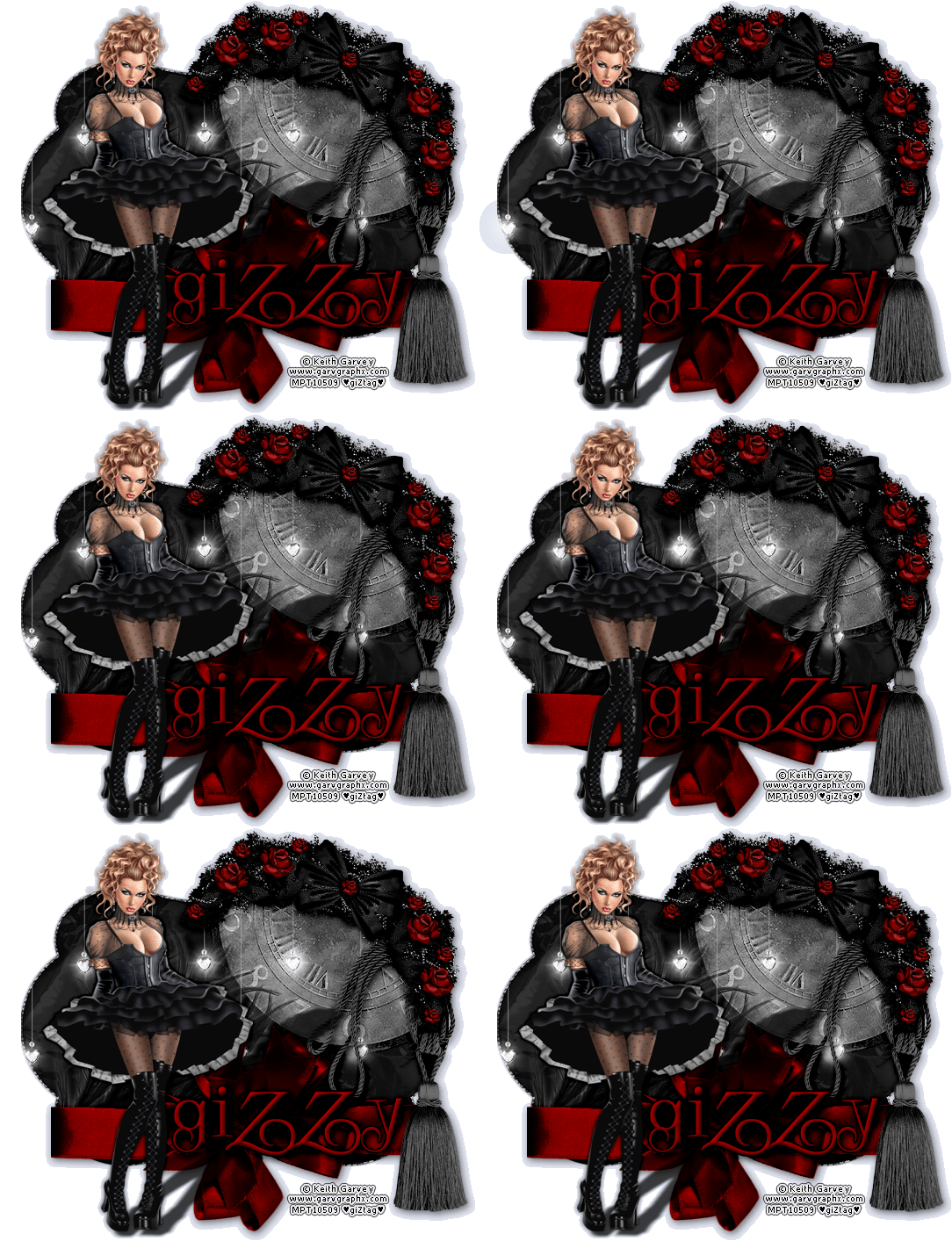

Materials Needed:
- Awesome scrap kit from Addictive Pleasures called Is It Love
- Tube by the artist of your choice. I am using Keith Garvey. This tube was purchased from MyPSPTubes.com but is now available at PSPTubesEmporium!
Open a new 550 X 550 pixel transparent canvas. 72 pixel/inch resolution.
Open tag.png from the kit and use the Move tool to move it onto your tag canvas. Position it about center.
Double click the name of the layer in the layers pallet and rename it to "tag".
Open clock2.png and move it onto your canvas. Place where desired and right click the layer in the layers pallet. Choose Create Clipping Mask.
Rename this layer to "clock".
Open feather.png and move it onto your canvas. Place it similar as shown (red only added for visibility):
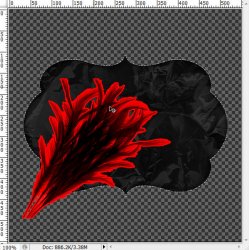
Rename this layer to "feathers".
Right click the layer and choose Blending Options. Apply these styles:
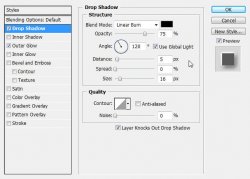
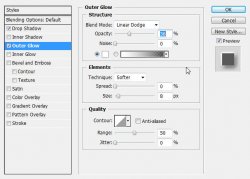
Now right click the layer again and choose Create Clipping Mask.
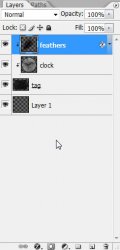
Your layers pallet should now look like this:
Open lights.png and place it on your tag canvas. Place it where desired and once again, Create Clipping Mask.
Rename this layer to "lights".
Open bow2.png and move it onto your canvas.
Edit > Free Transform (look at the top of your screen and enter these values):

Right click the layer and choose Blending Options. Add a drop shadow of choice.
Rename this layer to "bow".
Open tassle.png and move it onto your canvas.
Edit > Free Transform:

Add the same drop shadow as your bow layer.
Rename this layer to "tassle".
Open ROSESWAG.png and move it onto your canvas.
Edit > Free Transform:

Now add the same drop shadow as you did your bow.
Rename this layer to "rose swag".
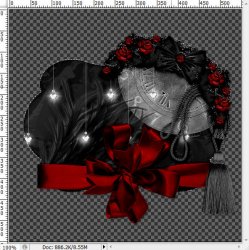
Now you should have something that looks like this:
Now open your tube and place it on the left side of the tag. Now is a good time to add your copyright information so you don't forget.
Give the layer a drop shadow. The default drop shadow will work fine.
Now, you will notice the icons on the layers that represent the layer styles:

Right click this icon and choose Create Layer.
This will add the shadow on a new layer below the tube:
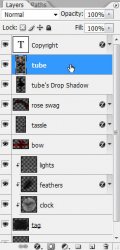
Now select the shadow layer.
Edit > Free Transform:
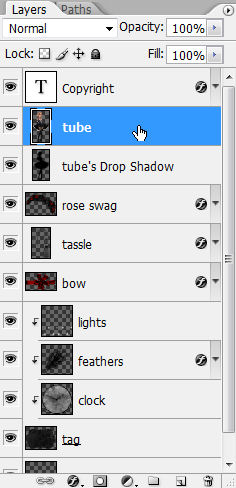
Select your tube layer again and add the drop shadow again. This time, turn the distance all the way to 0 and the blend mode to Linear Burn.
You may now add a name or any other wording you wish.
I have added these styles to the name on this tag:
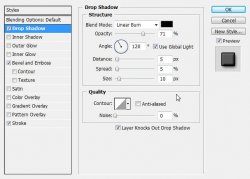
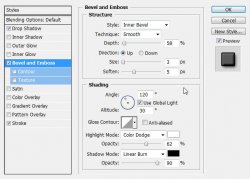
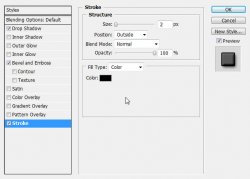
If you only want a static tag without animation, you may stop here. If you would like to add the animation, please proceed.
Hide the "tube" "tube's Drop Shadow" and the Name in your layers pallet. Just click the eye beside the layers' thumbnails.
Select the "lights" layer and grab your paintbrush tool.
Go to Layer > New > Group...
Name it "lights animation".
Layer > New > Layer...
Name this layer "lights 1".
Use your paintbrush with white and paint a dot over your first light on the tag.
Layer > New > Layer...
Name this layer "lights 2".
Use your paintbrush with white and paint a dot over your second light on the tag.
Do this until you have a dot on each of the lights.
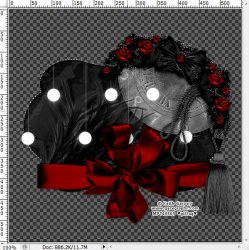
There should now be 7 layers in your group.
Select the "lights 1" layer and go to Filter > Blur > Gaussian Blur: 8
Select the "lights 2" layer and hit CTRL + F to repeat the blur.
Do this to all of the "lights #" layers.
Hide all the "lights #" layers.
Make sure your animation window is open. Window > Animation
You will see that your first frame is already there.
Now Create a new frame by clicking on the little icon at the bottom of your animations window.
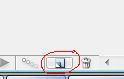
Now Unhide the "lights 1" layer.
Duplicate your frame again in the animation window again.
Hide the "lights 1" layer and Unhide the "lights 2" layer.
Do this for all 7 lights layers.
This should leave you with 8 frames in your animations window.
Select the first frame in your animation window. (this is very important)
At the top of your layers pallet, you will see a drop down box to change the blend mode of your entire group Change the blend mode to Overlay:
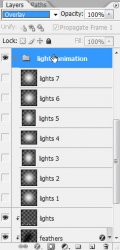
Now change the opacity to 70% (right beside the blend mode dropdown box)
Now Unhide all of your hidden layers.
Select Frame 2 in your animation window.
Go to Image > Trim...: Transparent Pixels
This will get rid of all the excess space around your tag.
Select Frame 1 again.
If you would like to have a background color on your tag, select "Layer 1" (if you still have it) and Edit > Fill: Color.
Now we want to set the delay of the frames higher than 0.
Select all your frames. (click first frame, then shift+click your last frame)
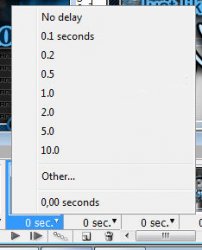
Click the arrow beside the number at the bottom of one of the frames. Set this number to 0.5 You may also play with this setting to get the effect you want.
To view your animation, simply click the play button.
Now to save your animation:
Go to File > Save for Web
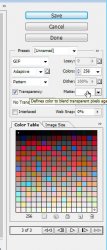
This will bring up a completely different save window than you are probably used to. Simply set everything like so:
Note that these settings are the ones that I use for the background of the posts of THIS forum.
And this is my result:
I hope you have enjoyed this tutorial! I would love to see your results.
Hosted by permission. Please link to this tutorial instead of redistributing it or its supplies.
Back to all tutorials