REBEL DEZIGNS · TUTORIAL ARCHIVE
Keep the Romance
An original Photoshop tutorial by René Kunert (giZZY), rebuilt from the preserved archive.
Materials Needed:
- LOTS of patience. This is a very in depth tutorial.
- Scrap kit by CrazyCarita called Love in Moscow. Was PTU, now FREE! Thank you Carita!!
- Tubes artist of your choice. I am using Anna Liwanag. This tube was purchased from MyPSPTubes.com but is now available at PSPTubesEmporium!
First we are going to make the book lie flat instead of standing straight up.
Open book.psd and duplicate it. (Image > Duplicate...) and close the original. This is to make sure you don't accidentally save over the original. I have done that way too many times.
Double click the layer's name in the layers pallet. Rename this layer to "book"
Now we are going to transform it.
Pay close attention because every step is important.
Edit > Free Transform:
Right click the image and choose Perspective
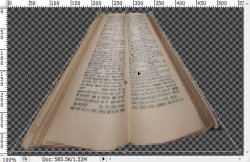
Click and drag one of the top points of the bounding box to make the book look similar to this:
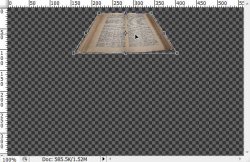
Now right click again and choose Scale. Drag one of the center points at the bottom to make the book look like this:
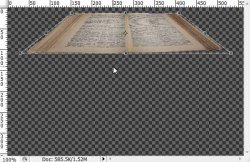
Now drag the center points on the sides of the book to stretch it out to look like this:
Now double click inside the bounding box to apply it.
Select > All
Layer > Align Layers to Selection > Horizontal Center
Layer > Align Layers to Selection > Vertical Center
Select > Deselect
BUT we are not finished. We want the book to look a little more realistically lying down.
Duplicate this layer (right click the layer in the layers pallet and Duplicate Layer)
Select your "book" layer and choose your move tool from the tools pallet.
Use the arrow keys on your keyboard Tap the down key 10 times.
CTLR + Click the "book Copy" layer's thumbnail in the layers pallet. (or right click the thumbnail and choose Select Layer Transparency)
Select your "book" layer and hit delete on your keyboard.
Keeping your "book" layer selected, Hold ALT on your keyboard and tap the UP arrow key 10 times.
This will duplicate the layer 10 times, but we want them merged together.
Hide the "book Copy" layer by clicking the little eye icon beside the layer in the layers pallet.
Right click one of the duplicated layers and choose Merge Visible.
Rename this layer "binding".
Unhide your "book Copy" layer.
You should only have two layers. One for the book and one for the binding.
Right click the "binding" layer and choose Blending Options. Apply these layer styles:
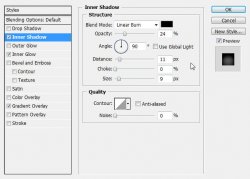
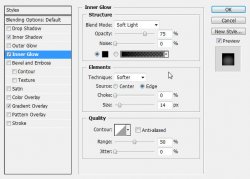
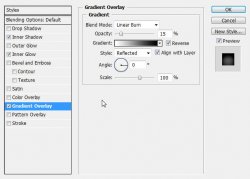
Now right click one of the layers and choose Merge Visible.
BUT We are not finished yet.
Go to Filter > Liquify and have a look at these to see what you are supposed to do.
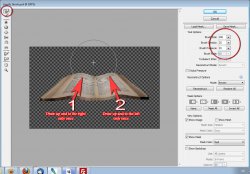
Now we have a nice flat lying book to work with.
Open a new 700 X 700 px image with a resolution of 72 pixels per inch.
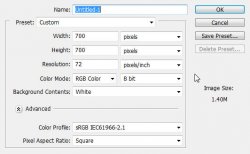
This time we will be working with a white background so it is easier to see what we are doing.
Create a new layer. Layer > New > Layer
Name this layer "masked"
Edit > Fill: White
Create a new layer.
Use your paintbrush tool to create some random marks on the canvas:
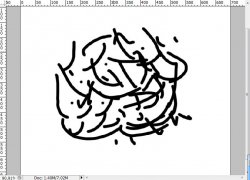
Filter > Blur > Gaussian Blur: 10
Filter > Sharpen > Smart Sharpen: Amount 500%, Radius: 8, Remove: Gaussian
Layer > Duplicate
Edit > Transform > Flip Horizontal
Layer > Merge Down
Layer Duplicate
Edit > Transform > Flip Vertical
Layer > Merge Down
Now merge this down with the white layer beneath it.
Filter > Pixelate > Crystalize: 50
Filter > Stylize > Diffuse: Normal
Repeat the diffuse
Select > All
Edit > Copy
Select > Deselect
Now we want to enter quickmask mode. To do that, there is a button on your tools pallet. Press it:
Image coming soon
Now Edit > Paste
You will have an area showing up in red. This is good.
Now get out of the quickmask mode by pressing the other button right beside the quickmask button.
Now just hit delete on your keyboard.
Select > Deselect.
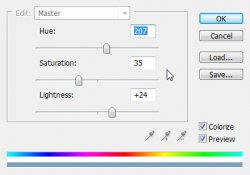
Image > Adjustments > Hue and Saturation:
Press D on your keyboard to reset your colors (they should now be black and white in your tools pallet)
Filter > Render > Difference Clouds (do this twice)
Now right click this layer and choose Blending options. Put the Opacity of this layer to 30%
Move your modified book onto the new canvas. You may now close the book if you like. Or you may save it, but please save it into the same folder with the original book, so you know where it came from when giving credits.
Use the move tool to position the book near the bottom center of your tag. Rename this layer to "book"
Open bench.psd and move it onto your canvas.
Edit > Free Transform (look at the top of the screen and enter these values):
Image coming soon
Rename this layer "bench".
Select your "book" layer and grab your paint brush.
Create a new layer. Layer > New > Layer... Name this layer "shadow".
Use your paintbrush to put a shadow under the bench like so:
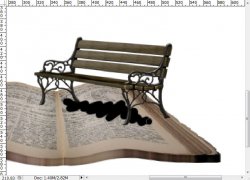
Now go to Filter > Blur > Gaussian Blur: 9
Select the "book" layer and open tree.psd
Move it onto your tag and then Edit > Free Transform:
Image coming soon
Rename this layer "tree"
Select the "book" layer again and create a new layer. Name this layer "shadow"
Use your paintbrush tool to create a shadow under the tree like so:
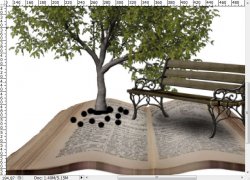
Filter > Blur > Gaussian Blur: 5
Select your "book" layer again and open path.psd
Edit > Free Transform:
Image coming soon
Rename this layer "path"
You should now have something that looks like this:
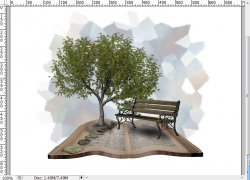
Now is a good time to give your layers a drop shadow.
Right click the "book" layer and choose Blending Options. Apply this drop shadow:
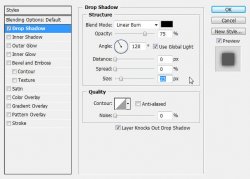
Give the same drop shadow to the tree and bench layers.
Select your "path" layer and give it this drop shadow:
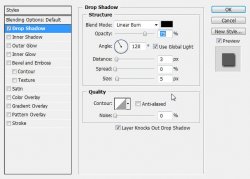
Select the "bench" layer and open your tube.
Move your tube onto your tag and resize and position as necessary. Give it a drop shadow of choice.
Now is a good time to add your copyright information so you don't forget.
Open wordart1.psd and move it onto your canvas. Resize it as you wish and place it at the bottom of your tag. Give this layer a drop shadow also.
Now add a name.
I have used a stroke of white set at 2px and a drop shadow set to Linear Burn.
Now hide your background layer (use the eye in the layers pallet)
Image > Trim
Now save your image as a .png or .jpg and you are done!
And this is my result:
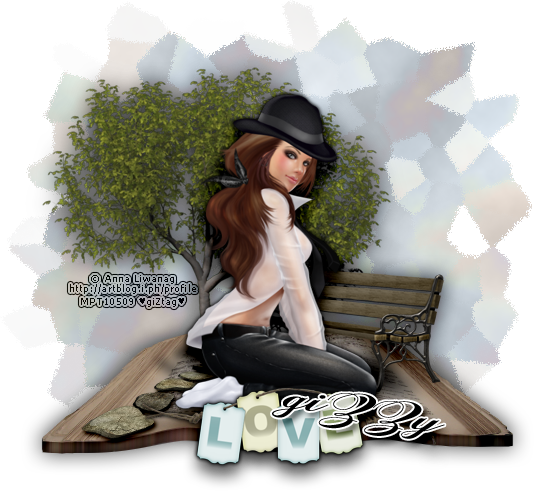
I hope you have enjoyed this tutorial! I would love to see your results.
Hosted by permission. Please link to this tutorial instead of redistributing it or its supplies.
Back to all tutorials