REBEL DEZIGNS · TUTORIAL ARCHIVE
Let it spin
An original Photoshop tutorial by René Kunert (giZZY), rebuilt from the preserved archive.
Materials Needed:
- Optional: My seamless tile files > here
- Tube of choice. I am using the gorgeous work of Barbara Jensen.
Start with a Seamless tile layer.
For this tutorial, it needs to be 550 pixels wide.
Otherwise you will need to adjust some settings.
You can use an image that I have provided.
Double click the Background layer to promote it to a raster layer.
Duplicate the layer.
Filter > Other > Offset: Horizontal: 25 pixels; Vertical: 0 pixels
Duplicate that layer.
Same offset
Keep doing that until you have 22 layers.
Select > All Layers
Layer > Group Layers
Now use the selection tool to select a circle.
Layer > Layer Mask > Reveal Selection
You have your animation window open? If not, now is a good time. Window > Animation
In the upper right side of your animation window, you will see a flyout box. Click on that and choose "Make frames from layers"
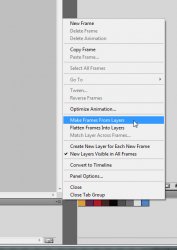
Now click on it again and choose "Flatten frames into layers"
This will give you 22 circle layers instead of the squares you had before.
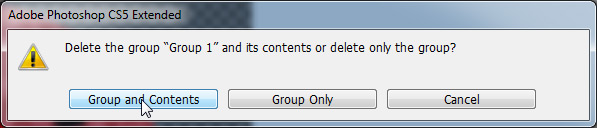
Delete the group you made earlier.
Ok, now that we have our circle layers, we can make them into a ball.
Select > Reselect
This will give your the same circle selection from earlier.
If that doesn't work, simply CTRL + click on one of the thumbnails in the layers pallet.
We have to delete the animation before we go any further.
Go back to that flyout box in the right side of the animation window again.
This time choose "Delete animation"
On the first layer, do both of these:
Filter > Distort > Sphereize: 100%
Filter > Distort > Sphereize: 50%
Unhide your next layer and repeat the process.
Now to make it look shiny.
For the easy way, simply use the Eyecandy Impact 6 > Glass filter to each of the layers.
Or you can use a layer style, as I am:
Right click the layer and choose Blending options
Add these:
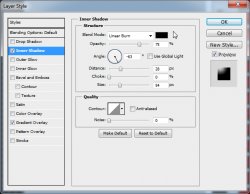
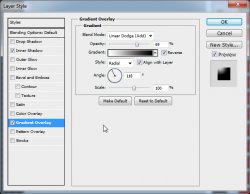
Now when putting the Gradient overlay, you want to make sure you are making the "highlight" in the general direction that light would be coming from. You do that by simply moving the whole gradient over:
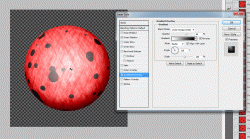
Now right click the layer in the layers pallet and choose "Copy Layer Styles".
Select > All Layers
Right click one of the layers and choose "Paste Layer Styles".
This will paste the style to all of the layers at once.
With all of the layers still selected:
Layer > Group Layers
Save this as a PSD file for future use, if you want.
DO NOT CLOSE
Open a new 550x200 pixel image.
Open your tube of choice and place it on your canvas.
Position it where you want.
Be sure to add copyrights... and keep them at the top.
Duplicate the layer several times and position them all over the canvas.
Cover the whole canvas if you can.
Merge all of the tube copies. (not the original)
Now in the layers pallet, move the original tube layer above all the copies. (drag and drop)
Back to the copies layer.
Filter > Blur > Motion Blur:
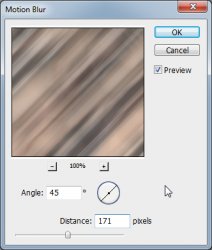
Now add a drop shadow of choice to your tube layer using the Blending Options.
Layer > New Layer...
Flood fill this layer with any color.
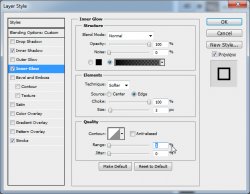
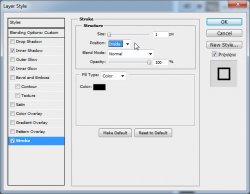
Then add these styles via the Blending Options:
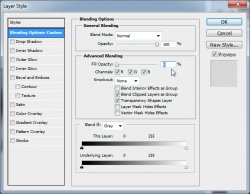
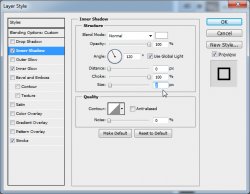
Now we are ready to add our animation.
Go back to your animation and right click the group in the layers pallet.
Chose Duplicate Group.
DON'T HIT OK!
There is a Destination dropdown box.
Find your tag in that dropdown box and then click ok.
You can now close the animation.
Back to your tag.
Use the move tool to position your animation where you want it.
If it is too large, go to Edit > Free Transform and resize the whole group.
Add a name and put any layer style you would like on it.
Now we are ready to get it moving!

Prepare your work area for animation.
Animation Hide all of the animation layers except the 1st one.
In the animation window, your first frame is already present.
Duplicate the frame in the animation window.
Hide the first animation layer and unhide the next one.
Duplicate the frame again in the animation window.
Hide the second animation layer and unhide the next one.
Repeat this process until you have all 22 layers as frames.
22 animation layers = 22 animation frames
Highlight frame 1 again in the animation window.
If you want, you can add other elements to your tag.
Set your frame delay to 0.1 sec.
Now to save your animation.
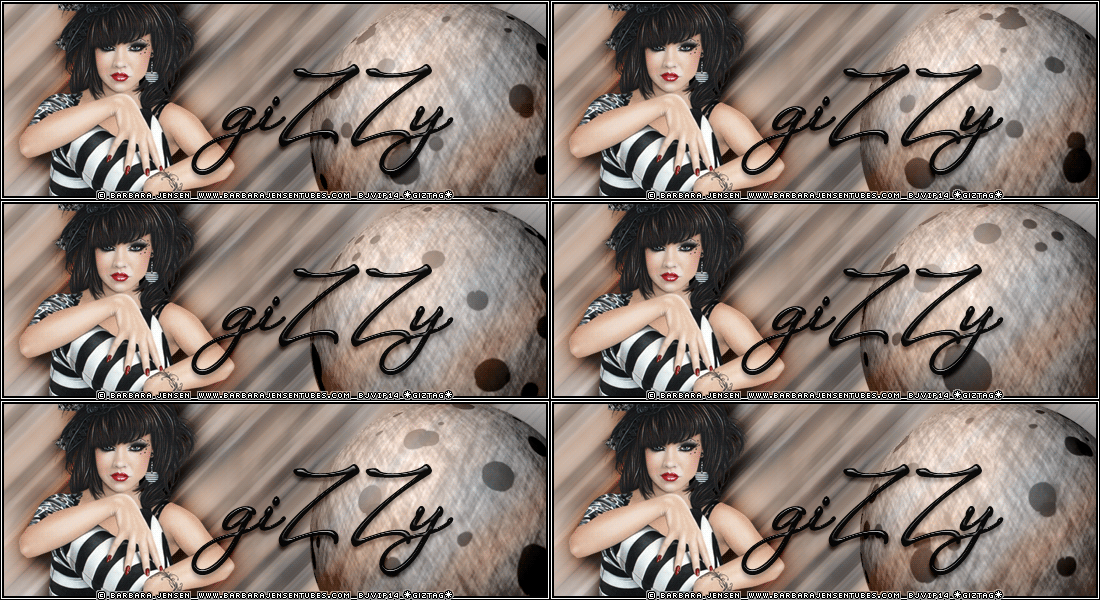
And this is my result:
I hope you have enjoyed this tutorial! I would love to see your results.
♥♥♥
Hosted by permission. Please link to this tutorial instead of redistributing it or its supplies.
Back to all tutorials