REBEL DEZIGNS · TUTORIAL ARCHIVE
Lethal Love
An original Photoshop tutorial by René Kunert (giZZY), rebuilt from the preserved archive.
Materials Needed:
- Template by Me.
- Scrap kit by Roo called Lethal Love.
- Tube by the artist of your choice. I am using the wonderful work of Elias Chatzoudis. Please do not use this image unless you have a license to do so.
- Optional: Filter > Alien Skin Xenofex 2 > Constellation
Tips:
- Right click the thumbnail of a layer and Select Pixels for the same effect of the PSP float/defloat option.
- Using layer masks, you can erase portions of a layer without destroying the layer.
- Clipping masks are your friend.
- Use the wand tool to select the inside of frames and then Selection > Modify > Expand: 5-10 pixels. Then add a new layer below the frame and fill with white. This will add the inside to your frames. You can then clip a paper to the filled layer.
Open your template in Photoshop.
The template is in vector format, so you can resize it now with no quality loss.
After you have resized it, right click on each of the layers in the layers pallet and Raterize them.
Now, let's add some layer styles.
Highlight your Bars layer in the layers pallet.
Right click it and choose Blending Options.
Now add this to the popup window:
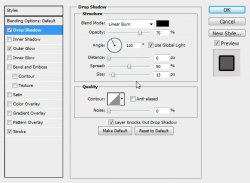
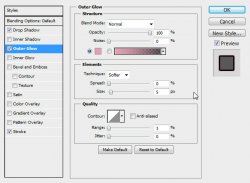
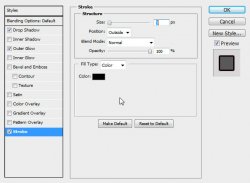
Add this same layer style to the Big Circle layer.
Highlight the Triple Circle layer and give it these styles:
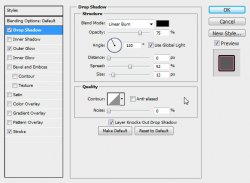
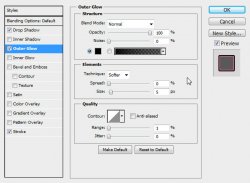
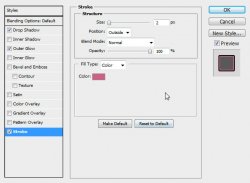
Add this same layer style to the Small Circle layer.
Highlight the What's Your Poison? layer and add these styles:
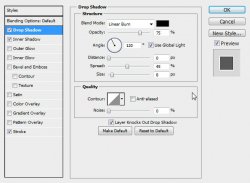
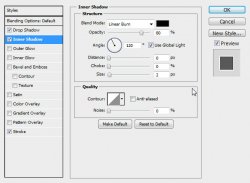
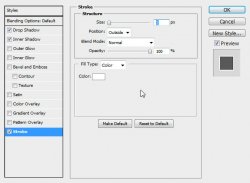
Add this same layer style to the Dots layer.
Let's cover them with paper now... Gray just doesn't suit the tag, does it?
Highlight the Bars layer and open a paper from the kit and place it on the tag.
Right click it in the layers pallet and choose Create Clipping Mask.
Right click it again and Merge Down.
Repeat that with all of the template layers.
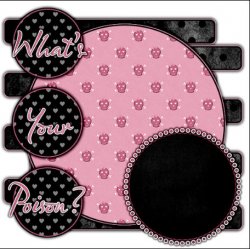
You should now have something that looks like this:
Now let's add our elements.
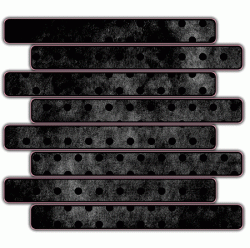
Just open and place them where you see fit. Here are the elements I have used:
Give each of your elements a drop shadow. Right click in the layers pallet and choose Blending Options.
Now place your tube on your tag where it fits best. This one fit the best directly above the black rose layer.
Give your tube a drop shadow also.
ADD COPYRIGHTS!! Don't want to forget those.
Add a name also, because we don't want any blank tags.
To get your text vertical like mine, you will need to take a couple of extra steps.
Choose your Text tool and type out a name.
Next we want to click the little button at the top of the screen to get it vertical:

But that looks horrible, doesn't it?
So now we have to adjust the spacing of the font.
In the top menu: Window > Character
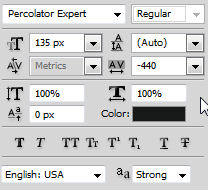
The will open a little box with some values in it.
These will need to be adjusted until your font looks right.
This is just an example; the values will vary depending on the font you use.
Now it needs a layer style also. I kept this one pretty simple. Just a Stroke and Drop Shadow.
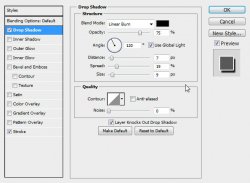
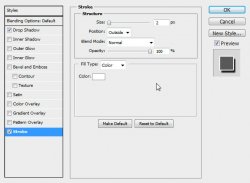
I want some sparkles over my name, so now I will add those.
Just open them and place them on the tag.
To make your sparkles "glow", add this layer style:
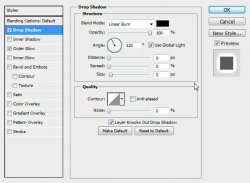
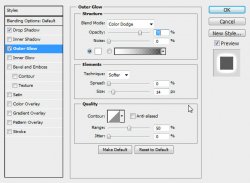
If you only want a static tag without animation, you may stop here. If you would like to add the animation, please proceed.
Prepare your work area for animation.
Animation Highlight your sparkles layer. Double click on the NAME of the layer and rename it to Sparkles.
Duplicate your Sparkles layer 3 times (4 in total)
Highlight your original sparkles layer and go to Filter > Alien Skin Xenofex 2 > Constellation:
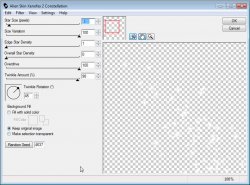
Repeat the constellation on the other 3 Sparkles layers, making sure to hit the Random Seed button each time.
Hide the 3 Sparkles Copies layers.
In your animation window, you will see the first frame is already there. You don't have to do anything to this frame.
Duplicate the frame by hitting the "folded paper icon" at the bottom of the window.
Hide the original Sparkles layer and unhide the Sparkles Copy layer.
Duplicate the frame again.
Hide the Sparkles Copy layer and unhide the Sparkles Copy 2 layer.
Duplicate the frame again.
Hide the Sparkles Copy 2 layer and unhide the Sparkles Copy 3 layer.
Set your frame delay to 0.1 sec.
Now to save your animation.
And this is my result:
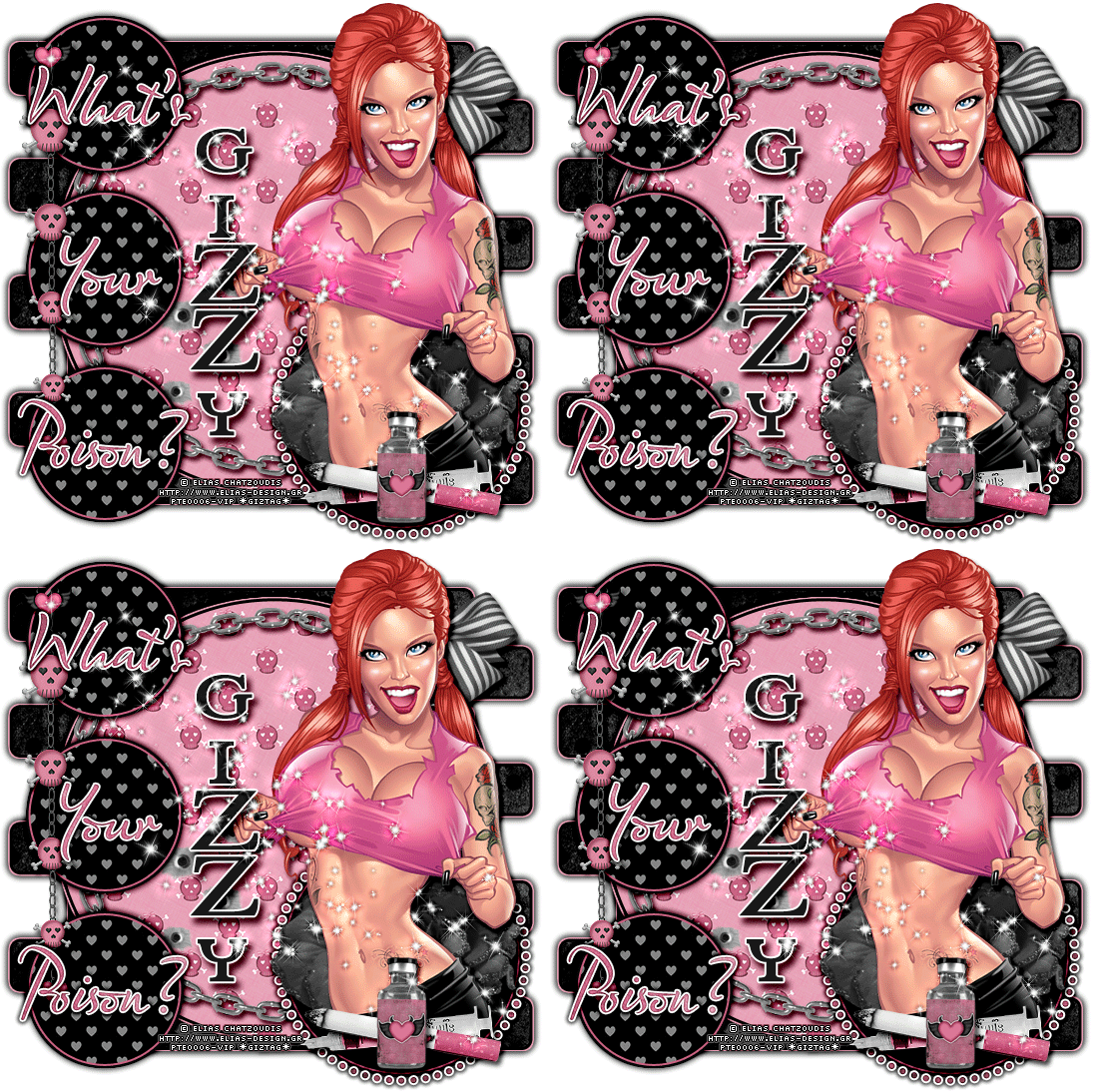
I hope you have enjoyed this tutorial! I would love to see your results.
♥♥♥
Hosted by permission. Please link to this tutorial instead of redistributing it or its supplies.
Back to all tutorials