REBEL DEZIGNS · TUTORIAL ARCHIVE
Life's A Drag
An original Photoshop tutorial by René Kunert (giZZY), rebuilt from the preserved archive.
Materials Needed:
- Template
- Scrapkit: Life's a Drag by LadyGirl
- Two tubes by the same artist of your choice, preferably one closeup. I am using Elias Chatzoudis. This tube was purchased from MyPSPTubes.com but is now available at PSPTubesEmporium!
Open your template in Photoshop. Resize now if needed.
Go to Layer > Rasterize > All Layers.
Select the "Circle" layer in your layers pallet. Add these layer styles by right clicking and choosing Blending Options:
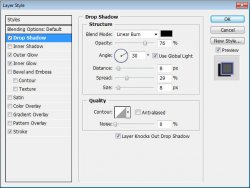
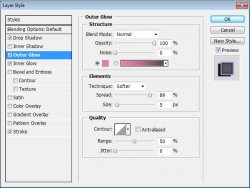
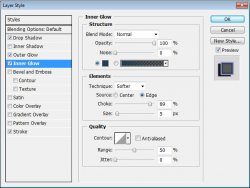
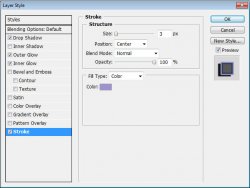
Now right click your "Circle" layer and Copy Layer Styles.
Now apply this layer style to ALL the other layers by right clicking on each one and Paste Layer Styles.
Now to put all the papers in their places.
Choose your "Circle" layer and open Paper-5.jpg
Use your move tool and move it onto your canvas.
Now right click the paper layer and Create Clipping Mask.
Right click the paper layer and Merge Down.
Select your "Half Circle" layer and open Paper-7.jpg
Move it onto your canvas and Create Clipping Mask.
Right click the paper layer and Merge Down.
Choose your "2 Circles" layer and open Paper-8.jpg
Move it onto your canvas and Create Clipping Mask.
Right click the paper layer and Merge Down.
Select your "Shape" layer and open Paper-2.jpg
Move it onto your canvas and Create Clipping Mask.
Right click the paper layer and Merge Down.
Select your "Rectangle" layer and open Paper-6.jpg
Move it onto your canvas and Create Clipping Mask.
Right click the paper layer and Merge Down.
Now for some elements.
Select the "Shape" layer.
Open Blue-boa.png and place it at the top left of the Shape. Use my example as a guide.
Now right click the thumbnail of your Shape layer and Select Layer Transparency.
Go to Select > Modify > Expand: 4
Now use your eraser tool and carefully erase the part of the Boa that you would like to be behind the shape.
Now add a drop shadow to your boa using the blending options.
Optional: Use the burn tool and darken the part of the boa that looks as if it is behind the Shape.
Select your "Rectangle" layer and open Blue-Feather-Fan.png and place it near the bottom of the rectangle.
Add a drop shadow to this layer.
Open Single-Feather.png and place it to the right of the Shape. Add a drop shadow to this layer.
Open Rainbow-Hearts-Glitter.png
Place it towards the top of the canvas.
Duplicate this layer.
Select > All
Edit > Transform > Rotate 180°
Right click and Merge Down.
Add a drop shadow to this layer.
Ok that is all of the elements.
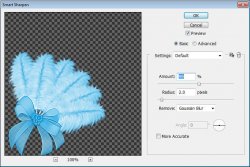
If you would like to sharpen your elements, use the following method.
Select the element layer and go to Filter > Sharpen > Smart Sharpen.
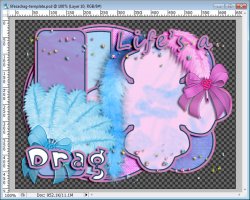
Here is what you should have so far:
And now on to the tubes.
Choose the "Shape" layer and place the closeup over the shape. Right click the tube and Create Clipping Mask.
Change the blend mode of the layer to Luminosity, and add a drop shadow of your choice.
Now go to Edit > Transform > Flip Horizontal
Now select the layer directly under the "Drag" layer (the one with the glitter).
Place your main tube on the canvas where it looks best and add a drop shadow.
Now add your copyrights now, so you don't forget.
Put a name on it and save it as a .png
And that concludes this episode. Tune in next time for more tutorial fun.
And this is my result:
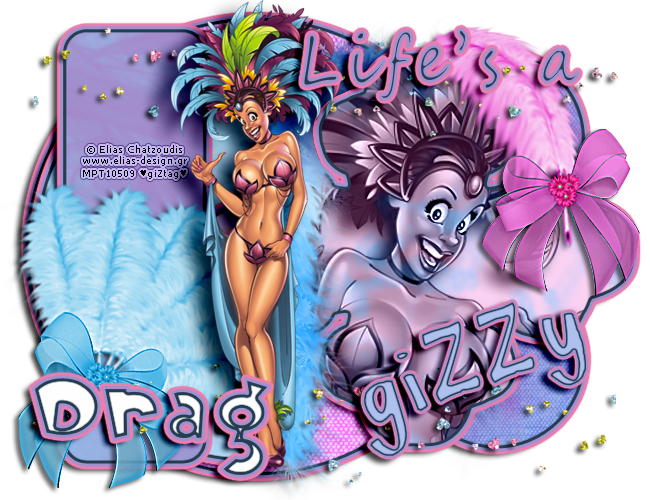
I hope you have enjoyed this tutorial! I would love to see your results.
Hosted by permission. Please link to this tutorial instead of redistributing it or its supplies.
Back to all tutorials