REBEL DEZIGNS · TUTORIAL ARCHIVE
Love and Frienship
An original Photoshop tutorial by René Kunert (giZZY), rebuilt from the preserved archive.
Materials Needed:
- Scrap kit by Susan called Viva La France.
- Prepared mask of choice. I am using one of my own that can be found in the downloadables area of the forum.
- Wordart or phrase of choice.
- Fireworks animation by me. Do not redistribute.
- Tube by the artist of your choice. I am using the wonderful work of Hellasweet. This is one of our forum exclusives.
Open a new image. I normally use 550x550 pixels.
Flood fill the first layer with black (only to see what you are doing).
Have you prepared your mask? Good, now move it onto your fresh canvas and close the original without saving.
Open a paper of choice from the kit and drag it onto your mask.
Make sure it is covering your mask.
Right click the paper in the layers pallet and choose Create Clipping Mask.
Right click it again and Merge Down.
I am not going to go into how to put your elements on your tag.
But I will tell you that you will need to use Edit > Free Transform to rotate, resize and move your elements around.
Here is what I have done:

After you have placed the elements you want, give each of them a drop shadow.
Right click an element and choose Blending Options.
The drop shadow option is the first on the left side.
Open your tube and place it on the tag. Give it a drop shadow also.
Be sure to add your copyright information now so you don't forget.
You can move your tube up or down in the layers pallet to get it positioned just the way you want.
Choose the topmost layer and add your phrase or wordart. You may also give this any styling you wish through the Blending Options.
I have used a stroke, inner glow, and drop shadow.
Now add a name to your tag. Give it a style, also.
If you only want a static tag without animation, you may stop here.
Hide the background layer and save as a .png
If you would like to add the animation, please proceed.
Prepare your work area for animation.
Animation Now is a good time to flood the background layer with your choice of colors. I am going to use white because that is the color of my site.
Highlight the Masked layer you made at the beginning of the tut.
Open the fireworks animation that I provided.
Once you have it opened:
Select > All Layers
Layer > Group Layers
In the layers pallet, right click on the group and Duplicate Group.
Don't hit ok
Find the name of your tag in the drop down box in the popup window first.
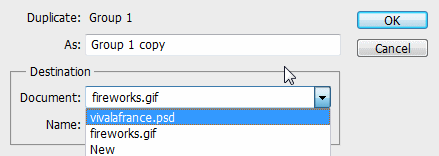
And THEN hit ok.
You can now close this animation without saving.
Back to your tag.
Highlight the group and look at the top of your layers pallet.
There is a dropdown box that has the word "Pass Through" in it.
Click on that box and choose Linear Dodge.
You can now move the group anywhere you want using the Move tool.
Now comes the fun part...
You need to make a new frame for each of the fireworks layers. This will take a minute or two, so you may as well go have lunch or a cup of coffee before you get started.
Make sure your group is open.
If not, click on the little arrow beside the group in your layers pallet. This will expand the group to show you what is inside it.
You have your animation window open, right?
you already have your first frame already there.
Duplicate the frame by clicking on the folded paper icon at the bottom of your animation window.
Hide the Frame 1 layer in your group and unhide the Frame 2 layer.
Duplicate this frame.
Hide the Frame 2 layer and unhide the Frame 3 layer.
Repeat this for ALL the Frame layers.
This will make 25 frames in your animation.
If you would like less frames, simply delete every other frame in your animation window.
Set your frame delay to 0.1 sec.
Now to save your animation.
And this is my result:

I hope you have enjoyed this tutorial! I would love to see your results.
♥♥♥
Hosted by permission. Please link to this tutorial instead of redistributing it or its supplies.
Back to all tutorials