REBEL DEZIGNS · TUTORIAL ARCHIVE
Luck O' the Irish
An original Photoshop tutorial by René Kunert (giZZY), rebuilt from the preserved archive.
Materials Needed:
- Supplies by Me. Do not redistribute.
- Scrap kit by CrazyCarita called Golden Luck.
- Tube by the artist of your choice. I am using the wonderful work of Barbara Jensen. Please do not use this image unless you have a license to do so. I am using a recolored version of Pink-a-Boo found in Pinup Pack 3.
Tips:
- Right click the thumbnail of a layer and Select Pixels for the same effect of the PSP float/defloat option.
- Using layer masks, you can erase portions of a layer without destroying the layer.
- Clipping masks are your friend.
- Use the wand tool to select the inside of frames and then Selection > Modify > Expand: 5-10 pixels. Then add a new layer below the frame and fill with white. This will add the inside to your frames. You can then clip a paper to the filled layer.
Open your template in Photoshop.
Highlight the Mask layer in the layers pallet and open a paper of choice.
Place the paper on your canvas.
Right click the paper layer in the layers pallet and choose Create Clipping Mask.
Right click again and Merge Down.
Start placing elements on your tag the way you want them to appear.
Here is what I have added to this tag:
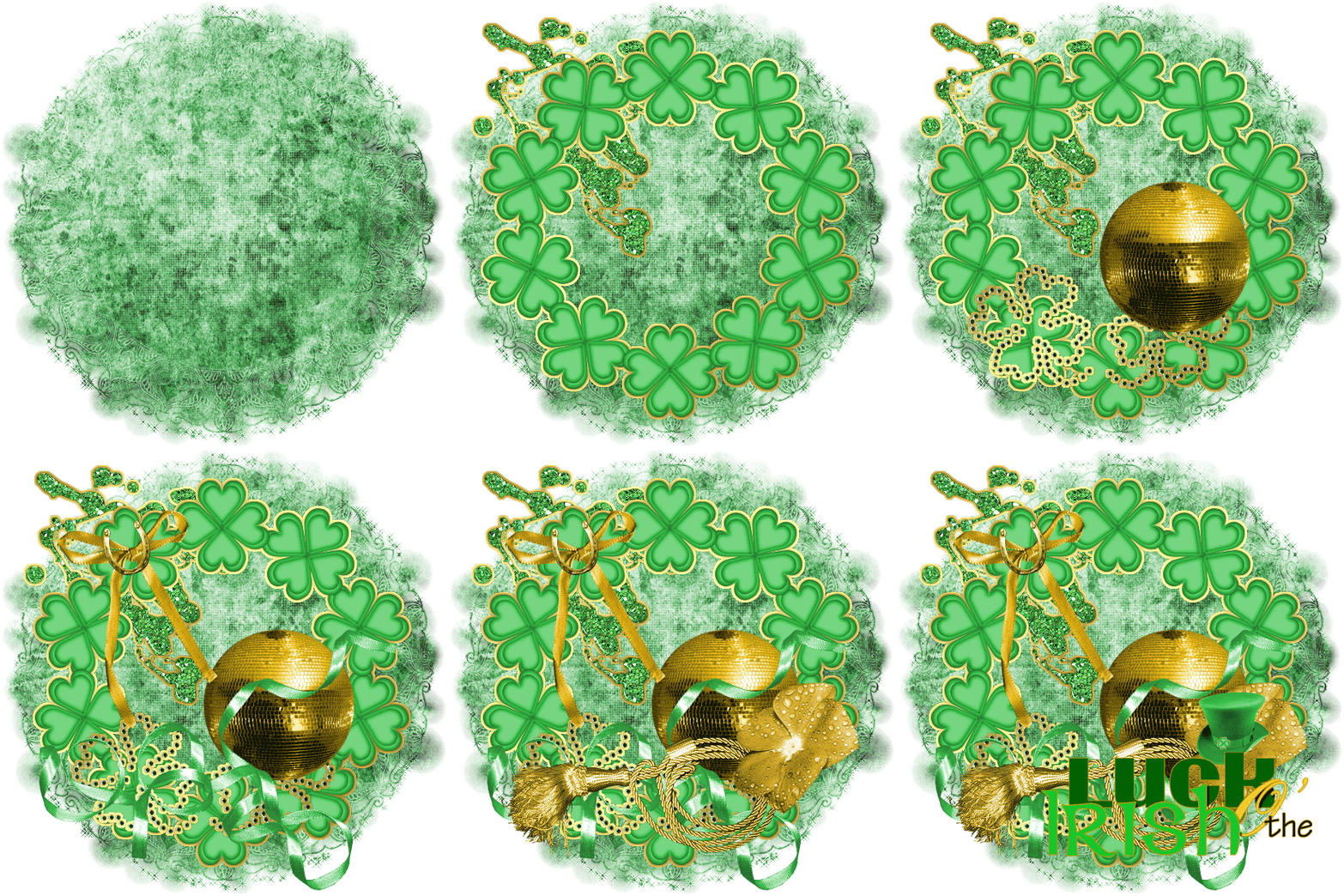
Give each of the element layers a drop shadow by right clicking the layer in the layers pallet and choosing Blending Options.
When the Layer Styles window pops up choose Drop Shadow from the left side.
Open your tube and place it on the tag. Move it up and down in the layers pallet to place it where it looks best.
Give your tube a drop shadow.
COPYRIGHT COPYRIGHT COPYRIGHT Don't want to forget that.
Now add a name of choice and whatever layer styles you would like.
I added a Stroke, Outer Glow, Gradient Overlay, and Drop Shadow.
If you only want a static tag without animation, you may stop here. If you would like to add the animation, please proceed.
Prepare your work area for animation.
Animation Highlight the layer below your tube layer.
Open the Dots pattern from the supplies.
Place it on the canvas.
Double click the layer's name to rename it to Dots.
Go to Layer > Group Layer
This will place your dots in a group to keep them more organized.
Select your Move tool from the tools pallet.
Duplicate the dots layer.
Hit the DOWN key on your keyboard twice.
Duplicate the layer again and hit the down key twice more.
Repeat this until you have 5 dots layers.
Highlight your original dots layer and do the following:
Filter > Diffuse: Lighten Only
Filter > Noise > Add Noise: 5
Repeat for all the dots layers.
Highlight the Group (the "layer" that has a folder for its thumbnail)
At the top of the layers pallet, change the Blend Mode of the group from Normal to Overlay.
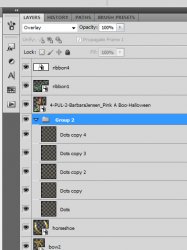
Now that you have your layers, we need to finish the animation.
Hide all of the Dots copies. Keep the original Dots layer visible. (click on the eye on the side of the layers pallet)
You have your animation window open, right? Good.
The first frame is already there.
Now duplicate your animation frame in the Animations pallet.
Hide the original Dots layer and UNhide the Dots Copy layer.
Duplicate the frame again.
Hide the Dots Copy layer and UNhide the Dots Copy 2.
Duplicate the frame again.
Hide the Dots Copy 2 layer and UNhide the Dots Copy 3.
Duplicate the frame again.
Hide the Dots Copy 3 layer and UNhide the Dots Copy 4.
You should have 5 frames now.
Set your frame delay to 0.1 sec.
Now to save your animation.
And this is my result:

I hope you have enjoyed this tutorial! I would love to see your results.
♥♥♥
Hosted by permission. Please link to this tutorial instead of redistributing it or its supplies.
Back to all tutorials