REBEL DEZIGNS · TUTORIAL ARCHIVE
Ms. Nurse Lady
An original Photoshop tutorial by René Kunert (giZZY), rebuilt from the preserved archive.


Materials Needed:
- Prepared mask(s) of choice. I am using my own masks that can be found in the forum.
- Swirls or brushes of choice. I am using some brushes from deviantArt.
- FTU Scrap kit by Randy's Sin called Nurse
- Glitter Pattern of choice
- Tube by the artist of your choice. I am using the wonderful work of Gary Rudisill. Please do not use this image unless you have a license to do so.
Tips:
- Right click the thumbnail of a layer (in the layers pallet) and Select Pixels for the same effect of the PSP float/defloat option.
- Using layer masks, you can erase portions of a layer without destroying the layer.
- Clipping masks are your friend.
- Use the wand tool to select the inside of frames and then Selection > Modify > Expand: 5-10 pixels. Then add a new layer below the frame and fill with white. This will add the inside to your frames. You can then clip a paper to the filled layer.
Open a new blank canvas. 550pxx550px
Flood fill the first layer with the background color of choice.
Did you prepare your masks? If you haven't, now is a good time to do that.
We will wait...
...
...
Done? Good.
Place your first mask on the tag canvas and center it:
Select >All
Layer > Align layer to selection > Vertical center
Layer > Align layer to selection > Horizontal center
Select > Deselect
Open a paper of choice and place it on your canvas.
Right click the paper in the layers pallet and Create Clipping Mask.
Repeat this process for any other masks you wish to use.
Now arrange your elements onto the tag.
I will not tell you exactly how to do this, so I will just give you my example:

Now that you have all your elements, give them all a drop shadow of choice.
Right click the element layer in the layers pallet, and choose Blending Options.
In the left side of the popup window, click on Drop Shadow.
Adjust the settings until you are happy.

Here is what I have so far:

Now add your tube and also give it a drop shadow.
ADD THOSE COPYRIGHTS! And to make them stand out a bit more, you can add a stroke or an outer glow to the text. This will make them more visible and copyright compliant.
Now add a name and give it also any layer styles you wish.
I have used a Stoke, Gradient Overlay, Inner Glow, and Drop Shadow.
If you only want a static tag without animation, you may stop here. If you would like to add the animation, please proceed.
Now comes the fun part...
Prepare your work area for animation.
Animation Did you put the heartbeat line on your tag? You did? Awesome! Cuz we are going to animate it.
First off, highlight it in the layers pallet.
Create a new layer and using a soft brush, put a simple dot at the end of the heart-line.
Turn the Hardness all the way down in your brush settings:
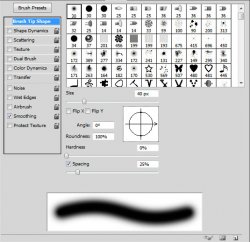
Image coming soon
Now you have your animation window open, right?
Duplicate this frame by clicking the "folded paper" icon at the bottom of the animation window.
Use your Move Tool to move the dot along the heart-line just a little.
Keep repeating this until you get the dot to the other end.
I have 14 frames.
You can make the number of frames as many or as few as you want.
Now onto the second part of the animation.
This part will take tons of practice, so you can always stop here and save your tag as shown at the bottom of this tut.
Highlight the swirls layer.
Do you know how to make your own glitter pattern? No? Ok then, I will tell you how.
 Making Glitter
Open the glitter image of choice (preferably seamless)
Edit > Define pattern
Close image
Edit > Define pattern
Close image
Right click on your swirls layer and choose Blending Options. Highlight Pattern Overlay.
Click on the box that contains the pattern and find the one you just made. (should be the last one)
Set the blend mode to Overlay, Linear Dodge, or Lighten. (this depends on your pattern)
Now right click the swirls layer in the layers pallet and Copy Layer Styles.
Right click again and Clear Layer Styles.
Right click again and Paste Layer Styles.
This will ensure that the style is spread across all frames and not just the first frame.
Now select the second frame in your Animations Window.
Bring up the Blending Options for the Swirls layer again. Highlight Pattern Overlay.
If you hover your tag while this popup is open, you will see that your cursor turns into a Move Tool.
If you drag your cursor across your tag, you will see that the pattern moves.
Move the pattern and click OK.
Select the next Frame in your Animations Window and move the pattern on the swirl layer again.
Repeat this for ALL FRAMES in the animations window.
You should now have something like this:

Set your frame delay to 0.1 sec.
Now to save your animation.
And this is my result:
I hope you have enjoyed this tutorial! I would love to see your results.
♥♥♥
Hosted by permission. Please link to this tutorial instead of redistributing it or its supplies.
Back to all tutorials