REBEL DEZIGNS · TUTORIAL ARCHIVE
My Fantasy
An original Photoshop tutorial by René Kunert (giZZY), rebuilt from the preserved archive.
Materials Needed:
- Coffee
- Scrap kit by Rieneke called My Fantasy World.
- Tube by the artist of your choice. I am using Cris de Lara. Please do not use this image unless you have a license to do so.
Open a new 700X700 pixel image. (72 DPI). You can always resize later.
Fill the layer with white. This is for visibility only and can be hidden later.
Open element43.png from the kit and use your move tool to move it onto your blank canvas.
Double click the name of the layer in the layers pallet and rename it to Frame.
Open element35 and move it onto your canvas. Position it to the left of the frame.
Rename this layer Swirl.
Open element32 and move it onto your canvas.
Edit > Free Transform:
Look at the top of your screen and enter these values.

Rename this layer Mushroom.
Open element52 and move it onto your canvas.
Edit > Free Transform:

Rename this layer Flower.
Open element58 and move it onto your canvas.
Edit > Free Transform:

Rename this layer Cloud.
Open element62 and move it onto your canvas. Position it towards the bottom of the tag.
Rename this layer Bow.
Open element8 and move it onto your canvas.
Edit > Free Transform:

Rename this layer Stars.
Open element69 and move it onto your canvas.
Edit > Free Transform:

Rename this layer Butterfly.
Ok that is pretty much the base of our tag.
This is about what you should have now.
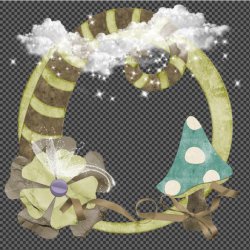
Now we need to add a few styles to the layers.
Select your Frame layer and add a drop shadow. Right click the layer and choose Blending Options:
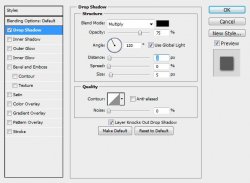
Select the Swirl layer and add this shadow:
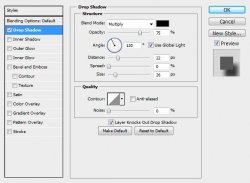
Select the Mushroom layer and add this shadow:
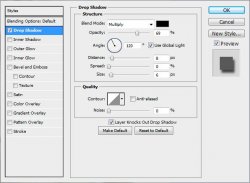
Add the default shadow to the Flower, Cloud, Bow, and Butterfly layers. Do not add a shadow to the stars layer.
To give more depth to your shadows, you can change the Blend Mode to Linear Burn instead of Multiply. You can play around with the Blend Mode to get just the right look you want.
Select the topmost layer. The Butterfly layer is my topmost.
Open your tube and place where desired on the tag.
Now is a good time to add copyright.
If you like, you may use Alien Skin Eye Candy 5: Impact > Perspective shadow to add a shadow to the tube as I have done.
Now we want to make it look as if it is coming out of the frame. This will take a little bit of work.
CTRL + Click on the thumbnail of the Frame layer.
Shift + CTRL + Click on the thumbnail of the Mushroom layer.
Shift + CTRL + Click on the thumbnail of the Bow layer.
Now carefully erase all the portions of the tube that should be inside the frame.
Now erase any parts that are hanging out of the bottom.
Now create a new layer above your tube.
Take a large soft brush and paint some black on the blank layer to look like shadows on your tube.
Now add a name.
Open paper9 and move it onto your canvas. Right click it and Create Clipping Mask. This will place the paper on the name only.
Now select the name layer again and add these styles:
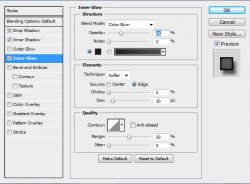
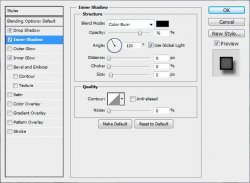
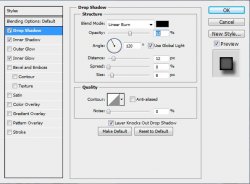
Now hide the white background layer and then Image > Trim.
Now just save your image as a PNG file.
That's it folks. Short and sweet.
And this is my result:
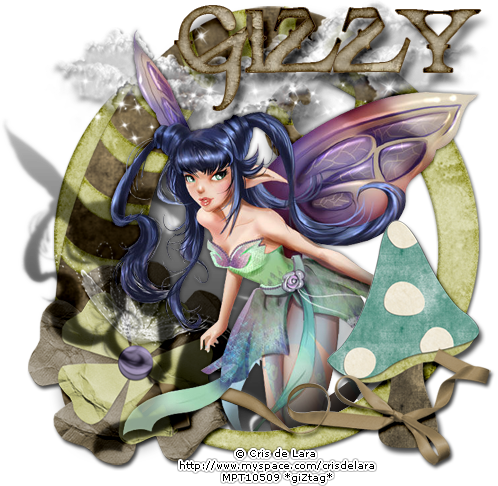
I hope you have enjoyed this tutorial! I would love to see your results.
Hosted by permission. Please link to this tutorial instead of redistributing it or its supplies.
Back to all tutorials