REBEL DEZIGNS · TUTORIAL ARCHIVE
New Spring
An original Photoshop tutorial by René Kunert (giZZY), rebuilt from the preserved archive.
Materials Needed:
- Supplies by me. Do Not Redistribute.
- Scrap kit by Liadan called A New Spring
- Tube by the artist of your choice WITH closeup version. I am using Robert Alvarado. Please do not use this image unless you have a license to do so.
Tips:
- Right click the thumbnail of a layer and Select Pixels for the same effect of the PSP float/defloat option.
- Using layer masks, you can erase portions of a layer without destroying the layer.
- Clipping masks are your friend.
- Use the wand tool to select the inside of frames and then Selection > Modify > Expand: 5-10 pixels. Then add a new layer below the frame and fill with white. This will add the inside to your frames. You can then clip a paper to the filled layer.
Open your template in Photoshop.
If you are going to resize the tag, now is the time to do it. The template is in vector format for a smooth resize.
After you have resized the template, right click on one of the layers and choose Select Similar Layers.
Right click again and Rasterize Layers.
Highlight the Back Circle layer in the layers pallet.
Right click and choose Blending Options.
Give the layer these layer styles:
Adjust the colors to match the tag you are creating.
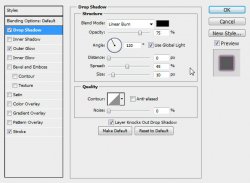
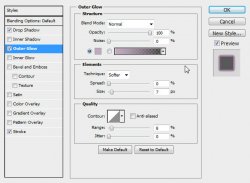
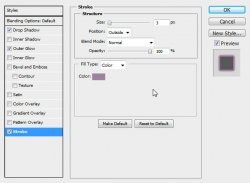
Add this same layer style to the following layers:
- Front Circle Outside
- Front Circle Inside
Highlight the Bars layer.
Add these layer styles via the Blending Options:
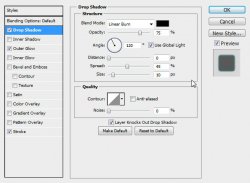
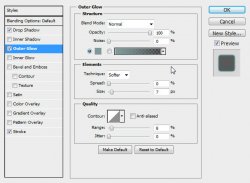
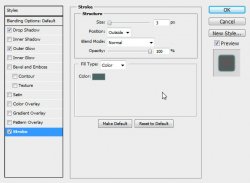
Add this same layer style to the Rectangles layer.
Highlight the Back Circle layer again and open a paper of choice.
Place the paper on your canvas. (make sure it is centered with the Move tool)
Right click your paper layer in the layers pallet and choose Create Clipping Mask.
Right click again and Merge Down.
Do the same to all of the layers.
Highlight the Front Circle Outside layer and open the prepared mask.
If you do not know how to prepare your mask, refer to this topic on the forum.
Place the prepared mask on the canvas.
Select > All
Layer > Align Layer to Selection > Horizontal Center
Layer > Align Layer to Selection > Vertical Center
Select > Deselect
Open another paper of choice.
Place the paper over the mask and right click in the layers pallet.
Create Clipping Mask
Merge Down.
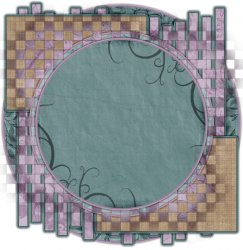
Here is what you should have so far:
Open elements of choice and place them on your tag.
Arrange your elements by going to Edit > Free Transform to resize, move, and rotate.
Add a drop shadow to each of the elements via the Blending Options.
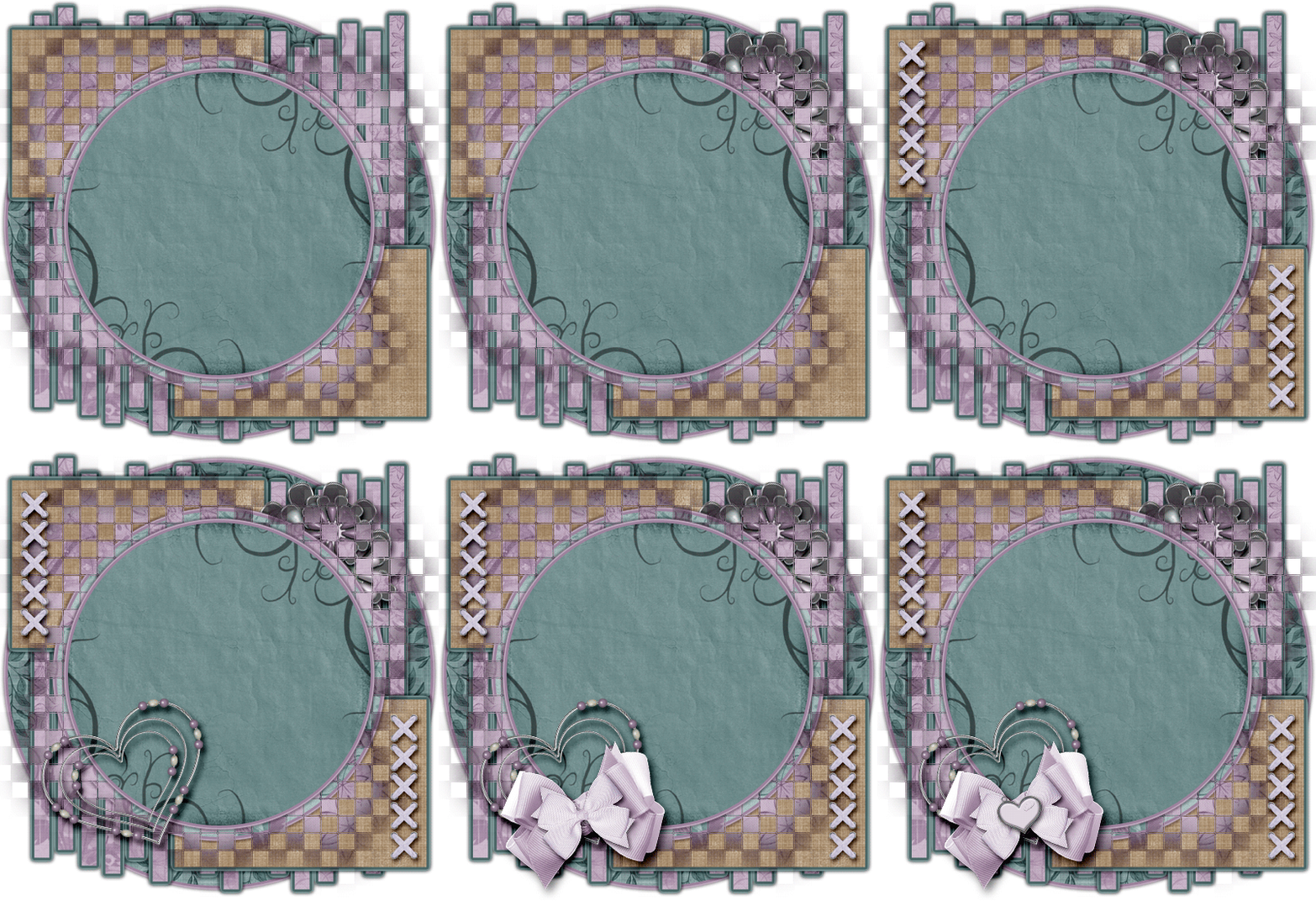
Here is what I have done:
Highlight the Front Circle Inside layer.
Now open your tube of choice.
Edit > Transform > Flip Horizontal.
Place the closeup over the circle and right click.
Choose Create Clipping Mask.
Apply these layer styes:
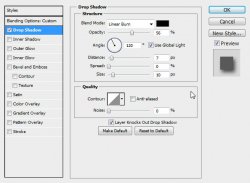
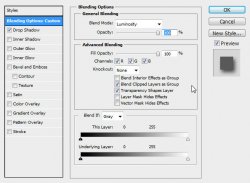
Duplicate the layer.
Filter > Blur > Gaussian Blur: 5px
Right click and Clear Layer Styles.
Right click again and choose Blending Options.
Change the blend mode to Hard Light and Opacity to 50%.
Highlight the topmost layer in the layers pallet and place your fullsize tube onto your tag.
Give it a drop shadow of choice.
ADD THOSE COPYRIGHTS!

Add a name or other wordart to your tag, because blanks are bad.
You may give your name layer any layer styles you wish. I have used the same layer styles as above and a paper clipped to it.
Hide the white layer and you are done! Save your tag as a .png or .jpg
And this is my result:
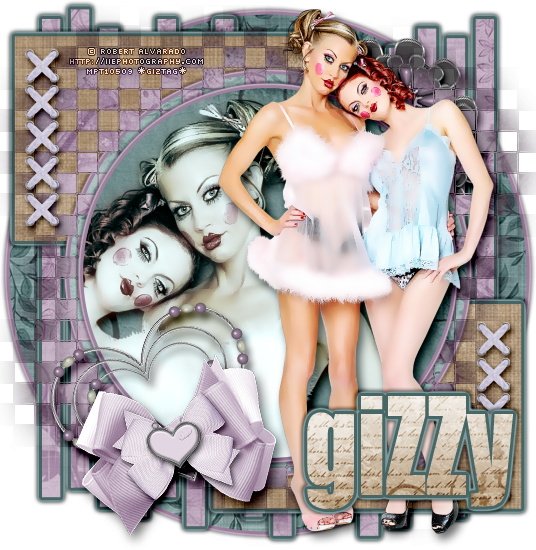
I hope you have enjoyed this tutorial! I would love to see your results.
♥♥♥
Hosted by permission. Please link to this tutorial instead of redistributing it or its supplies.
Back to all tutorials