REBEL DEZIGNS · TUTORIAL ARCHIVE
Noel
An original Photoshop tutorial by René Kunert (giZZY), rebuilt from the preserved archive.
Image coming soon

Materials Needed:
- Mask of choice.
- Scrap kit of choice. I am using a FTU scrap kit addon from Gina's Gems Scraps called Christmas Dream
- Tube by the artist of your choice. I am using Barbara Jensen. Please do not use this image unless you have a license to do so.
- Filter: Mac's Remove White
Open a new Canvas. I am using 550x550 pixels at 72dpi.
Open a mask of your choice (I am using one of my own). If it is a black background mask, follow these steps:
Image > Adjustments > Invert
Filter > Mac's Remove White
Image > Adjustments > Invert
This will get rid of the black around the mask.
If the mask has a white background, then just use Mac's Remove white without inverting.
Add a paper of your choice over the mask.
Right click the paper > Create Clipping Mask
Right click again > Merge Down
Add elements of your choice to the background of your image. I will not go into telling you the sizes and positions on this one.
The only one necessary is the candle.
To resize and place your elements: Edit > Free Transform. Use the corners and rotate cursor to position where you like them and then click the check mark at the top of your screen (or double click on the element).
Add drop shadows to your arrangement by right clicking the layers in the layers pallet and choosing Blending Options.
Here is what I have arranged:
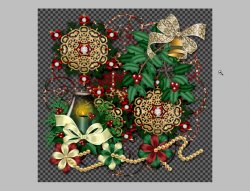
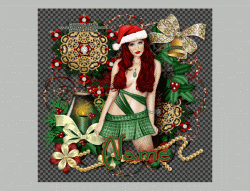
Open your tube and place it on your tag. Position it where desired and give it a drop shadow also. Preferably a larger softer shadow than the other elements.
Add the copyrights!!!
Add a name and apply any layer style you would like. You can search deviantArt for tons of styles that you may be able to use. Or get creative and make your own.
If you only want a static tag without animation, you may stop here. If you would like to add the animation, please proceed.
Prepare your work area for animation.
Animation After you have your tag just the way you want it, Create a new layer below your tube layer.
Take a large soft brush and place one "dot" over the candle flame. Something like so:
We will be making this dot "flicker" to look like a candle light.
Set the Blend mode of this layer to Color Dodge and the opacity to 0%.
Very top of the layers pallet there is a drop down box that says "Normal". Change it to Color Dodge.
You have set up your animation working area, right? If not, you may want to do that by referring to the link above this box.
Duplicate your frame at the bottom of your animation window.
Set the Opacity of the "dot" to 25%
Duplicate the frame again and set the dot to 50% Opacity
Duplicate the frame again and set the dot to 75% Opacity
Duplicate the frame again and set the dot to 25% Opacity
Duplicate the frame again and set the dot to 75% Opacity
Duplicate the frame again and set the dot to 50% Opacity
Duplicate the frame again and set the dot to 25% Opacity
You should now have 8 frames.
We are going to add a second animation to this tag. Pay very close attention to the next steps.
Highlight the first frame in your animation.
Select your mask layer and Duplicate it 3 times (four in total)
On the mask layers, apply the following filters:
Noise > Add Noise > 20%
Stylize > Diffuse: Anisotropic
Repeat this on all 4 layers.
Frame 1: hide all the mask layer EXCEPT the bottom one by clicking the eye icon beside the layer in the layers pallet.
Frame 2: hide the first and unhide the second.
Frame 3: hide the first and unhide the third.
Frame 4: hide the first and unhide the fourth.
Frame 5: keep the first mask visible.
Frame 6: hide the first and unhide the second.
Frame 7: hide the first and unhide the third.
Frame 8: hide the first and unhide the fourth.
Now if you have followed all correctly, you may push the play button at the bottom of your animation window to see what you have so far.
If you are confident enough, you may add other animations as well.
Set your frame delay to 0.08 sec.
Now to save your animation.
And this is my result:
Image coming soon
I hope you have enjoyed this tutorial! I would love to see your results.
Hosted by permission. Please link to this tutorial instead of redistributing it or its supplies.
Back to all tutorials