REBEL DEZIGNS · TUTORIAL ARCHIVE
Nouveau
An original Photoshop tutorial by René Kunert (giZZY), rebuilt from the preserved archive.
Materials Needed:
- Scrap kit by LG Dezigns called Art Nouveau
- Tube by the artist of your choice. I am using Jose Cano. This tube was purchased from MyPSPTubes.com but is now available at PSPTubesEmporium!
Open a new 600x600px document. 72 DPI
Open Element2.png and move it onto your canvas.
Either use your move tool to move it or you can Select > All ... Edit > Copy ... Edit > Paste
Position it about center of your canvas. Select > All ... Layer > Align layer to selection > Horizontal Center.
Double click the name of the layer in the layers pallet and rename it to Backing.
Open BWFan.png and move it onto your canvas.
Edit > Free Transform:

Select > All
Edit > Transform > Flip Horizontal
Select > Deselect
Right click and Merge Down
Rename this layer to Fans.
Open Flower-Doodle.png and move it onto your canvas. Edit > Free Transform:

Duplicate this layer by right clicking it in the layers pallet and choosing Duplicate.
Select > All
Edit > Transform > Flip Horizontal
Select > Deselect
Right click and Merge Down
Rename this layer to Flowers.
Open Red-Black-Border.png and move it onto your canvas.
Edit > Free Transform:

Rename this layer Doodle.
Right click the Backing layer and choose Blending Options. Add a drop shadow of choice.
Do the same for all the layers.
Select your Fans layer and open your tube.
Place where desired and give it a drop shadow.
ADD THOSE COPYRIGHTS! I know if I don't do it now, I will end up forgetting to...
Select your Doodle layer.
Now add a name and give it any layer styles you wish. Play around with the settings to see what looks best. Don't worry, if you are not satisfied with it, just right click the layer and choose Clear Layer Styles and just start over.
Image > Trim.
This will get rid of all the extra space around the tag.
If you only want a static tag without animation, you may stop here. If you would like to add the animation, please proceed.
Open a new 50x50px canvas. Flood fill with 50% Gray. Edit > Fill: choose the gray from the dropdown box.
Filter > Noise: 10 with the Gaussian box checked.
Edit > Define Patter: Just call it noise.
Now you can close this image.
Now bring up the blending options of the Doodle layer (right click)
Now just add your pattern overlay like this:
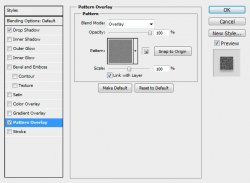
Make sure your animation window is open. Window > Animation
You will see that your first frame is already there.
Now Create a new frame by clicking on the little icon at the bottom of your animations window.
Image coming soon
Now bring up the blending options of the Doodle layer again. Go to blending options (pattern overlay), but DO NOT change any settings. You can move the pattern around directly on your canvas with this window open by clicking and dragging it over on your tag.
Duplicate your frame again and repeat the process.
And now once more.
You should have 4 frames now.
Now we want to set the delay of the frames higher than 0.
Select all your frames. (click first frame, then shift+click your last frame)
Click the arrow beside the number at the bottom of one of the frames. Set this number to 0.1
You may also play with this setting to get the effect you want.
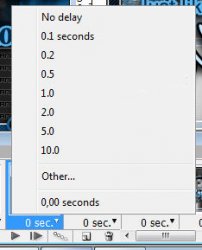
To view your animation, simply click the play button.
Now to save your animation:
Go to File > Save for Web
This will bring up a completely different save window than you are probably used to. Simply set everything like so:
Note that these settings are the ones that I use for the background of the posts of THIS forum.
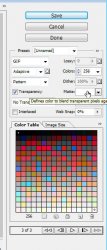
And this is my result:
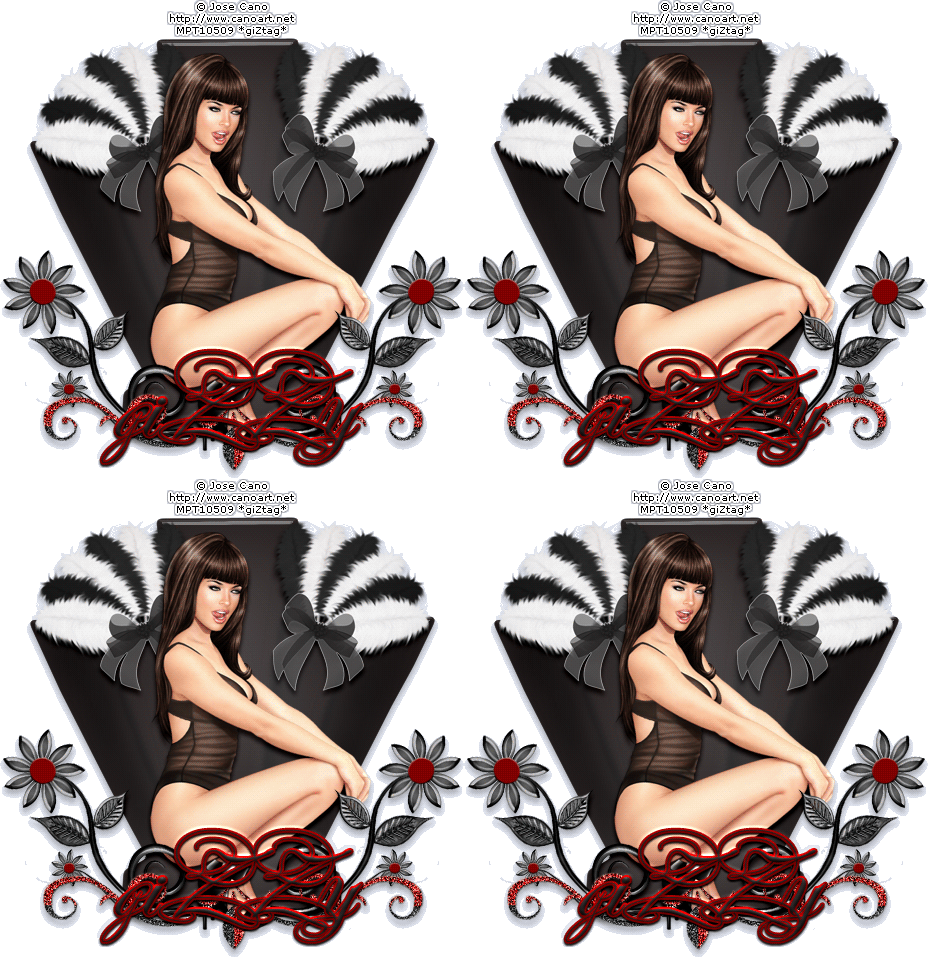
I hope you have enjoyed this tutorial! I would love to see your results.
Hosted by permission. Please link to this tutorial instead of redistributing it or its supplies.
Back to all tutorials