REBEL DEZIGNS · TUTORIAL ARCHIVE
Of the Night
An original Photoshop tutorial by René Kunert (giZZY), rebuilt from the preserved archive.
Materials Needed:
- My template.
- Scrapkit by HungryHill called Whatza Ghoul to do.
- Tube by the artist of your choice. I am using the wonderful work of Michi. Please do not use this image unless you have a license to do so.
Open the template in Photoshop and delete the credits layer.
Highlight the mask layer and open a paper of choice from the kit.
Place the paper on the tag and right click it in the layers pallet.
Choose Create Clipping Mask.
Right click again and Merge Down.
Highlight the "1" layer and open another paper.
Repeat the same steps as above.
Highlight the "3" layer and open another paper.
Repeat the same steps as above.
Now let's add some elements.
I am not going to tell you exactly how to place your elements.
Just put them on the tag and then Edit > Free Transform to rotate, resize and place your elements.
Here is how I have placed mine:

After you have placed your elements on your tag, add a drop shadow to each element.
Right click the layer in the layers pallet and open the Blending Options.
Remember to vary your shadows to give your tag more depth.
If you need to adjust the color of an element, there is a tool that allows you to do so without disturbing the other colors on the element.
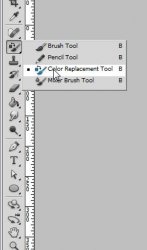
Then look up at the top of your window and set the options like this:

Once you have it set, click on your foreground color and choose the color you wish the element to be.
Then, simply click on the color in your element you wish to change. No need to move the brush around.
If it is changing too much at one time, simply turn down the tolerance at the top of your window.
I have changed the colors of the kit to orange and blue to match the tube I am using.
Now add your tube and place it where desired and give it a drop shadow.
Add those copyrights!! Nothing like forgetting those...
Now add a name to your tag (or snag phrase).
I have given mine a layer style through the blending options.
Drop Shadow, Gradient Overlay, and Stroke.
If you only want a static tag without animation, you may stop here. If you would like to add the animation, please proceed.
Prepare your work area for animation.
Animation Highlight your Glitter layer and duplicate it 3 times (total of 4 layers)
Highlight the original layer and then go to
Filter > Noise > Add Noise: 15 (gaussian; monochrome)
Repeat this will all the glitter layers.
Highlight the original glitter layer again.
Now using the eye icon beside the layer thumbnails in the layers pallet, hide the 3 glitter copies.
In your Animation window, you will see that your first frame is already there.
Duplicate it by clicking on the little folded paper icon at the bottom of the animation window.
Now you have 2 frames.
Go back to your layers pallet and hide your original glitter layer.
Then Unhide your 1st copy.
Duplicate your frame in the animation window again.
Now you have 3 frames.
Back to your layers pallet and hide your 1st copy of the glitter layer.
Unhide the 2nd copy.
Duplicate your frame in the animation window again.
Now you have 4 frames.
Back to your layers pallet and hide your 2nd copy of the glitter layr.
Unhid the 3rd copy.
DO NOT DUPLICATE THE FRAME AGAIN
Now you still have 4 frames.
You can use this technique to glitter other things in your tag.
Just be sure to keep only 4 frames.
If you are going to try to glitter another element, do not duplicate the frames again.
Instead, just highlight the next frame before switching the visible layers.
Set your frame delay to 0.1 sec.
Now to save your animation.
And this is my result:

I hope you have enjoyed this tutorial! I would love to see your results.
♥♥♥
Hosted by permission. Please link to this tutorial instead of redistributing it or its supplies.
Back to all tutorials